Alert Rules
alertsManagement · Plan: 👑 Pro Device Plan or higherIntroduction
Alert Rules help you define under which conditions you will be alerted on a variety of events happening with your devices. The most obvious Alert Rule is "Alert me if any of my devices is offline for more than 15 minutes", but Alert Rules are designed for even more complex situations and networks.
Alert Rules Overview
The Alert Rules page displays all configured rules in a unified list. Each rule shows its name, type, creation date, last update, and current status.
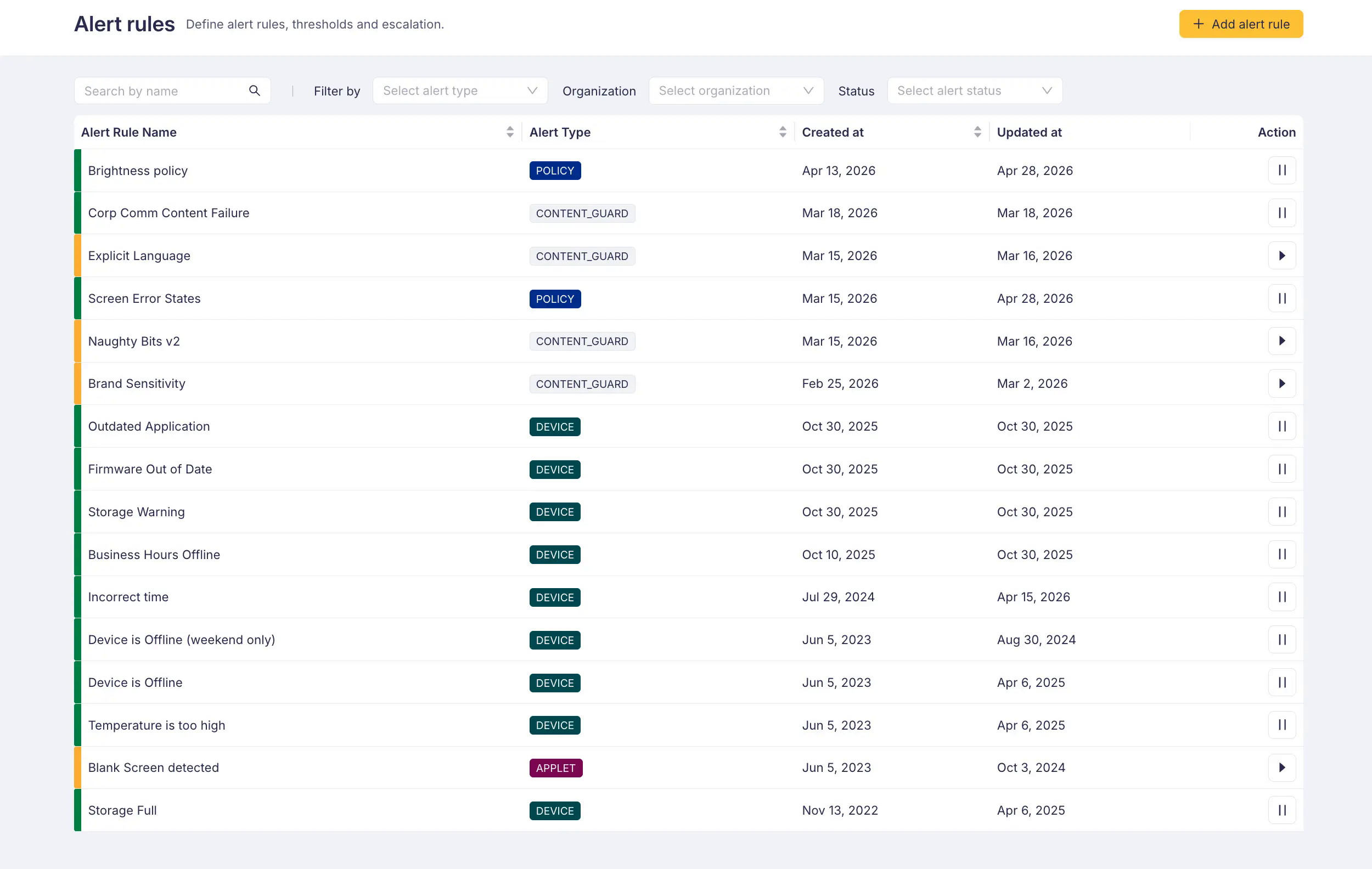
You can filter the list by:
- Name — search by alert rule name
- Alert type — Device, Policy, Content Guard, or Applet
- Organization — filter by specific organization
- Status — filter by active or snoozed rules
Alert Rule Status
Each Alert Rule can be in one of two states:
- Active — the rule is currently being evaluated and can trigger alerts
- Snoozed — the rule is temporarily disabled and will not trigger any alerts
You can snooze or resume an Alert Rule directly from the list using the action button, or from the detail page header.
How to Add or Edit an Alert Rule
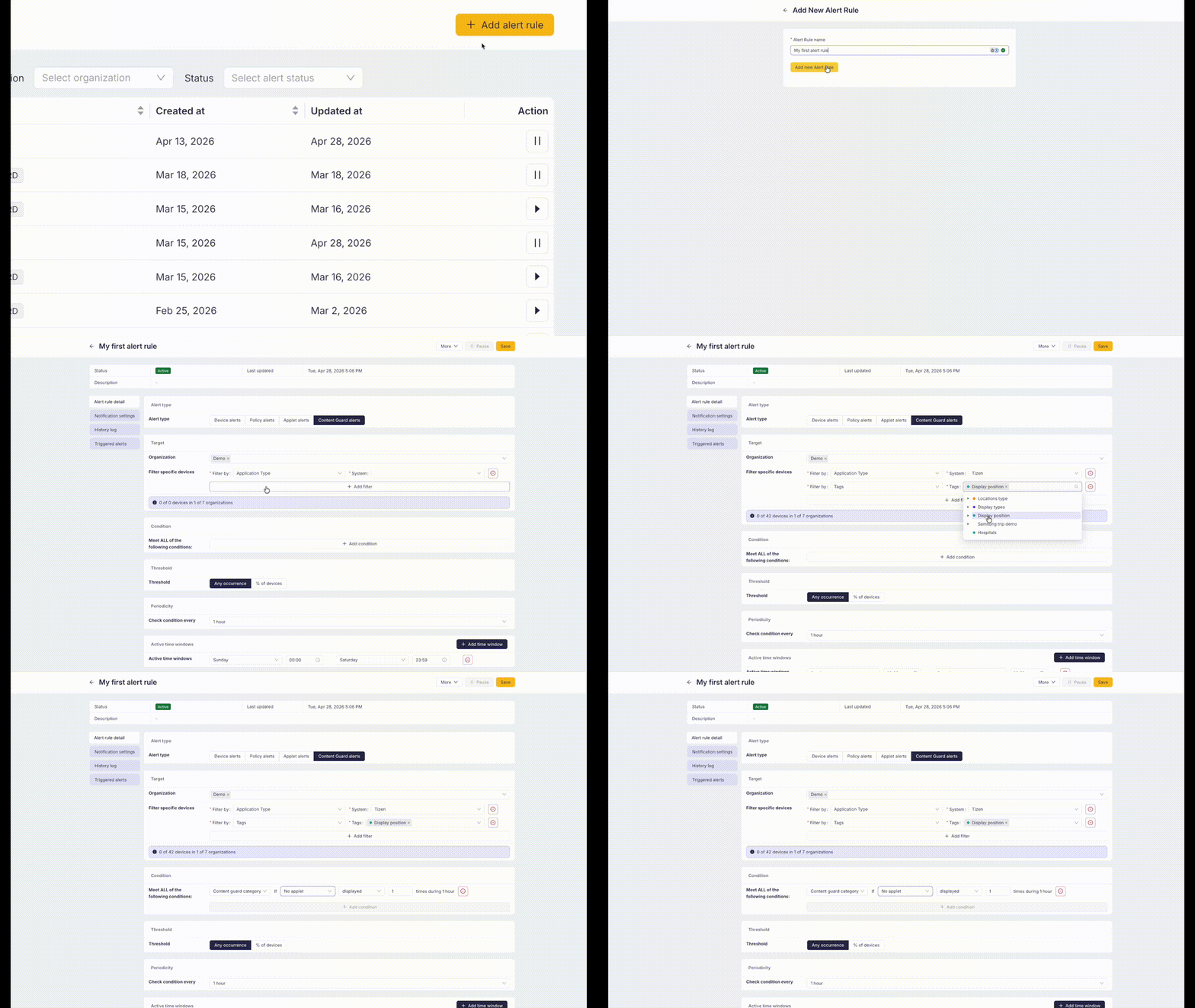
Press "+ Add alert rule" in the top right corner to create a new rule. To edit an existing rule, click its name in the list to open the detail page.
Types of Alert Rules
There are four types of Alert Rules defining events that can trigger an alert:
Device Alerts
Triggered based on device status, e.g. Online/Offline, Incorrect Time, Storage, Temperature, and more.
Policy Alerts
Triggered based on violation of defined Device Policy.
Applet Alerts
Triggered based on applet-level events, such as custom command occurrences (e.g., detecting repeated errors or specific applet behaviors within a time window).
Content Guard Alerts
Triggered based on content analysis by the AI Content Guard feature. Supported conditions include image similarity detection and prompt-based content matching.
Setting up Alert Rules
Conditions
The user defines under what circumstances the alert is supposed to be triggered. Available conditions depend on the alert type selected.
For Device alerts, conditions include:
- Device is offline
- Incorrect time
- Invalid SSL certificate
- PIN code set up
- Extended management inability
- Battery status
- Storage status
- Volume level
- Brightness level
- Application version
- Firmware version
- Debug enabled
- Temperature
- Installed package
- Remote control lock
- Network interfaces
- Timezone
- Display settings (backlight, contrast, sharpness, max temperature)
- Input source
- Timers
- Resolution
- Orientation
- Power actions schedule
- Model / Serial number / Name
- Firmware type
- Tags
- Connections
- Screenshot
For Policy alerts, conditions check compliance with configured device policies including: volume, brightness, timers, resolution, orientation, remote control, application version, firmware version, debug, datetime, power actions schedule, and temperature.
For Content Guard alerts, conditions include image similarity detection and prompt-based content matching.
For Applet alerts, conditions monitor custom applet command occurrences.
All of the conditions can be combined and set up according to the user's needs.
The Threshold for Affected Devices
Alert Rule can be triggered based on a defined threshold, avoiding false-positive/false-negative alerts. The threshold is defined as a percentage of devices in the selected Organization that must match the Rule condition:
- 0% — Alert Rule is triggered immediately as a single device matches the condition (any occurrence)
- Higher percentage — Alert Rule is triggered only when the specified percentage of devices matches the condition
Periodicity
Defines how often the Alert Rule condition is checked. You can configure:
- Check condition every — interval at which the rule is evaluated (e.g. every 10 minutes)
- Active time windows — define when the rule should be active. Each window runs continuously from a start day and time to an end day and time (e.g. Monday 07:00 to Monday 20:00), so add one window per day for daily hours
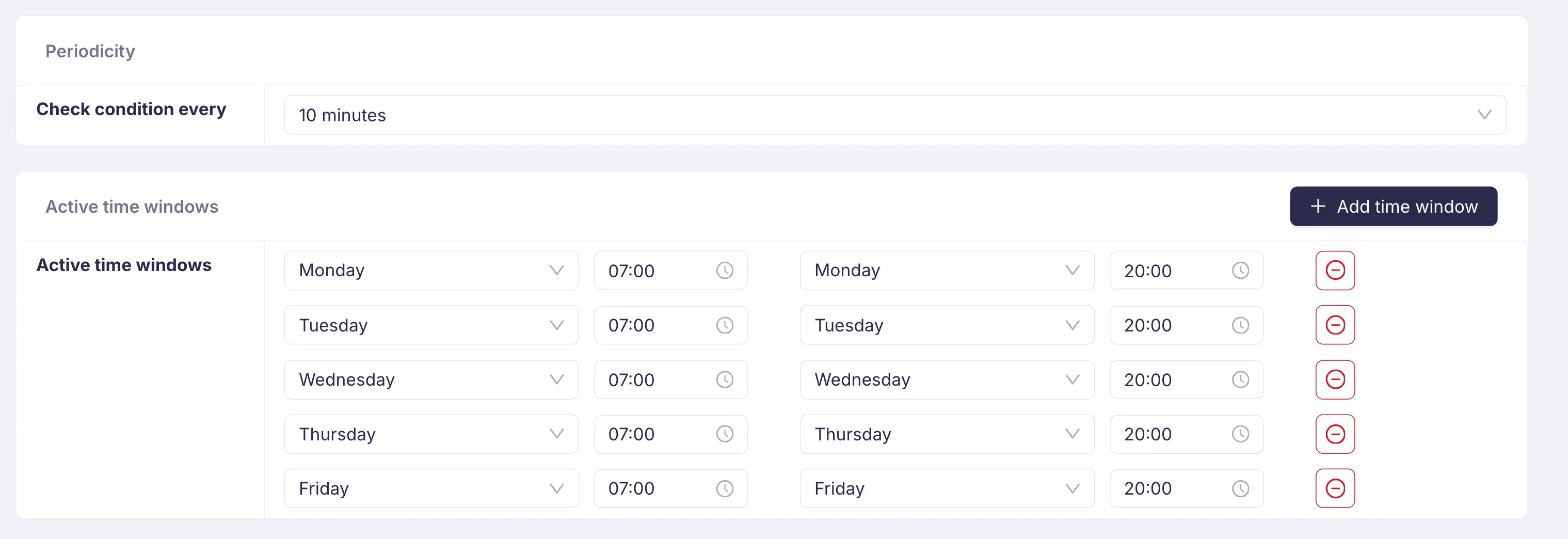
Active time windows are evaluated in UTC, not in your timezone or the timezone of the devices. See Timezones Across the Platform for converting local hours and handling daylight saving time.
Target
Alert Rule can be set Company-wide or only for a selected Organization. Moreover, you can limit the Rule to only selected platforms (e.g.: Tizen, webOS, Android, etc.)
Alert Rule Detail
When you open an Alert Rule, the detail page contains four tabs:
Alert Rule Detail Tab
Shows the rule configuration — conditions, threshold, periodicity, and target settings.
Notification Settings Tab
Configure how and when you receive notifications when the Alert Rule is triggered or resolved.
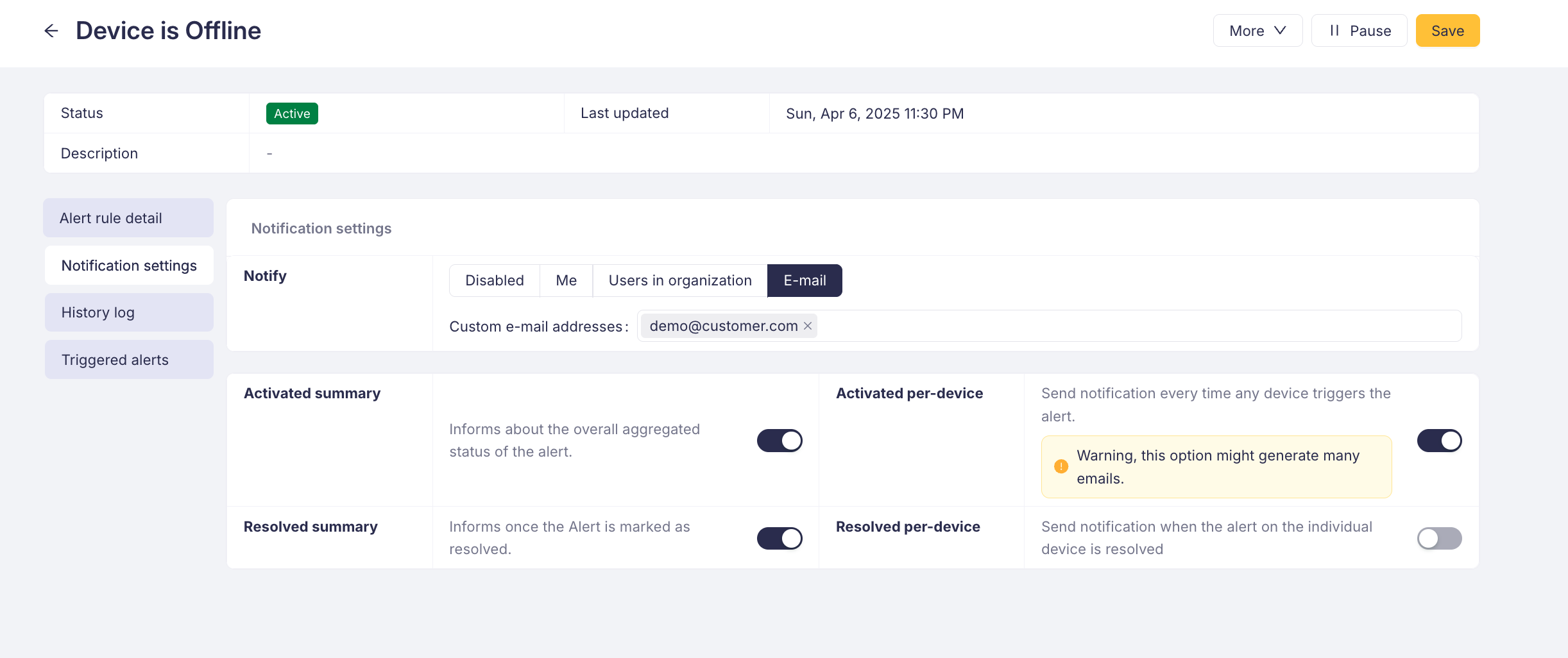
Notify — choose who receives notifications:
- Disabled — no notifications will be sent
- Me — notification will be delivered to your account
- Users in organization — all users in the Organization from where the device triggered the Rule will get a notification
- E-mail — an email notification is sent to custom e-mail addresses
Notification types:
| Summary | Per-device | |
|---|---|---|
| Activated | Informs about the overall aggregated status of the alert | Send notification every time any device triggers the alert |
| Resolved | Informs once the alert is marked as resolved | Send notification when the alert on the individual device is resolved |
Enabling "Activated per-device" may generate many emails in large deployments.
History Log Tab
Displays a chronological log of all changes made to the Alert Rule configuration.
Triggered Alerts Tab
Shows all alerts that have been triggered by this rule, including creation date, resolution date, affected devices count, and current status.
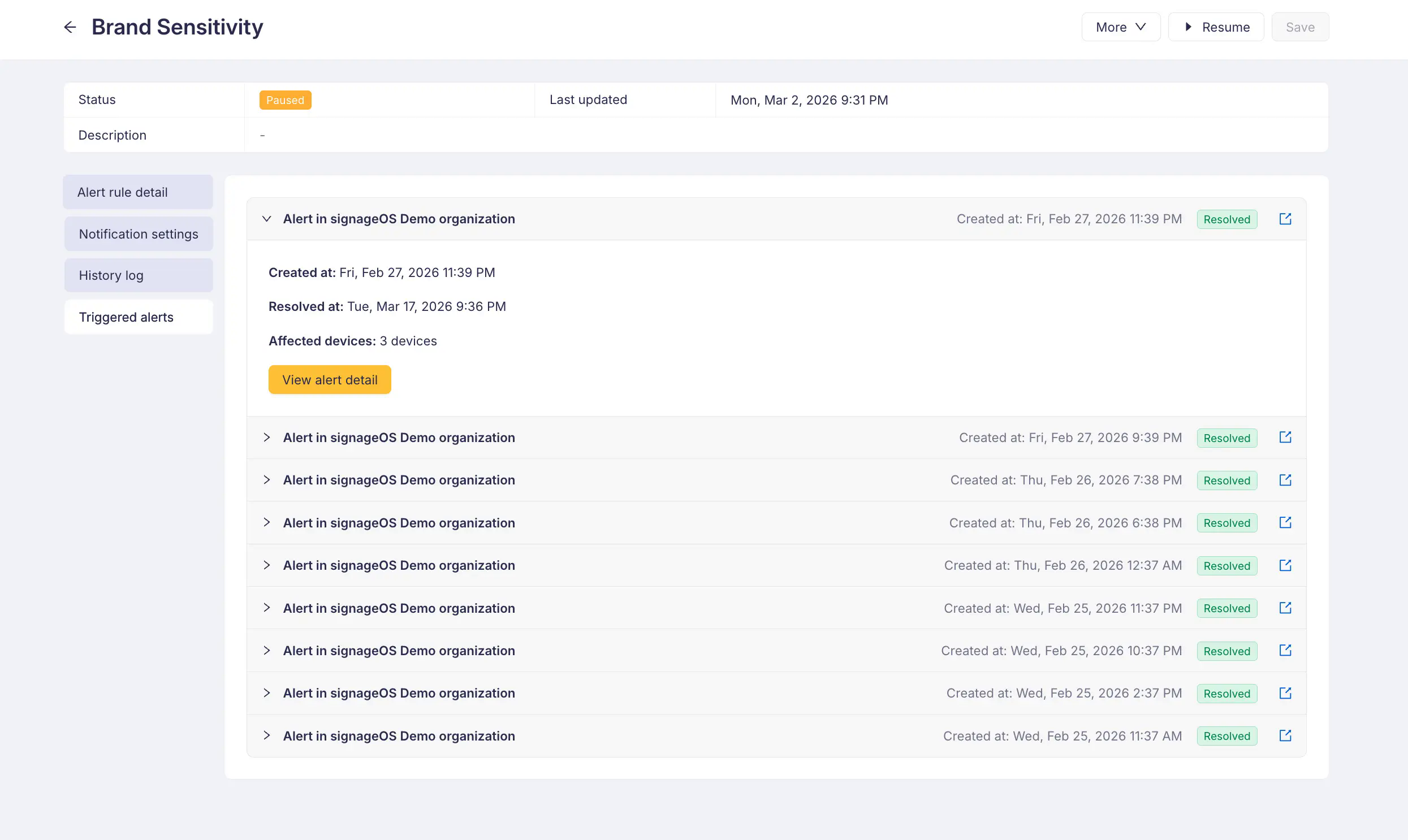
Each triggered alert can be expanded to see details such as:
- Created at — when the alert was triggered
- Resolved at — when the alert was resolved (if applicable)
- Affected devices — number of devices that matched the rule condition
- View alert detail — link to the full alert detail page
Not sure where to start? Check the "How does it work" guide available directly on the Alert Rules page in Cloud Control for a quick overview of the setup process.