Package Installation
packagesManagement · Plan: 👑 Pro Device Plan or higherInstall on one device
-
Open the device detail page from Devices list
-
Go to Packages Tab
-
Click Install package. The Install package versions panel opens
-
Find the version you want and click Install next to it, or select several versions and click Install packages
-
Package is installed
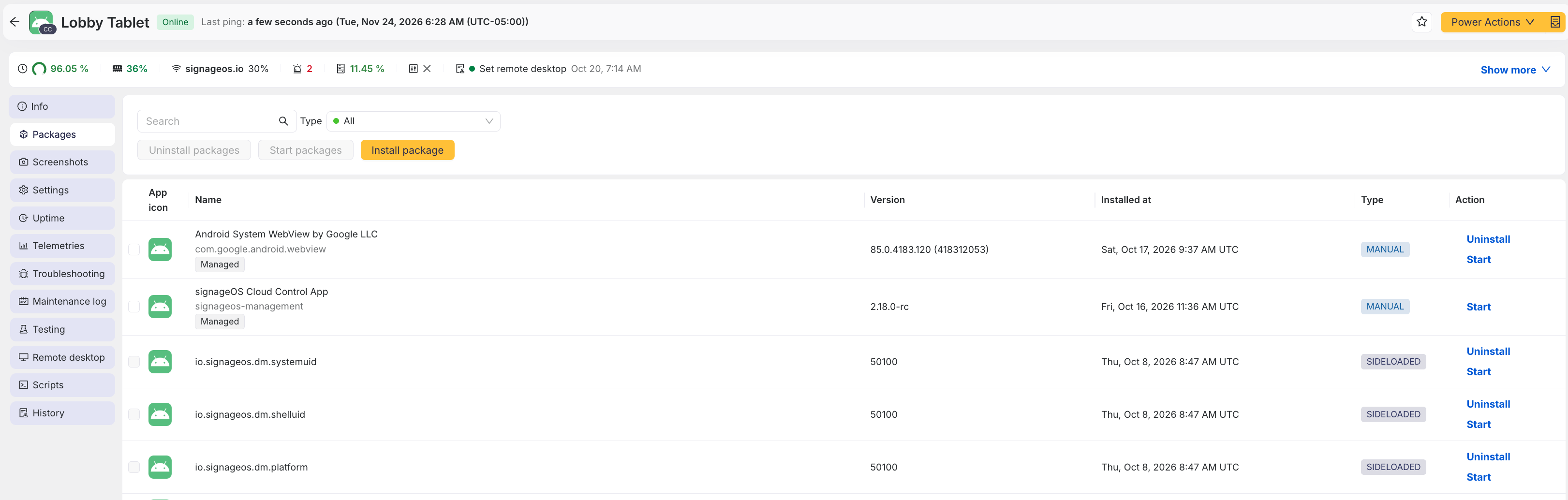
The Packages tab lists the apps installed on the device. Search them by name or filter them by Type: all of them, only those installed manually, those installed by a policy, or system packages. Select one or more apps and click Start packages to launch them, or Uninstall packages to remove them; Box reports the result for each app. System packages cannot be uninstalled.
Install package versions panel
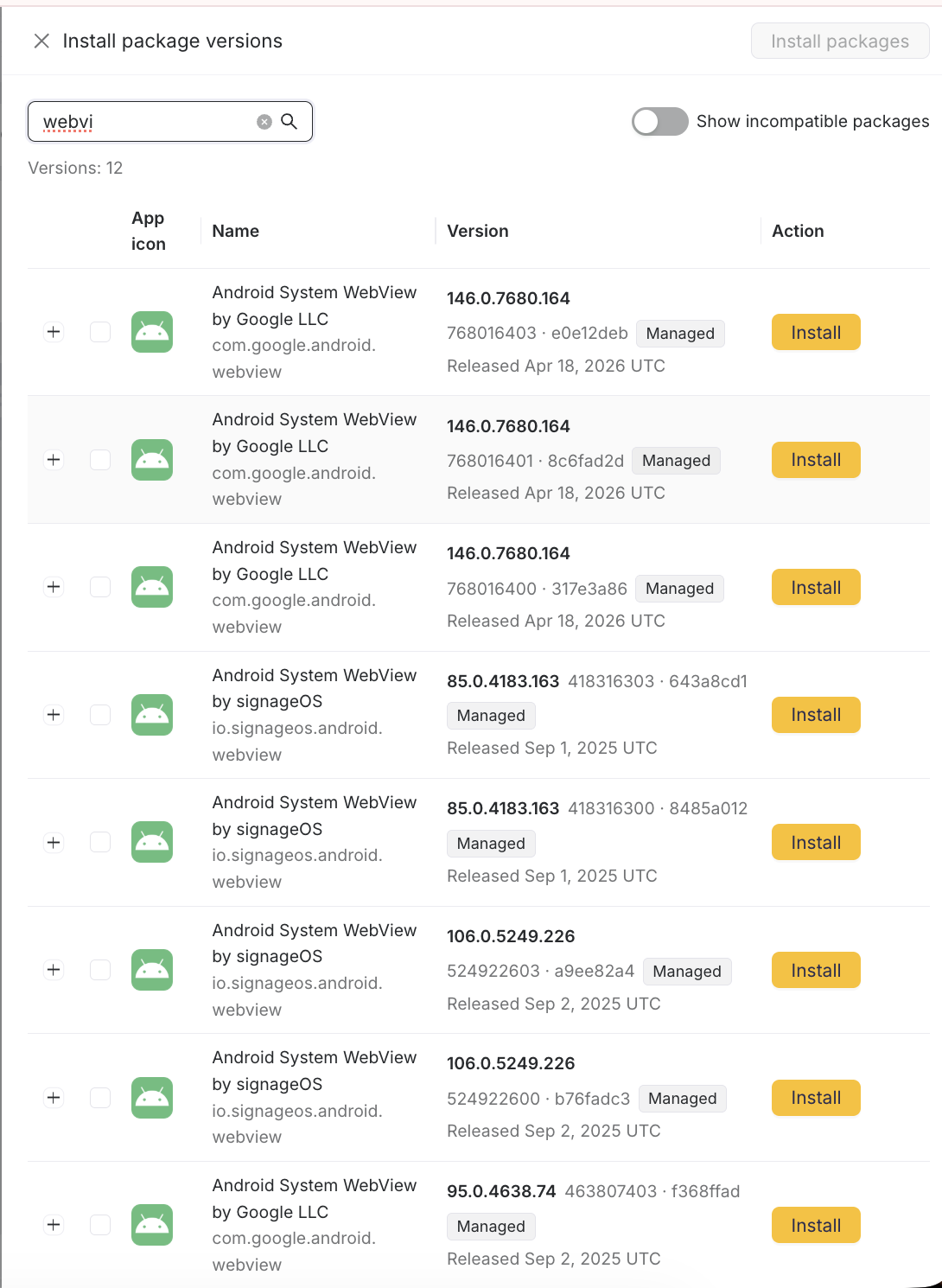
The panel lists every version you can install, one per row, with its version number, version code and build hash, and the date it was released. Search finds versions by the package name. Expand a row with + to see the package name, SDK version and supported architectures of the version.
Versions of managed packages are marked Managed.
By default, the panel shows only versions the device can run, based on its Android version and architecture. Turn on Show incompatible packages to list the others too; they are marked Incompatible and cannot be installed.
Install to multiple devices via Device Policy
- Navigate to Box
- Select Device policies under Organise tab
- Create new Device policy
- Select Packages tab
- Select packages you want to install
- Save your policy
- Navigate to Devices tab
- Select a list of devices
- Assign your Package Device policy
Versions of managed packages are marked Managed in the Packages tab of the policy as well.
If you are not seeing the list of available Packages, please check your selected devices are from the same Organization.
Managed packages
Managed packages are Android apps that signageOS maintains and makes available to every organization with Packages, for example Android System WebView by Google LLC and by signageOS. You don't upload them: signageOS publishes their versions and changelogs, and they are not listed in the Packages section next to your own Packages.
You install them the same way as your own Packages, on one device or through a device policy, where each of their versions is marked Managed.