Managing Custom Scripts in Box
You can create and manage Custom Script versions directly from the Box web interface using its built-in full-screen code editor — this article refers to it as Code Mode, the same name Box uses for the equivalent Applet editor. This eliminates the need to install the signageOS CLI for common script workflows like creating scripts, writing code, and adding new versions.
Start with the Introduction to learn about script structure, platforms, and configuration. This page focuses on the browser-based management experience in Box.
Creating a Script
- Navigate to Scripts in the Box sidebar
- Click Add script and fill in the organization, name, title, description, and danger level (Low, Medium, High, or Critical)
- Click Create Script
Box navigates to the new script's detail page and opens Code Mode automatically, so you can write the first version right away.
For an existing script, open its detail page and click Add version — Code Mode opens as a full-screen editor.
Writing Code
Code Mode provides a Monaco Editor (the same editor engine used by VS Code) with syntax highlighting for all supported script runtimes.
Platform Selection
Check one or more target platforms in the editor header. Each selected platform gets its own editor tab, pre-filled with a boilerplate template for its runtime. Which platforms are offered depends on the device types enabled for your account — when no restriction is configured, all supported platforms are available.
| Platform | Available Runtimes |
|---|---|
| Samsung (Tizen), LG (webOS), BrightSign, Emulator / ChromeOS | JavaScript (Browser) |
| Android | JavaScript (Browser), Shell (sh) |
| Linux | Bash, Shell (sh) |
| Windows | PowerShell |
When a platform offers more than one runtime, a runtime selector appears above its editor. Once a platform's runtime has been used by a previous version, it is locked — later versions keep the same runtime for that platform.
Each editor shows a live character counter with the maximum script length.
Pre-filling from Previous Versions
If the Custom Script already has existing versions, Code Mode pre-fills the editors with the code and configuration from the latest version — each of its platforms is pre-selected with its code loaded. This lets you iterate quickly: modify the existing code and save it as a new version without starting from scratch.
Version Number
Pick the new version from the increment selector — Patch, Minor, or Major — computed from the latest existing version (following semver). The first version of a script is always 1.0.0.
Configuration Definition
The collapsible Configuration section above the editor lets you define configuration parameters that users fill in when executing the script. This is the same configDefinition structure used in the CLI's .sosconfig.json.
Click Add parameter and fill in for each parameter:
| Field | Description |
|---|---|
| Name | Unique identifier used to access the value in your script (e.g., sos.config.brightness) |
| Value type | One of: Text, Number, URL, Dropdown (enum), Secret, Encrypted |
| Description | Help text shown to the user when executing the script |
| Required | Whether the parameter must be filled before execution |
For the Dropdown (enum) type, enter the list of allowed values. For the Number type, you can set optional Min / Max boundaries.
If you don't need configuration parameters, leave the configuration section empty. You can always add them in a later version, or by editing the draft.
Creating the Version
Click Create version (or press Ctrl+S / Cmd+S). Code Mode performs these steps automatically:
- Creates the version in the signageOS platform
- For each selected platform: packages your code into a platform archive (ZIP), uploads the archive to cloud storage, and registers the platform
A progress bar shows the current step. If a step fails, click Retry — nothing is duplicated: the version is not created twice, and platforms that already reached the platform are updated in place. If you close Code Mode after a failure, the version already exists with incomplete code; finish it later with Edit code.
Once complete, the detail page switches to the newly created version.
Viewing Versions
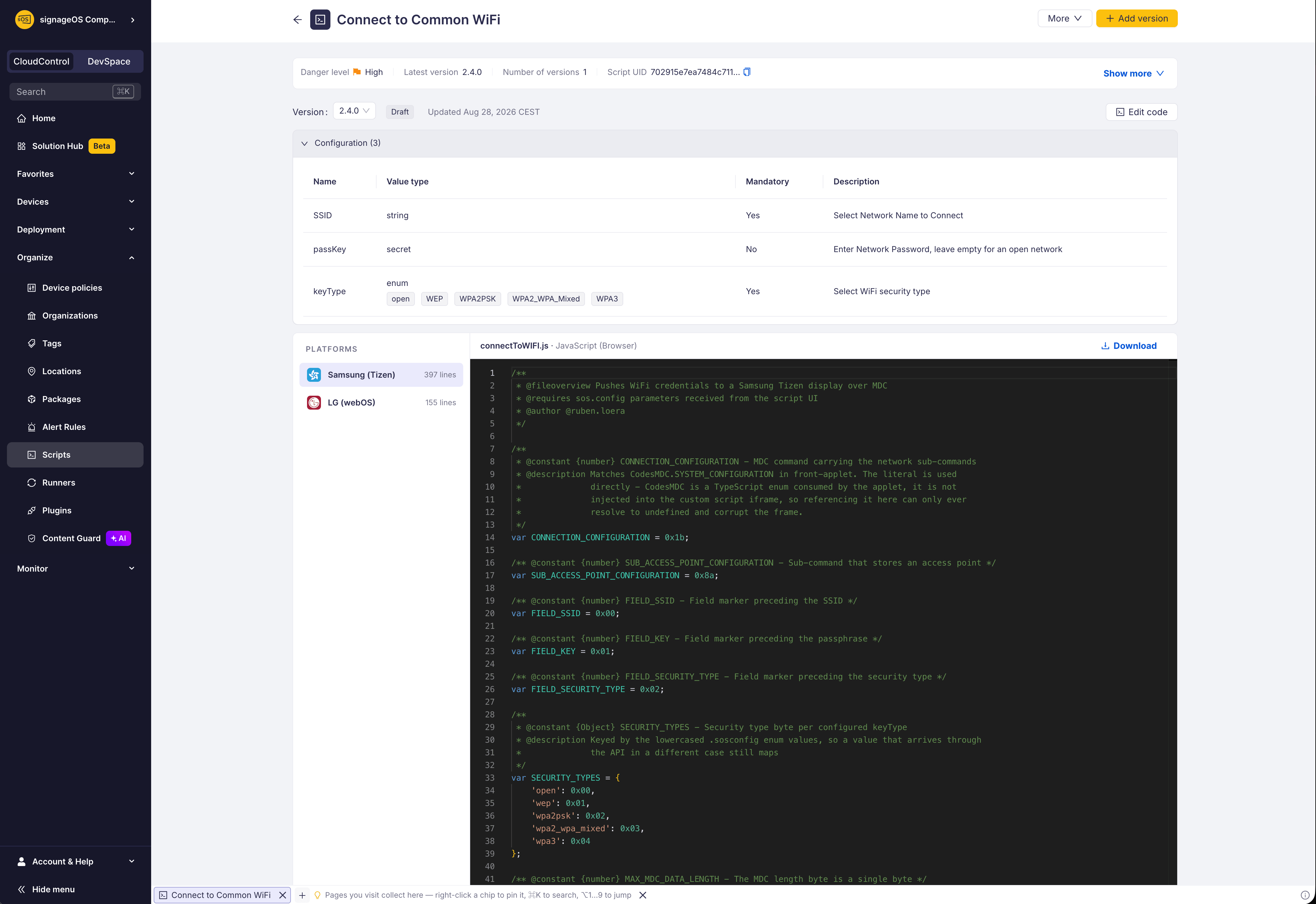
The script detail page shows the selected version's code directly on the page:
- Version selector — switch between versions, sorted by semver (latest first)
- Status tag —
Draft,Published, orDeprecated, next to the last-updated date - Configuration — a collapsible read-only table of the version's parameters;
Dropdown (enum)values are shown as tags - Code — a platform sidebar (with line counts per platform) next to a read-only editor, with a Download button for each platform's archive
Editing Draft Versions
Click Edit code on the version row to reopen a version in Code Mode and change it in place — code, configuration, and platforms are saved with Save changes (or Ctrl+S / Cmd+S).
Only Draft versions can be edited. Published and deprecated versions are frozen and read-only. You can add new platforms to a draft, but platforms the version already has cannot be removed — only updated.
A version created in Box stays a Draft — Box has no publish action, so the code of a version you created here remains editable.
Script Detail Page Actions
The Custom Script detail page header provides:
| Action | Description |
|---|---|
| Add version | Opens Code Mode to create a new version |
| More → Edit | Edit the script's name, title, description, danger level, and tags |
| More → Delete | Delete the entire Custom Script (requires confirmation) |
Edit code sits next to the version selector, not in the page header. It is available only for the selected version, and it is disabled for published and deprecated versions.