eventStreams · Plan: 👑 Ultra Device PlanSend events to Azure Event Hubs
Use Azure Event Hubs to receive device system logs as well as domain events, telemetry, and connection changes. Events arrive as JSON messages over AMQP. The ESD overview explains which events are available and their delivery guarantees.
1. Prepare Azure
Create or select an Event Hubs namespace and an Event Hub within it. Follow Microsoft's portal quickstart if you need to create them. Configure a shared access policy with Send permission for your target hub; see shared access authorization. Keep the policy's keys available for the next step.
The namespace must be reachable by signageOS. If you restrict network access, arrange connectivity for the exporter before enabling delivery; a consumer running inside your Azure network does not by itself prove that signageOS can reach the hub.
Collect these values. Box and the REST API accept separate connection fields, not a full connection string:
| Value | REST field inside config | What to enter |
|---|---|---|
| Namespace | fullyQualifiedNamespace | Hostname such as my-namespace.servicebus.windows.net, without sb://, https://, or a path. |
| Event Hub name | eventHubName | The hub name within that namespace, such as device-events. |
| Shared access policy name | sharedAccessKeyName | The name of the policy with Send permission, such as SendPolicy. |
| Primary key | sharedAccessKeyPrimary | That policy's primary SAS key, not its primary connection string. |
| Secondary key (optional) | sharedAccessKeySecondary | That same policy's secondary SAS key. |
Keys are write-only in signageOS. Store them securely; Box and API reads do not return them.
2. Configure the exporter
Choose either Box or REST. Both configure the same exporter resource.
In Box
-
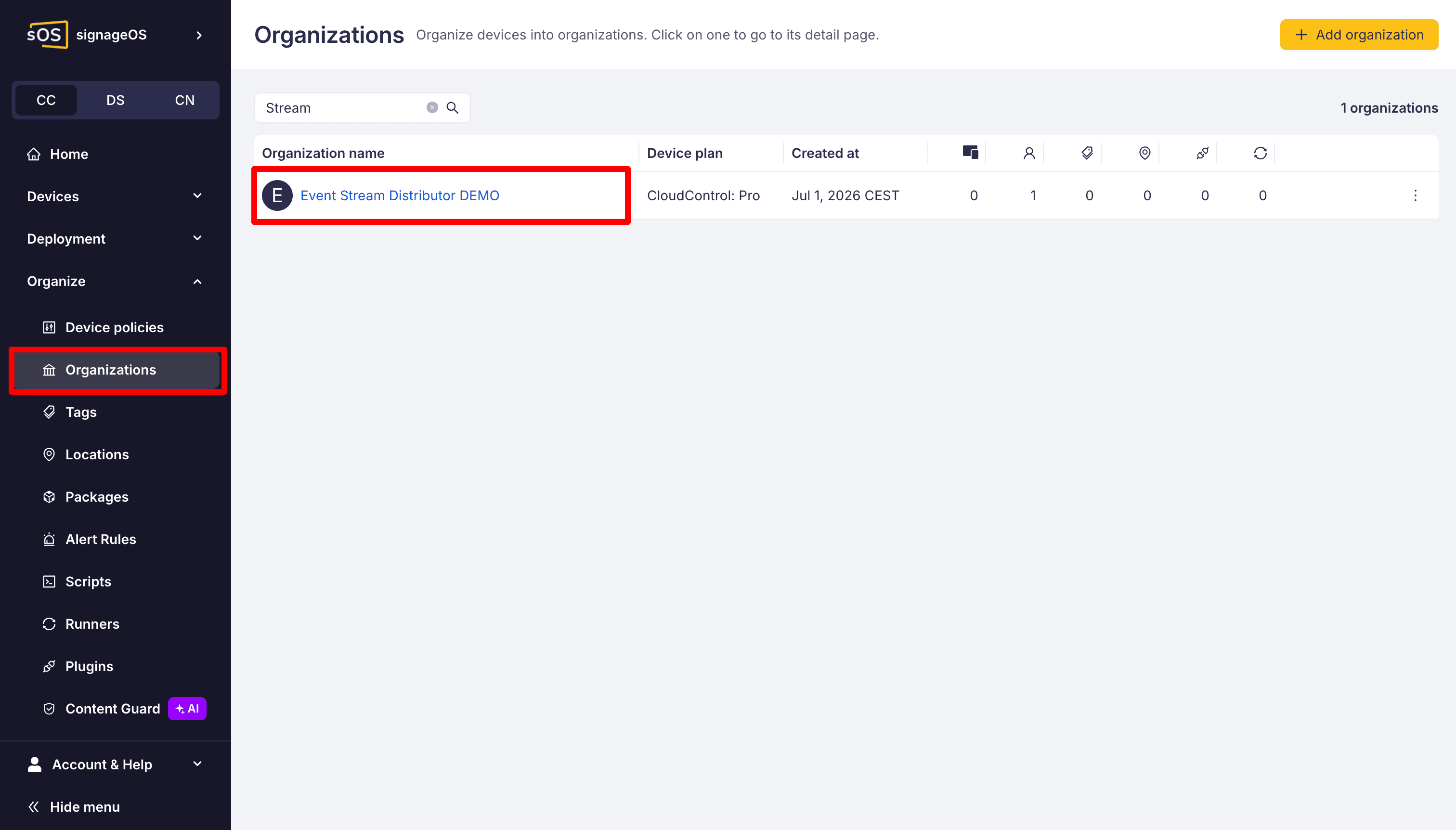
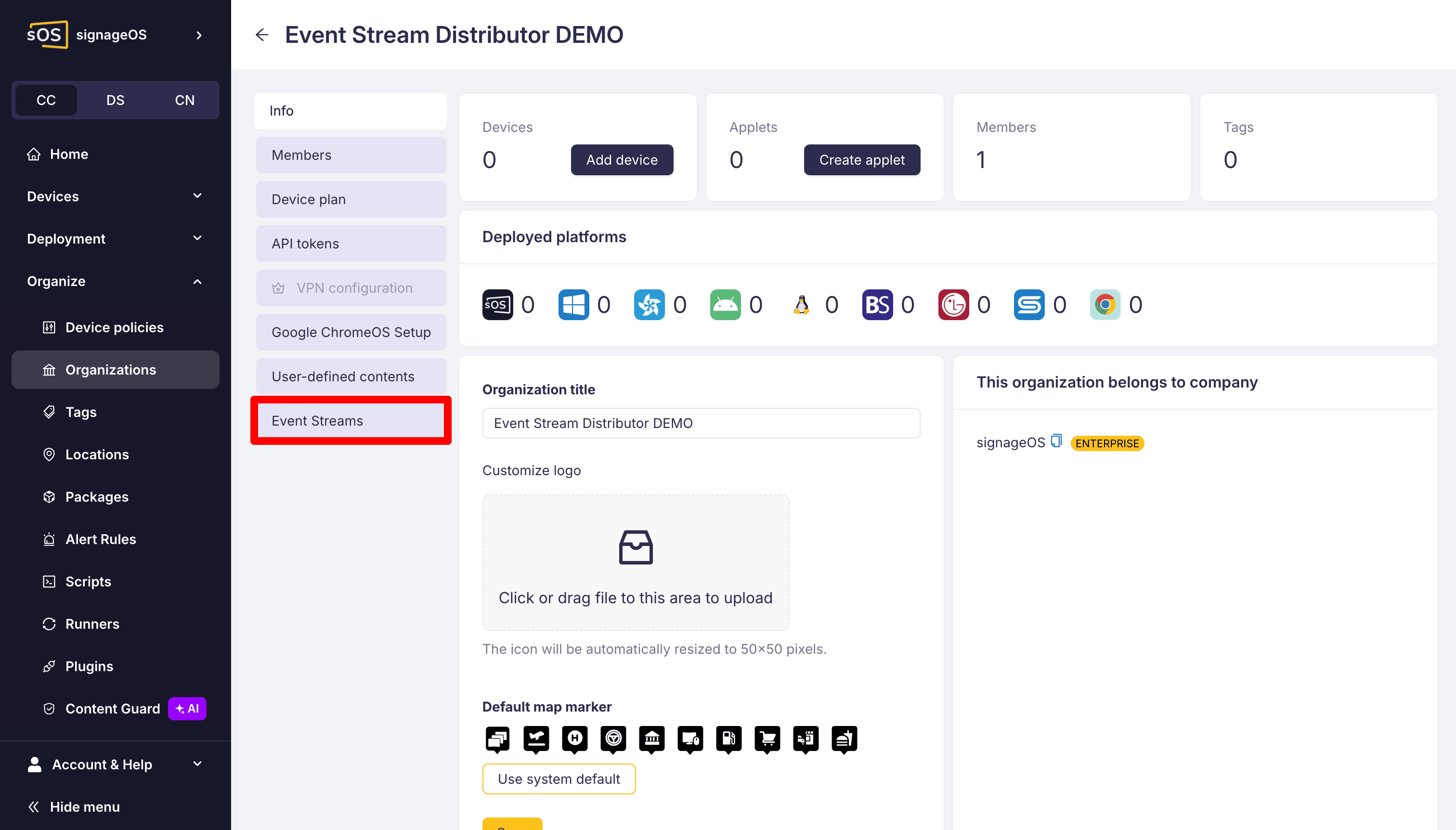
Select your organization, open its detail, and go to Event Streams.
-
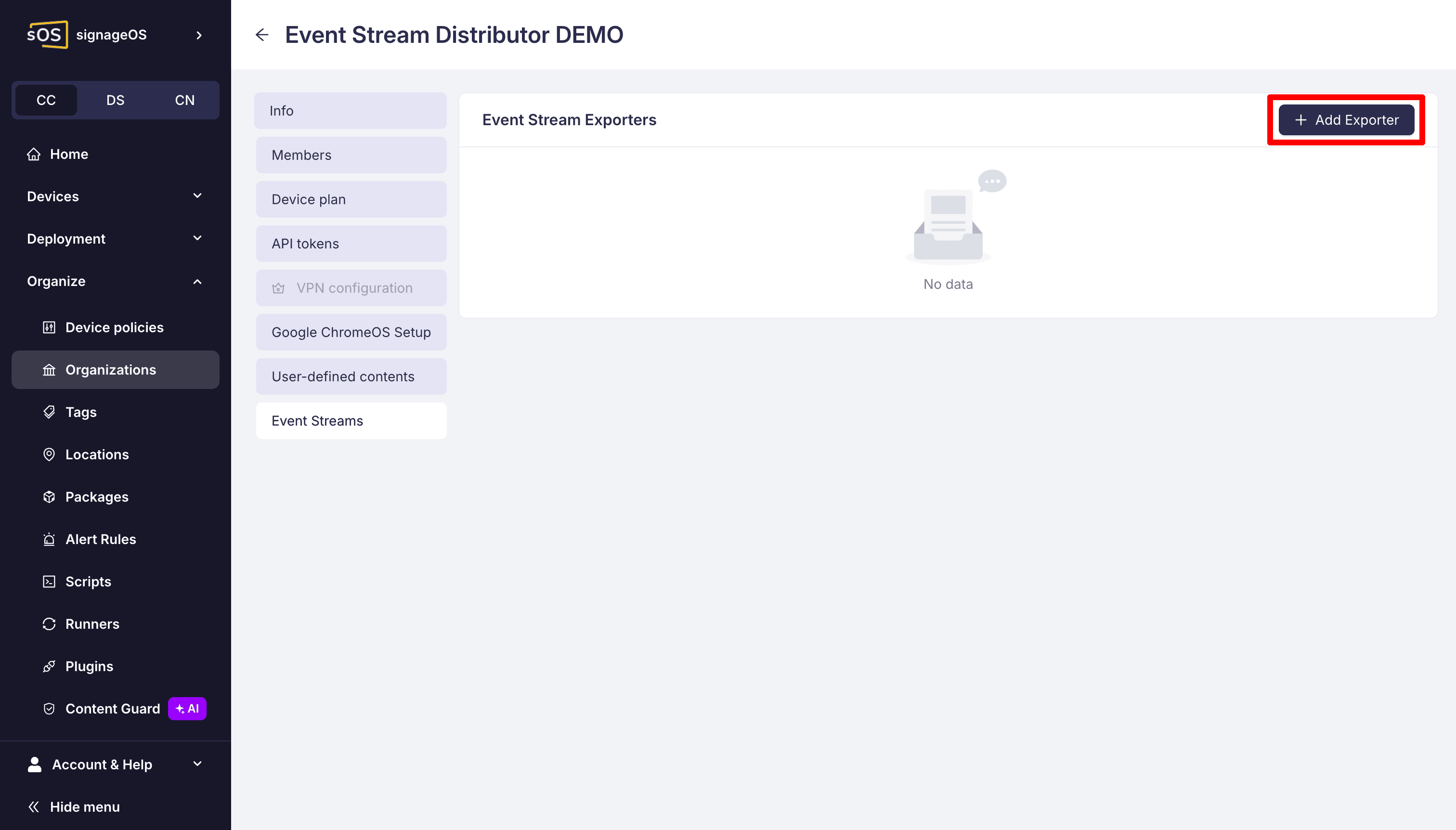
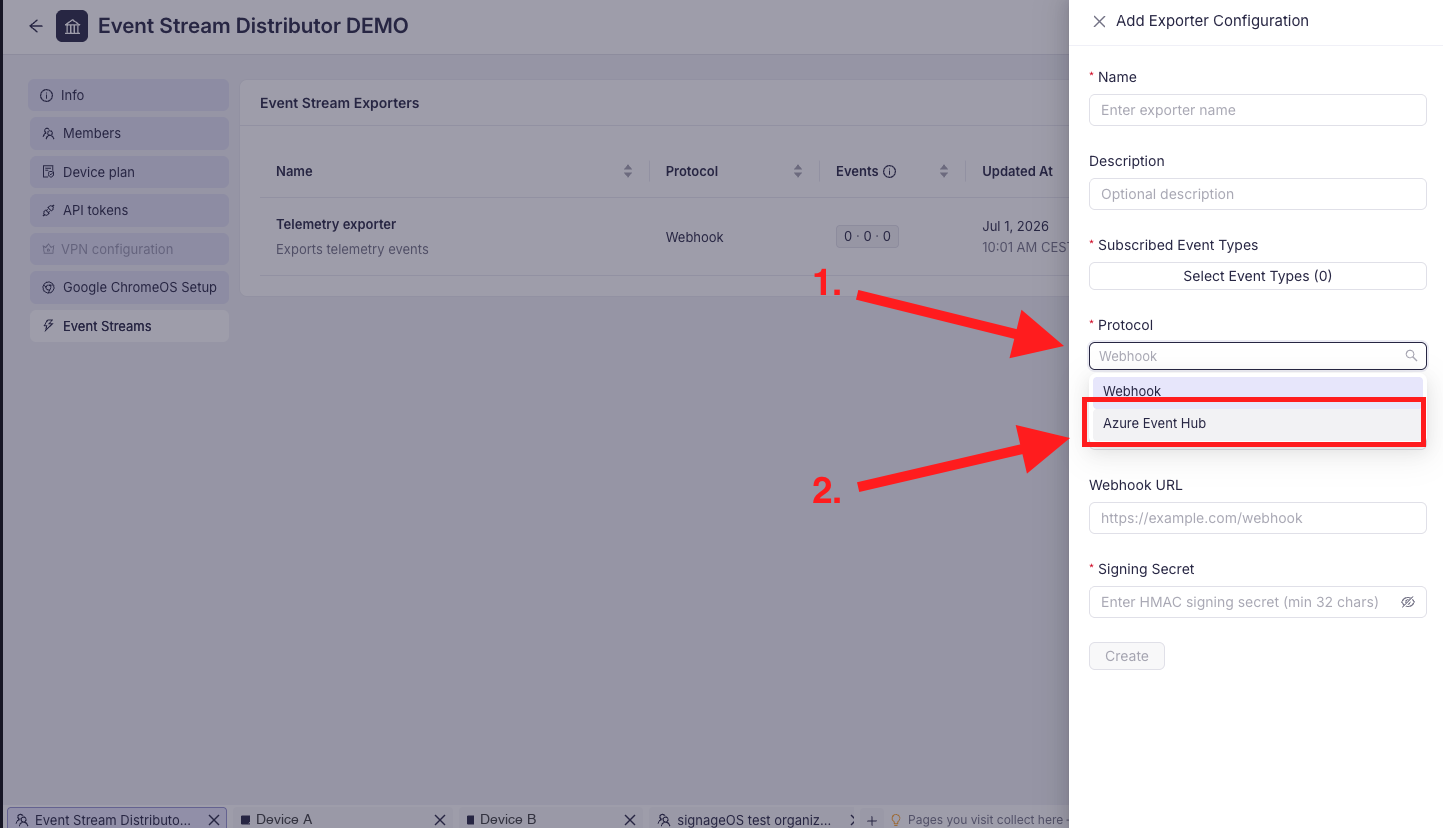
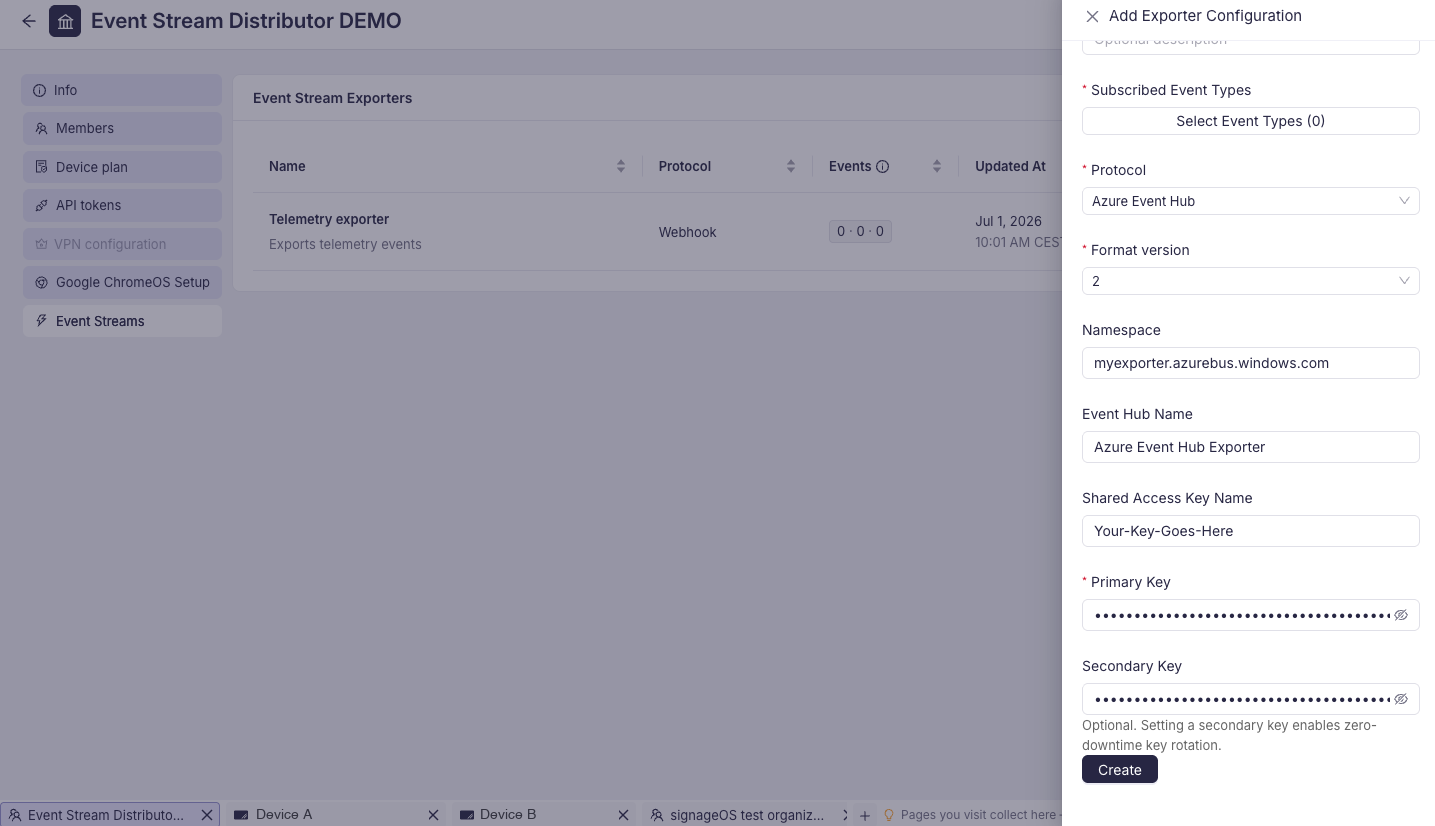
Add an exporter, enter a name and optional description, and select Azure Event Hub as the protocol.
-
Fill in the namespace, Event Hub name, Shared Access Key Name, primary key, and optional secondary key from the table above.
-
Choose the Format version your consumer expects. New exporters pre-select the newest version; see format versions.
-
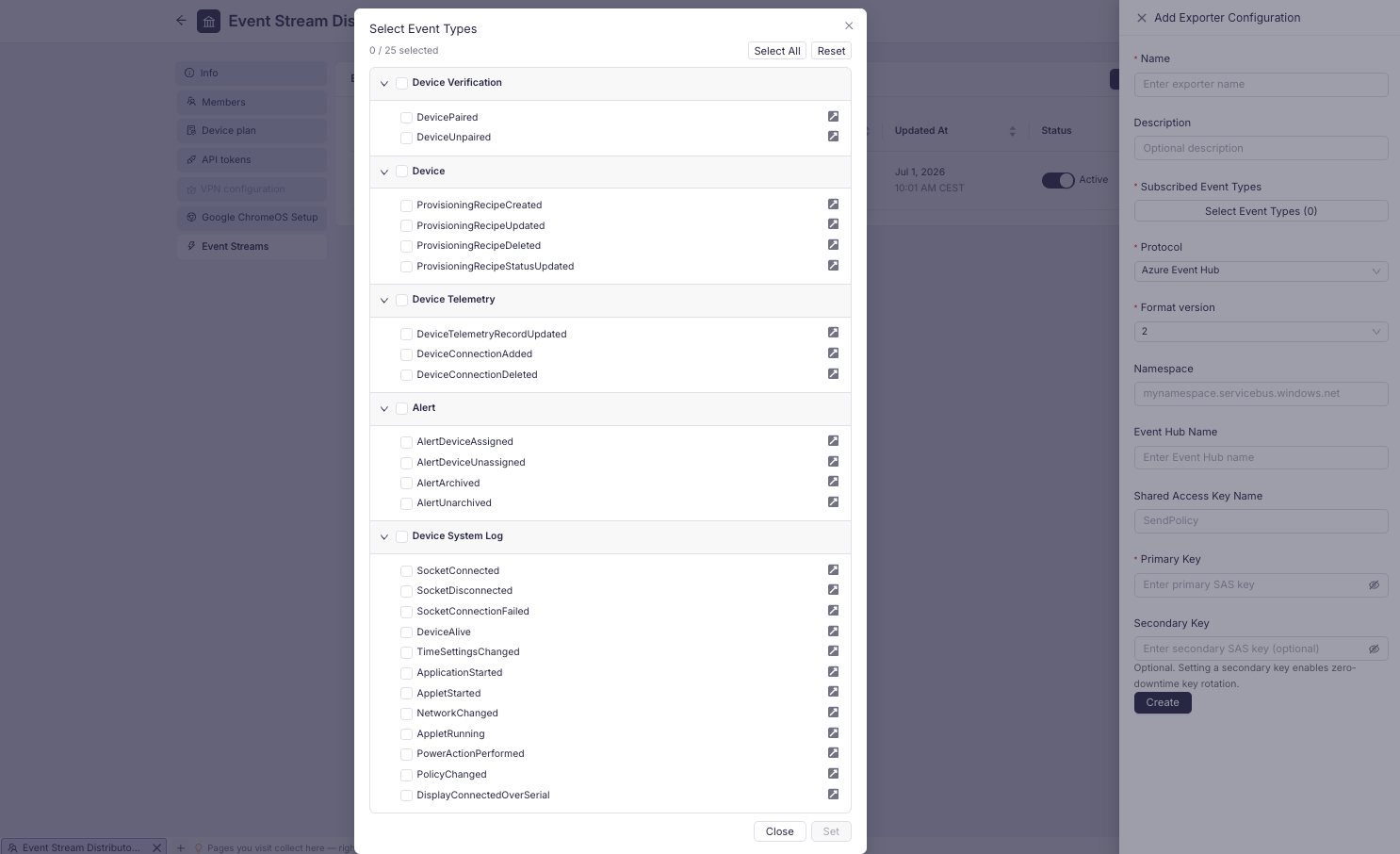
Click Select Event Types, choose the events to send, and click Set. Box groups the types and shows the last part of each identifier; hover over a type to see its full identifier. The Device System Log group appears only when the protocol is Azure Event Hub. For the verification steps below, select DeviceConnectionAdded in Device Telemetry and ApplicationStarted in Device System Log. The group checkbox selects every system-log type listed today, not future types. Each type links to its page in the event catalogue.
-
Save the exporter. It starts disabled.
Through the REST API
Use an Organization Auth Token.
Replace TOKEN_ID:TOKEN_SECRET with its ID and secret, the example organizationUid with your
organization UID, and every connection value inside config with your Azure values.
Remove sharedAccessKeySecondary if you are not providing a secondary key.
curl -X POST \
  https://api.signageos.io/v1/event-stream/exporter \
  -H 'Content-Type: application/json' \
  -H 'x-auth: TOKEN_ID:TOKEN_SECRET' \
  -d '{
  "organizationUid": "6bbbhah3edf692hh07abpbbc65g935cf56dhe100464fg29f9a",
  "name": "My Azure Event Hub Exporter",
  "enabled": false,
  "formatVersion": 2,
  "subscribedEventTypes": [
    "Device.DeviceConnectionAdded",
    "Device.SystemLog.ApplicationStarted",
    "Device.SystemLog.PowerActionPerformed"
  ],
  "config": {
    "configType": "azure-event-hub",
    "fullyQualifiedNamespace": "my-namespace.servicebus.windows.net",
    "eventHubName": "my-event-hub",
    "sharedAccessKeyName": "SendPolicy",
    "sharedAccessKeyPrimary": "primary-sas-key-value",
    "sharedAccessKeySecondary": "secondary-sas-key-value"
  }
}'
Keep every event type you want in subscribedEventTypes. The example includes a connection event
and two system-log types. It sets "enabled": false, so the exporter stays disabled until you enable it
in step 3. It sets "formatVersion": 2. If you omit formatVersion, the exporter uses version 1.
See format versions before choosing the envelope.
A successful create returns 201 with a Location header. Fetch that URL with the same Organization
Auth Token and save the returned uid as EXPORTER_CONFIG_UID for subsequent requests.
3. Enable delivery
In Box, turn on the exporter and confirm. Alternatively, use this API request, which preserves the Azure connection and all selected event types:
curl -X PUT \
  https://api.signageos.io/v1/event-stream/exporter/EXPORTER_CONFIG_UID \
  -H 'Content-Type: application/json' \
  -H 'x-auth: TOKEN_ID:TOKEN_SECRET' \
  -d '{
  "enabled": true
}'
The API returns 204 No Content.
4. Verify receipt in Azure
Start a receiver for this Event Hub before generating your test events. For example, follow the receive section of Microsoft's JavaScript quickstart. Use credentials with Listen permission for the receiver; the exporter's Send-only policy cannot read messages. Confirm that the receiver is connected to the namespace and hub configured above.
With the exporter enabled, reconnect a test device in the same signageOS organization. Check for
Device.DeviceConnectionAdded. To test system logs, restart the signageOS Core App on a test device
that reports application-start system logs and check for Device.SystemLog.ApplicationStarted.
Choose another supported system-log event and its corresponding action if needed for your device.
Inspect the received JSON body: its type should match your subscription, and system-log messages
have kind: "systemLog". Check the payload against the test device. See the event catalogue
for the envelope and AMQP application properties. Azure receipt does not use webhook signature verification.
System logs use at-most-once delivery and can be lost. A system-log id is a per-delivery identifier,
not a deduplication key. Start your receiver and enable the exporter before performing the test action;
do not rely on earlier device activity to demonstrate receipt.
If nothing arrives, check the enabled state, selected event types, device organization, connection fields, Send permission, and Azure network access. Confirm actual receipt at your consumer as well as checking delivery health: a counter alone is not proof that your consumer has read a particular message.
For changing keys or connection fields later, see Manage exporters.