Add location
A location is a physical site — a store, a branch, a terminal — that your devices belong to. Once a device is assigned to a location, every alert, report and filter can be read per site.
Add one from Locations → Add location.
Feature entitlement:
locations · Plan: Basic Device Plan or higherName it and place it on the map
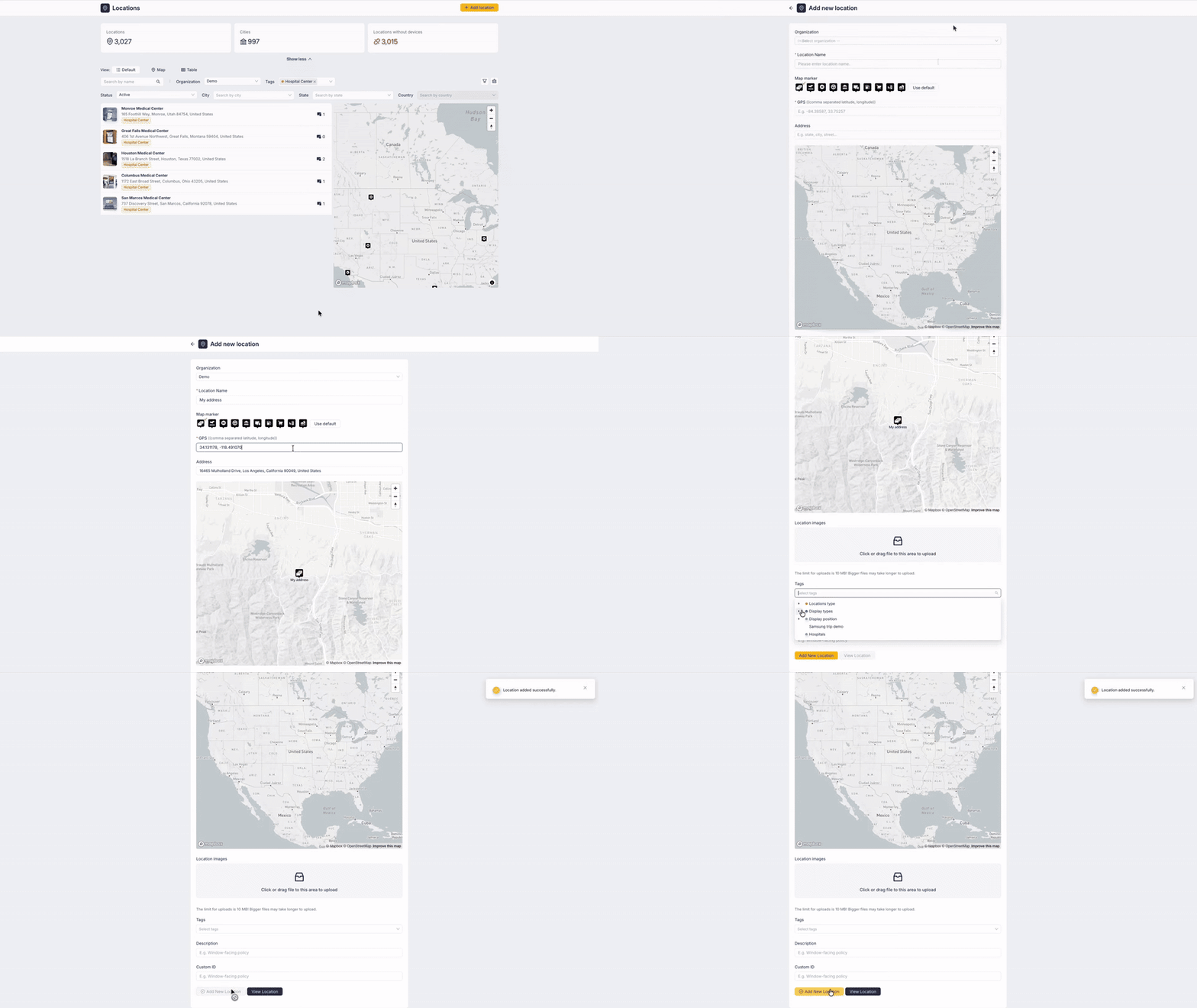
| Field | Required | Notes |
|---|---|---|
| Organization | yes | The organization the site belongs to. It also decides which tags you can pick further down, so select it first. |
| Location Name | yes | Shown in the list, on the map pin and on the device detail. |
| Map marker | no | The pin icon used on the map — pick the one matching the site type, or keep Use default. |
| GPS | yes | Comma separated latitude, longitude — for example 34.131178, -118.491070. |
| Address | no | Starts suggesting as you type; picking a suggestion fills in the rest. |
The three ways of positioning a location are linked, so use whichever you have at hand:
- type the GPS coordinates and the address and the map pin follow;
- search the Address and pick a suggestion, and the GPS is filled in for you;
- click the spot on the map, and both the GPS and the address are rewritten to match.
note
If the address you typed is too general, Box asks you to be more specific or to click the exact spot on the map.
Describe it
- Location images — photos of the site, so whoever goes there next knows what to expect. The limit for one upload is 10 MB.
- Tags — organization tags, used to group and filter locations. Select the organization first; until you do, the field stays disabled.
- Description — free text, shown on the location detail.
- Custom ID — an external identifier that your customer already uses, so you can recognise the site by their own numbering.
Submit with Add New Location. View Location then takes you straight to the new location's detail.
Add location via REST API