Getting started with REST APIs
restApi · Plan: 👑 Pro Device Plan or higherIntroduction
This tutorial describes how to setup an Organization and a device via REST API. This tutorial covers the main sections including Applet creation and Timing settings.
The same steps can also be completed via signageOS Box:
- Getting Started Tutorial – Applet Creation Part 1
- Getting Started Tutorial – Applet Creation Part 2
- How to assign Applet to the device via Timings
Values to replace in the examples
Replace the following placeholders wherever they appear, including in URLs and JSON request bodies.
The examples use the same applet version, 1.0.0, for both upload and assignment.
| Placeholder | Value to use |
|---|---|
USER_TOKEN_ID, USER_TOKEN_SECRET | Your user token from Get User Token. |
ORGANIZATION_UID | The organization UID saved after Create an Organization. |
ORG_TOKEN_ID, ORG_TOKEN_SECRET | The id and securityToken returned by Get Organization Auth Tokens. |
APPLET_UID | The applet UID saved after Creating a brand new Applet; use the same value for the version URL and the timing body. |
VERIFICATION_HASH | The verification hash displayed by your emulator. |
DEVICE_UID | The deviceUid from the verification record returned after Create a Device. |
Get User Token
The first task is to get the User Token which allows you to create the organization. Navigate and login to Box, then go to User Account section. With one User Token, you can create multiple organizations.
Within your user Settings section you will see the API security section, click Add new token:
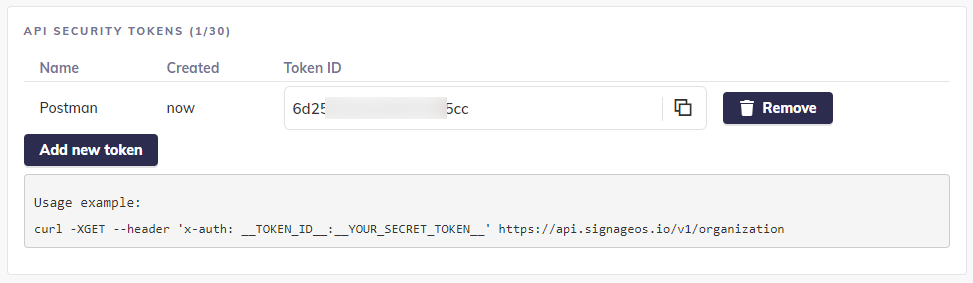
Save the TOKEN_ID and TOKEN_SECRET for later use.
Create an Organization
Once you have your User Token, use the following REST API endpoint to create the organization. You can do that easily via Postman.
Read on how to use Create Organization [POST]. Below is an example:
curl -X POST \
  https://api.signageos.io/v1/organization \
  -H 'Content-Type: application/json' \
  -H 'x-auth: USER_TOKEN_ID:USER_TOKEN_SECRET' \
  -d '{
  "name": "my-organization",
  "title": "My new organization"
}'
Make sure you have correctly set the x-auth Header, which consists of your __TOKEN_ID__:__TOKEN_SECRET__ from the above section.
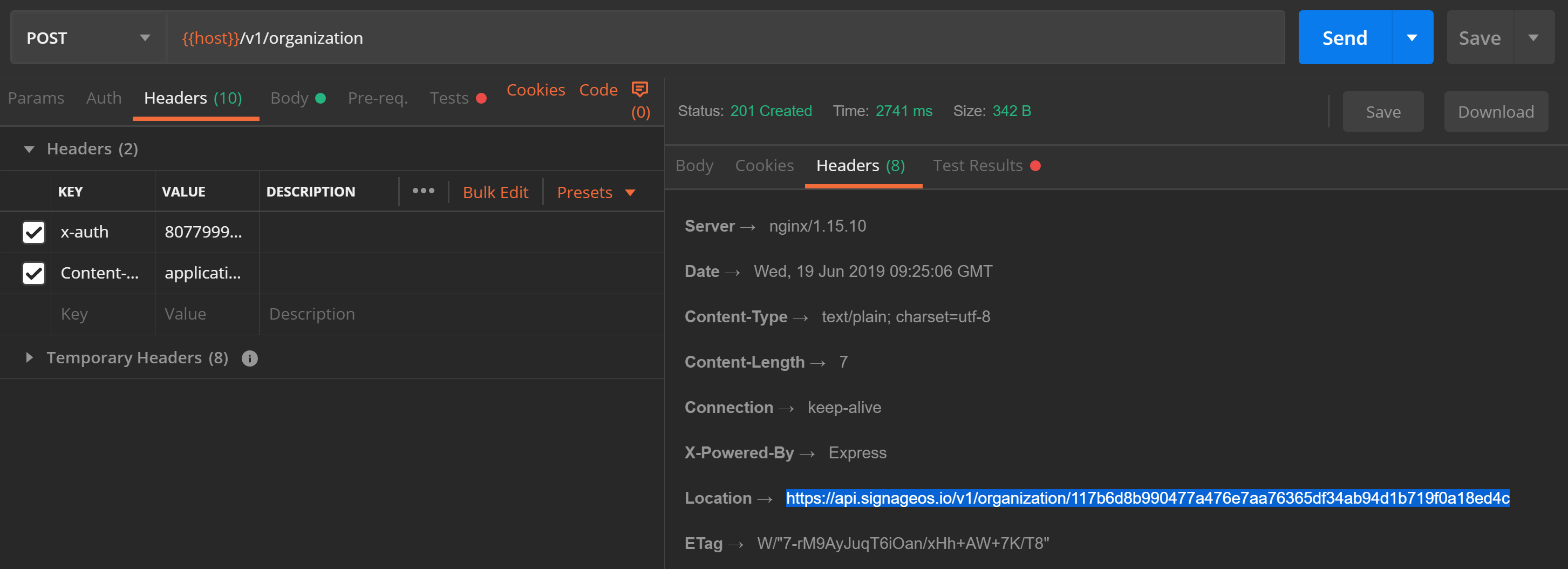
As a response, you will get 201 and, in the Headers, the Location link to where to find your organization details.
Here you can see the Headers of the API response with the Location link:
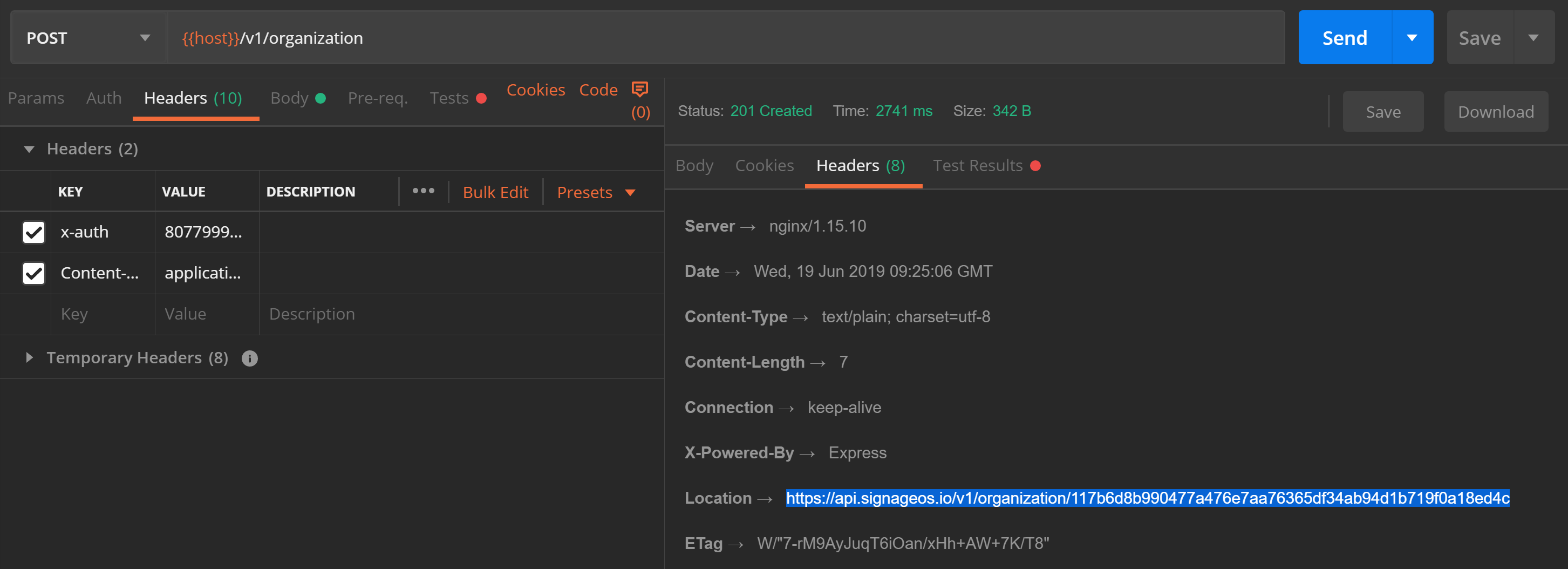
Navigate to the link returned in Headers under Location, do not forget to use the User's x-auth token:
{
   "uid": "117b6d8XXXX18ed4c",
   "name": "Test-org2",
   "title": "Test-title2",
   "createdAt": "2019-06-19T09:25:05.617Z"
}
Save the organization's uid for later use.
It is important to note that after creating an Organization through REST API, the default Device plan is set to 3.0. This can be changed from within SignageOS Box under your Company profile.
Get Organization Auth Tokens
You have now created your Organization, next get the Organization tokens from Create organization token [POST] API. For this API call you use the User Auth tokens for the last time.
curl -X POST \
  https://api.signageos.io/v1/organization/ORGANIZATION_UID/security-token \
  -H 'Content-Type: application/json' \
  -H 'x-auth: USER_TOKEN_ID:USER_TOKEN_SECRET' \
  -d '{
  "name": "Your Token Name"
}'
As a response you will get:
{
  "id": "fbb807a23f009af05dww",
  "securityToken": "454f512635cd7dwdwdwdwdwfwwxw2eb161a7fdwdwerr",
  "name": "Example Token Name"
}
From this point on we will use the Organization tokens in the X-Auth Header - the Organization TOKEN_ID (id) and TOKEN_SECRET (securityToken) that was part of the above-mentioned API response.
Create an Applet
The next step is to create an Applet that will play your content. To do so, we will complete two steps:
- Creating a new Applet via Create Applet [POST] API
- Creating the first Applet version via Create Applet version [POST] API
1. Creating a brand new Applet
Now we are using Organization's Auth Token in the format token_id:token_secret.
curl -X POST \
  https://api.signageos.io/v1/applet \
  -H 'Content-Type: application/json' \
  -H 'x-auth: ORG_TOKEN_ID:ORG_TOKEN_SECRET' \
  -d '{
  "name": "Applet Name"
}'
Check that the Applet was created in Box Applets and copy the Applet UID.

2. Creating the first Applet version
If you have your Applet code ready, use the following - Create Applet version [POST] - to create the first version of your Applet.
Put the content of your HTML file in binary, or keep the sample HTML to display “Hello world”.
This walkthrough creates version 1.0.0. If you choose another SemVer version, use that exact version
in appletVersion when assigning the applet below.
If you do not have your own applet yet, you can use one of our examples.
curl -X POST \
  https://api.signageos.io/v1/applet/APPLET_UID/version \
  -H 'Content-Type: application/json' \
  -H 'x-auth: ORG_TOKEN_ID:ORG_TOKEN_SECRET' \
  -d '{
  "binary": "<html><h1>Hello world</h1></html>",
  "version": "1.0.0"
}'
At this point we have succesfully created:
- Organization
- New Applet within the respective Organization
- Pushed your code into the first Applet version
The next step is to set this Applet version 1.0.0 to the device.
Create a Device
For the purpose of this tutorial we will create an Emulator device by opening a new Chrome window (not in incognito) with the following URL: https://2.signageos.io/app/default/7.9.0/index.html?duid=YOUR_UNIQUE_ID
Please replace YOUR_UNIQUE_ID with some kind of hash like dk32fjs (numbers and letters only).
- Please read current Emulator limitations.
- If there is a new version of the Emulator, replace the
7.9.0by the new version to get all patches, fixes and new features
Within the Emulator window you will see the Verification hash. Use this hash to verify the device and assign it to the newly created Organization via the Set Device Verification [POST] API.
Now we are using Organization's Auth Token in the format token_id:token_secret.
curl -X POST \
  https://api.signageos.io/v1/device/verification \
  -H 'Content-Type: application/json' \
  -H 'x-auth: ORG_TOKEN_ID:ORG_TOKEN_SECRET' \
  -d '{
  "verificationHash": "VERIFICATION_HASH"
}'
Replace VERIFICATION_HASH with the hash shown in your emulator.
As a response you will get 201 and in Headers the Location link to the verification record, which contains the device UID.
Open that Location with your Organization Auth Token and save its deviceUid as DEVICE_UID.
Do not use its uid: it identifies the verification, not the device.
Set an Applet to Device via Timing
As the last step we set Applet version 1.0.0 to the newly created device. For this process, the Timing API exists in signageOS. It allows you to set specific version of Applet on the specific device - Create Timing [POST].
Important the API Call parameters:
deviceUidwe get in previous stepappletUidof the newly created AppletappletVersionin our case 1.0.0x-authis your Organization's Auth Token in the formattoken_id:token_secret.
curl -X POST \
  https://api.signageos.io/v1/timing \
  -H 'Content-Type: application/json' \
  -H 'x-auth: ORG_TOKEN_ID:ORG_TOKEN_SECRET' \
  -d '{
  "deviceUid": "DEVICE_UID",
  "appletUid": "APPLET_UID",
  "appletVersion": "1.0.0"
}'
After this last step, you accomplished having the newly created Applet in version 1.0.0 assigned to the device.