Vestel Serial Number and Model update
It may happen that you receive the Vestel device without an updated Serial Number and Model in the system. In this case, it is required to make a few simple steps on how to do that.
Required equipment
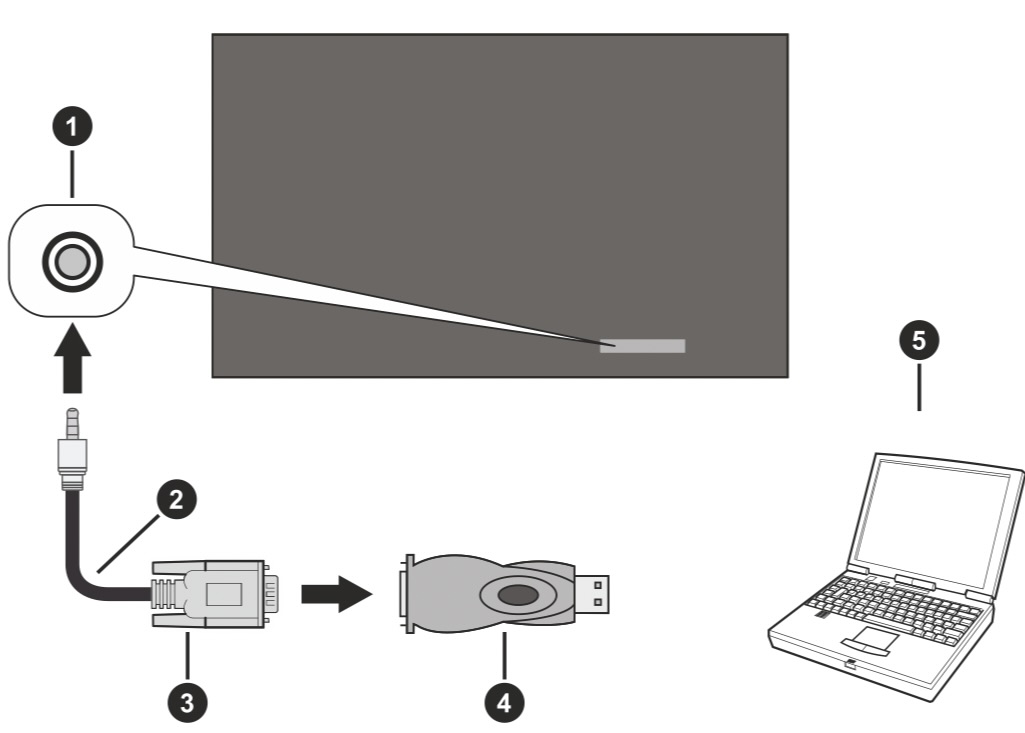
- RS-232 (3.5mm) to RS-232 (male) cable or LAN cable (connected via the router)
- USB to RS-232 (female) adapter
- Notebook or PC which has a USB or LAN port
- Software installed on remote PC to send commands between device and PC - we recommend using PuTTy.
Update the serial number and model
- 1
Connect the device to the PC
- 2
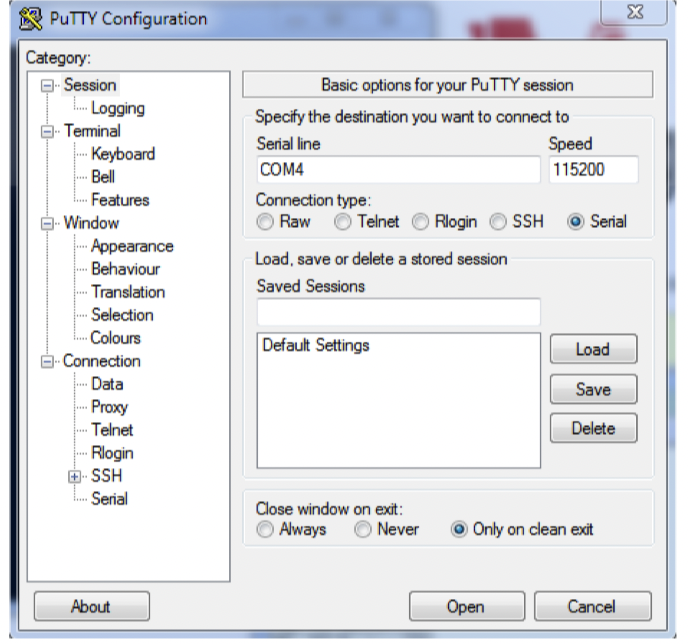
Open PuTTY and connect to the device
Open Putty. Choose Serial as Connection Type. Enter the Display’s serial port in the field Serial Line (in the following example it is COM4) and “115200” in the field Speed. Then click the Open button.
- 3
Get the current serial number
Type GETSERIALNO
- If the terminal shows an error, the device will not be able to proceed with the next command without inputting the serial number
- 4
Set the serial number
Type SETSERIALNO XXXXXXX
- Input the number from the sticker on the device
- 5
Get the current model number
Type GETMODELNO
- 6
Set the model number
Type SETMODELNO XXXX
- Input the model of the device from the sticker on the back of the screen
- 7
Close the terminal
Close the terminal
- 8
Restart the display
Restart the display.
In case of any issues please contact directly the manufacturer.