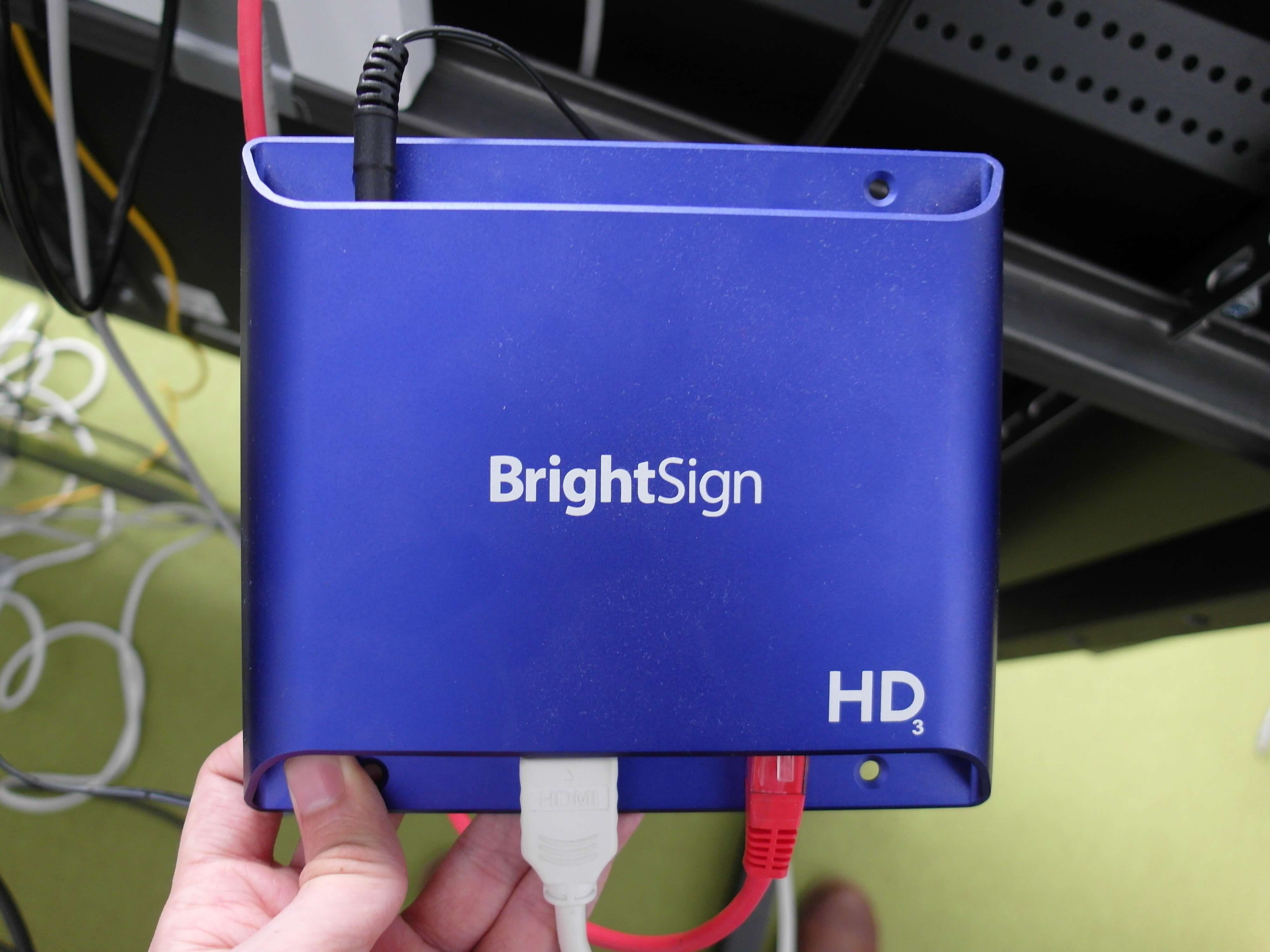
BrightSign Device Provisioning
Important: To use BrightSign players it is crucial to upgrade the BrightSign firmware to the latest version. This can be done remotely, if you do not see the Firmware upgrade option in the Box, contact our support.
Looking for provisioning via BSN.cloud? Check this guide.
Cisco Vision players: Cisco Vision digital media players (CV-HD, CV-UHD, CV-HD2, CV-UHD2) are BrightSign-based appliances and are provisioned using the same steps below. See the supported models list for their BrightSign platform equivalents.
Prerequisites
- getting a microSD card
Installation steps
- 1
Download the BrightSign Core App
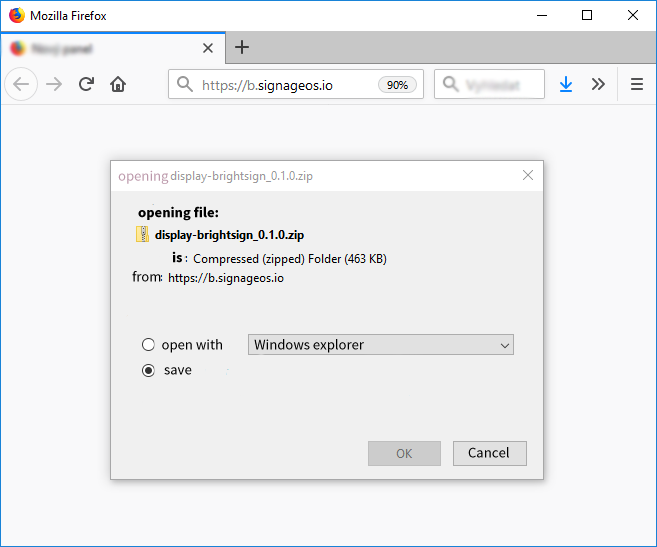
Download the latest BrightSign App from https://b.signageos.io.
Looking for the latest Release Candidate version? Check for the link here
- 2
Unpack and copy files to the microSD card
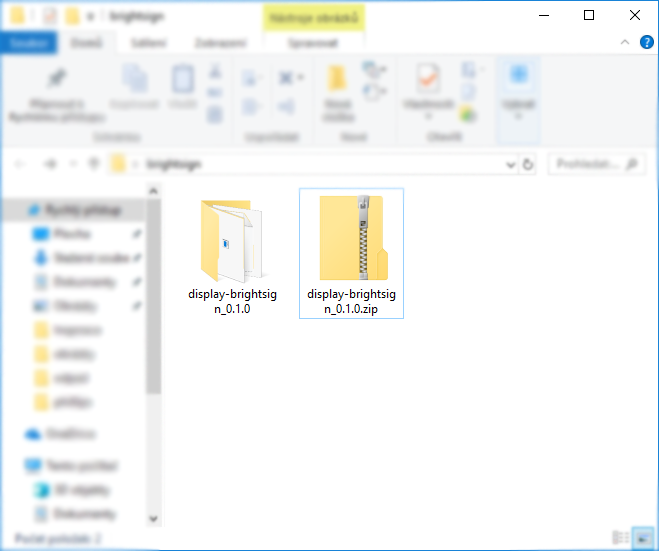
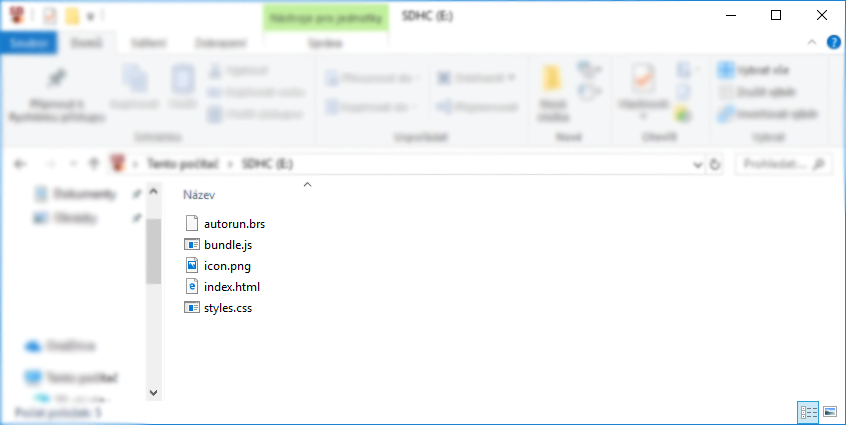
Unpack the downloaded file and copy the content to the formatted microSD card (format FAT32).
It is important to extract the files out of the parent folder onto the microSD card. All files has to be in the root folder of the microSD card.
- 3
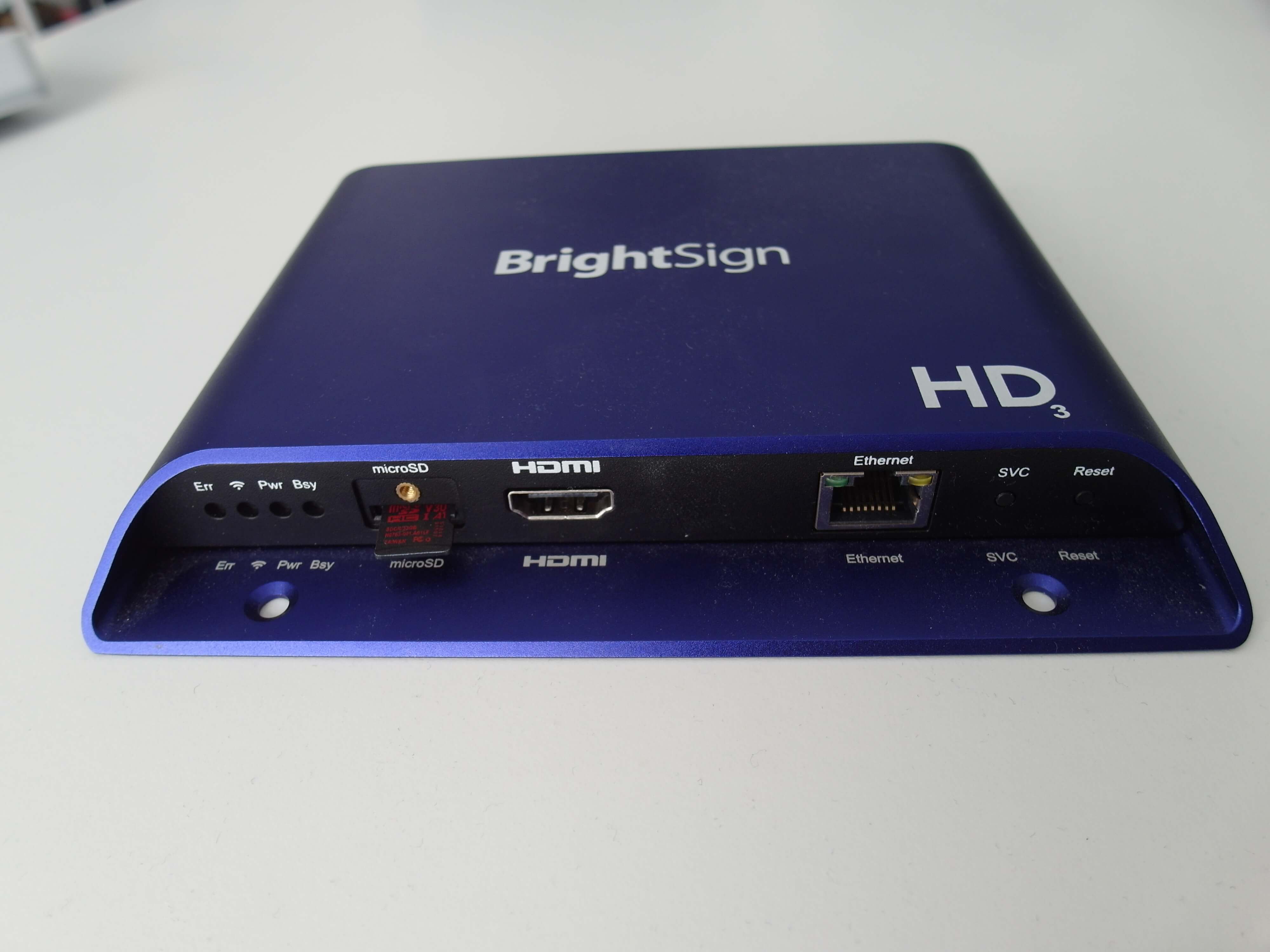
Insert the microSD card into the BrightSign
- 4
Plug in the device
Plug BrightSign into the electricity and to the display.
- 5
Automatic boot up
BrightSign will automatically boot up.
Once the display is started with signageOS App you will see a short Verification hash in the middle of the screen.