LG webOS Device Provisioning
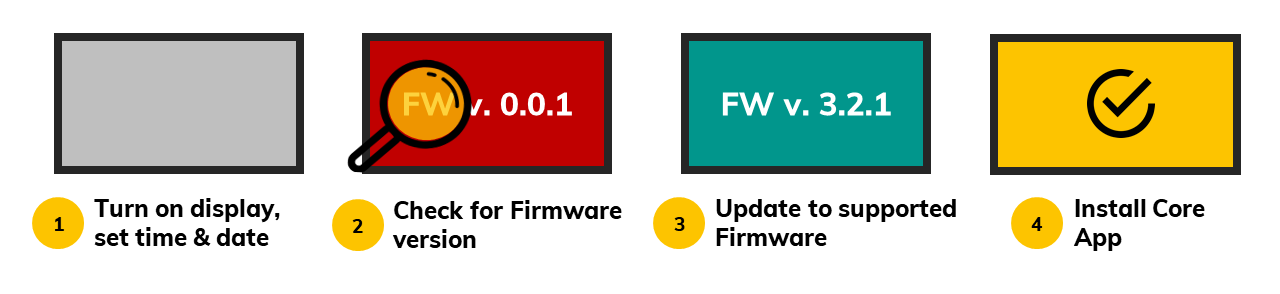
Before device deployment check the compatible device FIRMWARE as it is very important to have tested FW. The FW for each device is documented on the Supported devices page. In case the device is not on the list, contact our support.
In case our current release version does not support the latest model line or latest features, please use the Release Candidate apps listed in our Knowledge base article about Core Apps Release Policy. Please share the feedback of using the RC Apps as much as possible.
Provisioning guides
Select your LG webOS version below to see the corresponding provisioning guide.
LG webOS 8/9
Turn on the display and complete the basic settings (location, time, Wi-Fi settings, etc.).
Important: Do not skip the LG tutorial. Make sure to set the display location, time, and date correctly. Otherwise, the system will not work properly.
Once the basic settings are configured, go to Settings -> Ez-settings -> SI Server Settings.
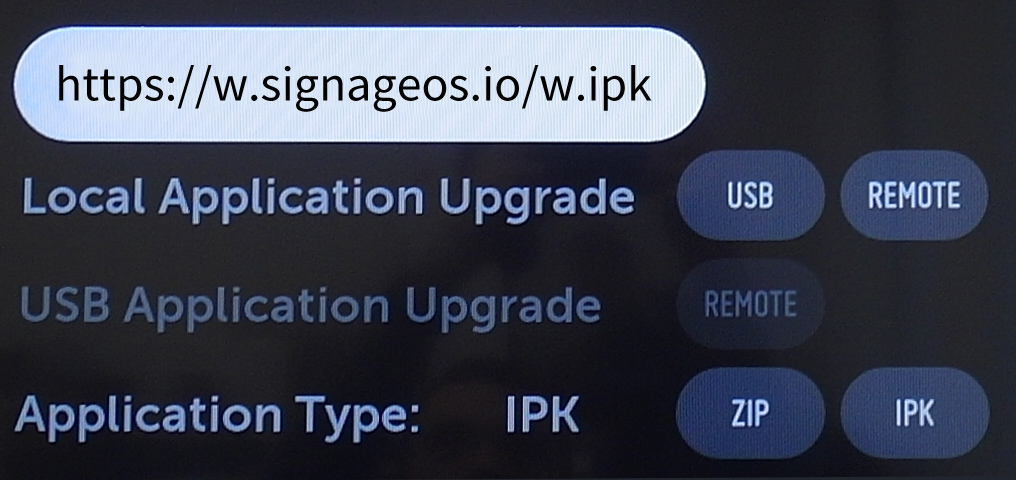
In the SI Server menu, select the following options: Fully Qualified Domain Name - ON
| Link to the latest LG webOS Core App |
|---|
https://w.signageos.io/w.ipk |
- Application Launch Mode –
Local - Application Type –
IPK - Local Application Upgrade –
Remote - Auto Set –
OFF
Important: The Auto set - OFF is a mandatory setting. If you leave it "On", you will not be able to update the application remotely. Always keep this option set to OFF.
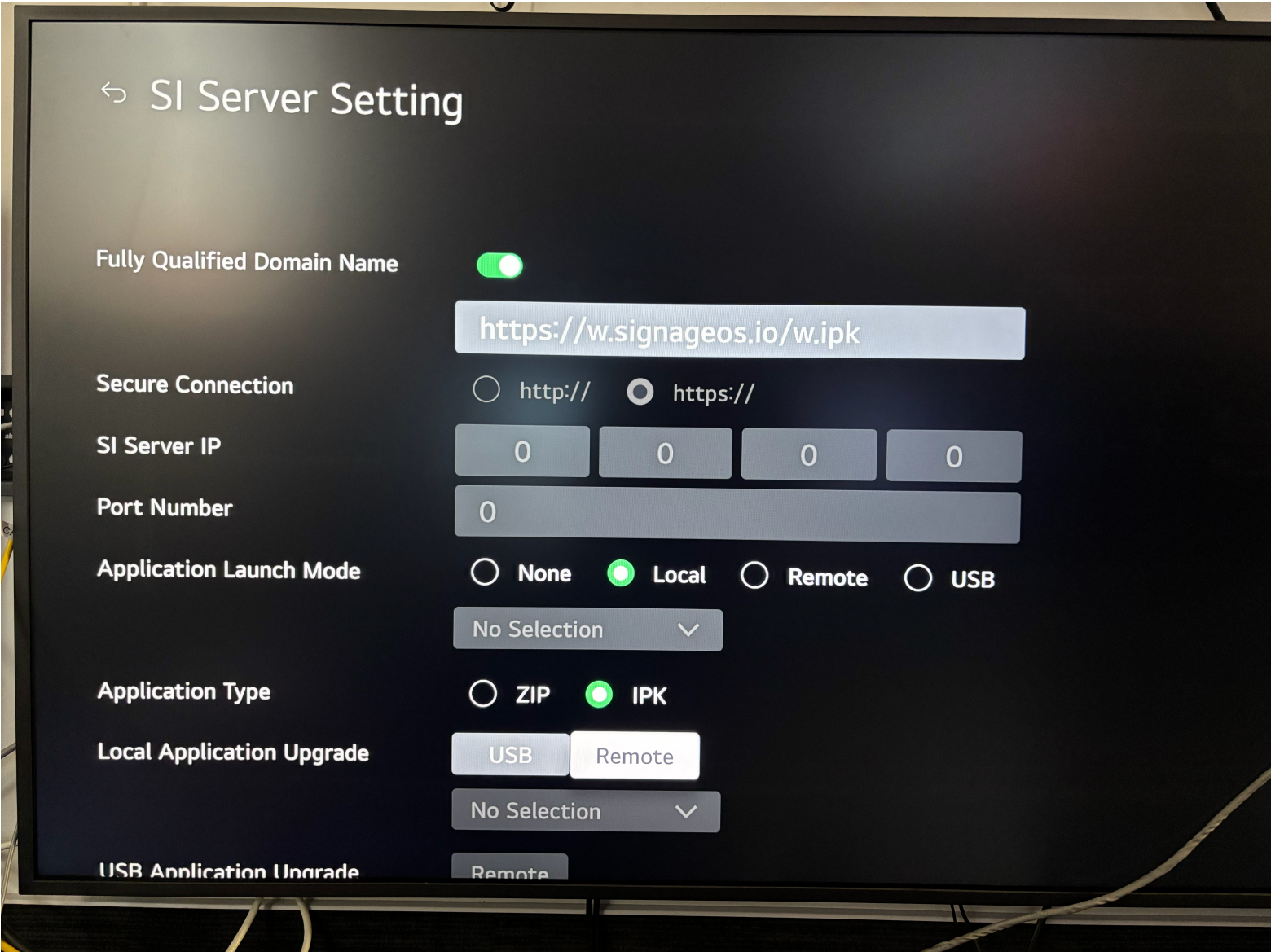
The app will start downloading and installing.
Once the installation is complete, restart the display by turning it off and on again using the power button.
Once the display has started with the signageOS App, you will see a 6 digits verification hash on the screen.
LG webOS 4.0, 6.0 and 6.1
- 1
Turn on the display
- 2
Set the display by tutorial
Select tutorial (the first option after the display starts).
warningImportant: Do not skip the LG tutorial and set the display Timezone, time, date and location respectively to its location. Otherwise the system will not work properly.
- 3
Open Ez-Settings
Once set, go to Settings -> Ez-settings.
- 4
Select SI Server Setting
- 5
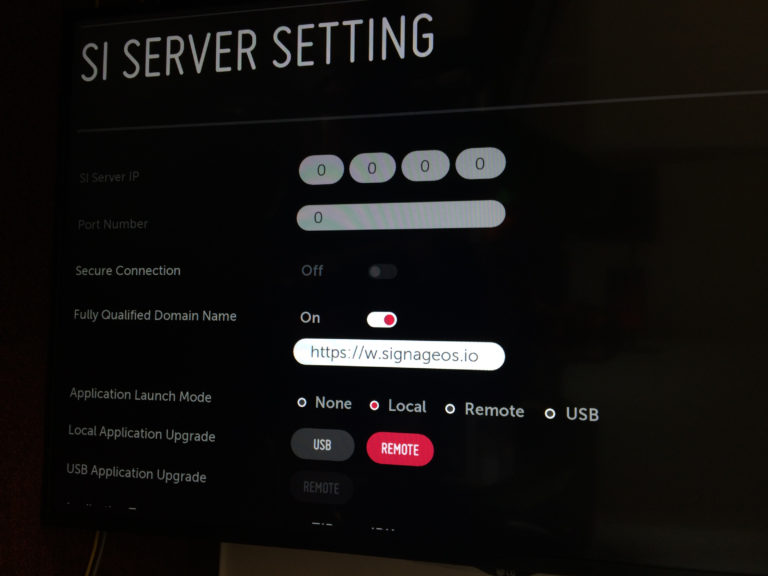
Configure the Server Menu
In the Server Menu select the following options:
Fully qualified domain
Link to the latest LG webOS Core App https://w.signageos.io/w.ipk- Application Launch mode –
Local - Local Application upgrade –
Remote - Application type –
IPK - Auto set –
OFF
warningImportant: The Auto set - OFF is a mandatory setting. If you leave it "On", you will not be able to update the application remotely. Always keep this option set to OFF.
- Application Launch mode –
- 6
Go to Local Application Upgrade
Go up to Local Application Upgrade.
- 7
Select Remote
- 8
Wait for the app to install
The app starts downloading and installing.
- 9
Restart the display
Once done, restart the display by pressing power off and power on the remote control.
Once the display has started with the signageOS App, you will see a short Verification code in the middle of the screen.
LG webOS 3.2
- 1
Turn on the display
- 2
Set the display by tutorial
Select tutorial (the first option after the display starts).
warningImportant: Do not skip the LG tutorial and set the display Timezone, time, date and location respectively to its location. Otherwise the system will not work properly.
- 3
Open Ez-Settings
Once set, go to Settings -> Ez-settings.
- 4
Select SI Server Setting
- 5
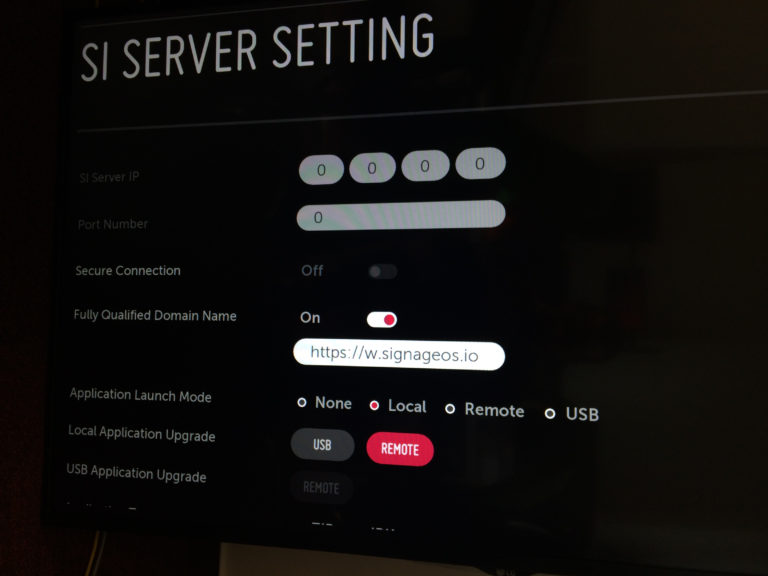
Configure the Server Menu
In the Server Menu select the following options:
Fully qualified domain
Link to the latest LG webOS Core App https://w.signageos.io/w.ipk- Application Launch mode –
Local - Local Application upgrade –
Remote - Application type –
IPK
- Application Launch mode –
- 6
Go to Local Application Upgrade
Go up to Local Application Upgrade.
- 7
Select Remote
- 8
Wait for the app to install
The app starts downloading and installing.
- 9
Restart the display
Once done, restart the display by pressing power off and power on the remote control.
Once the display has started with the signageOS App, you will see a short Verification code in the middle of the screen.
LG webOS 2 and 3
- 1
Turn on the display
warningImportant: Do not skip the LG tutorial and set the display Timezone, time, date and location respectively to its location. Otherwise the system will not work properly.
- 2
Press and hold the Settings button
Press & hold the Settings button on the remote control until a small grey bubble appears.
- 3
Enter the service code
On the remote control, press 8080 and confirm by pressing OK.
- 4
Open Server settings
The display switches into the Server settings menu.
- 5
Configure the Server Menu
In the Server Menu select the following options:
Fully qualified domain
Link to the latest LG webOS Core App https://w.signageos.io/w.ipk- Application Launch mode –
Local - Local Application upgrade –
Remote - Application type –
IPK
- Application Launch mode –
- 6
Go to Local Application Upgrade
Go up to Local Application Upgrade.
- 7
Select Remote
- 8
Wait for the app to install
The app starts downloading and installing.
- 9
Restart the display
Once done, restart the display by pressing power off and power on the remote control.
Once the display has started with the signageOS App, you will see a short Verification code in the middle of the screen.
LG webOS 1
- 1
Turn on the display
warningImportant: Do not skip the LG tutorial and set the display Timezone, time, date and location respectively to its location. Otherwise the system will not work properly.
- 2
Press and hold the Settings button
Press & hold the Settings button on the remote control until a small grey bubble appears.
- 3
Enter the service code
On the remote control, press 8080 and confirm by pressing OK.
- 4
Open Server settings
The display switches into the Server settings menu.
- 5
Configure the Server Menu
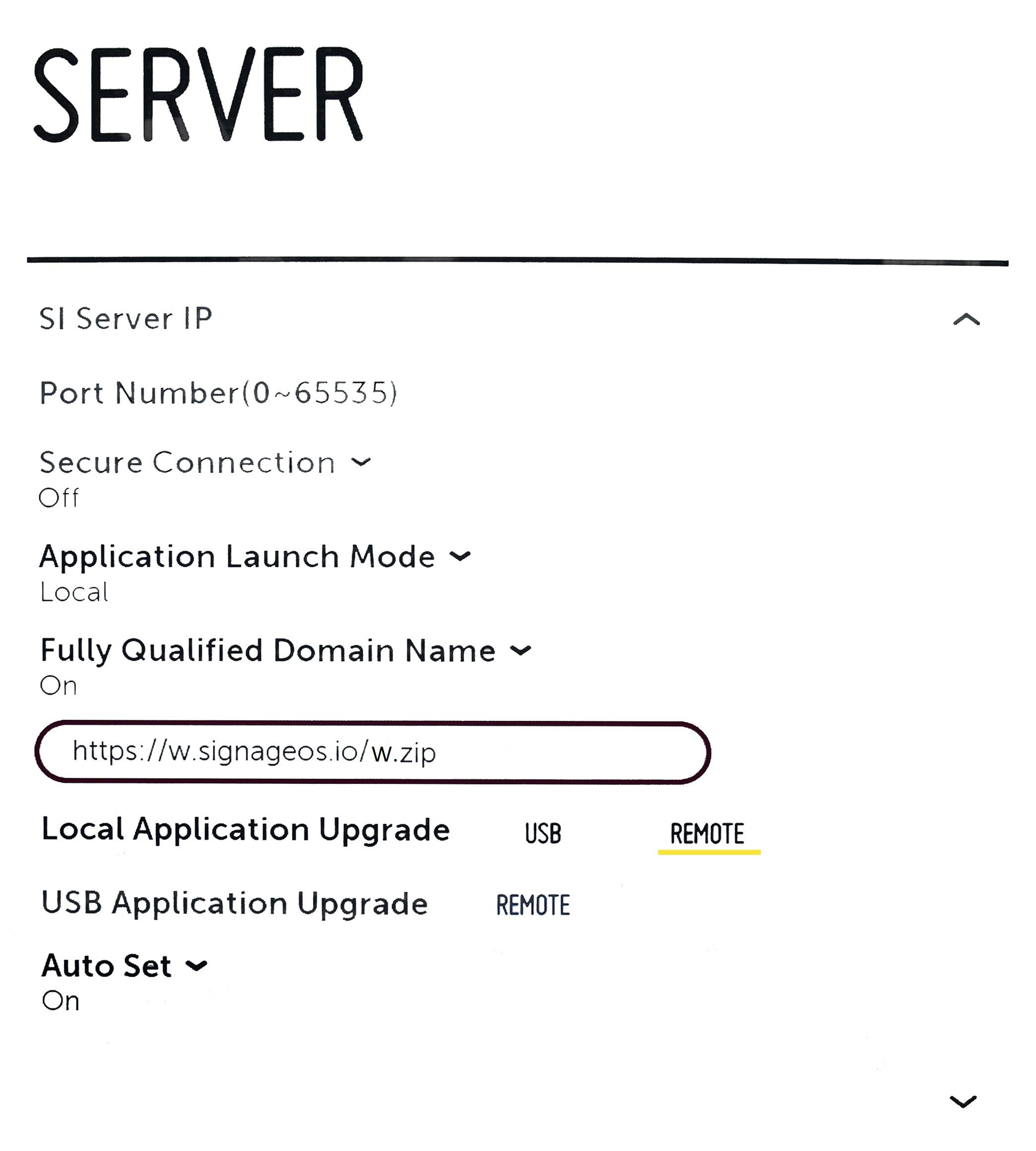
In the Server Menu select the following options:
Fully qualified domain
Link to the latest LG webOS Core App https://w.signageos.io/w.zip- Application Launch mode –
Local - Local Application upgrade –
Remote
- Application Launch mode –
- 6
Go to Local Application Upgrade
Go up to Local Application Upgrade.
- 7
Select Remote
- 8
Wait for the app to install
The app starts downloading and installing.
- 9
Restart the display
Once done, restart the display by pressing power off and power on the remote control.
Once the display has started with the signageOS App, you will see a short Verification hash in the middle of the screen.
USB Provisioning
To provision your LG display through files on your USB, follow these steps:
- Download the CA from https://w.signageos.io
- Put the downloaded file on your USB drive into /application folder
- Remove the application version - resulting in USB/application/com.lg.app.signage.ipk structure
- Plug your USB into the display
- Press home button and navigate to SI Server Setting
- Select following settings:
- Application launch mode - Local
- Application type IPK
- Local application upgrade - USB
- Your device should now install the application, once this is complete it is recommended to turn the display off/on
- The device should launch the signageOS application
Next steps
Common troubleshooting
In the past, you could find issues below with certain LG devices, however, the issues have been resolved with the latest tested FW (those are available to select in Box). Please upgrade, the device will be able to operate at full capacity.
webOS 3.0 & 3.2
- these models are not capable of playing FullHD videos in native portrait mode (1080x1920px), to achieve full resolution, you need to pre-rotate your videos, otherwise you will experience blurry video playback (webOS platform limitation)
webOS 4.0
- still does not have a 100% working FW. You might experience blurry portrait videos, gaps or time inconsistencies. LG was notified about these issues and working on FW update.
- always check you have the correct FW prior to app installation, otherwise you might experience system freezes, reboots etc. Never use FW below 4.02.xx