Linux Provisioning (Fedora, Ubuntu, Raspberry Pi OS)
signageOS supports device management and content playback for Fedora and Ubuntu Linux (x86 architecture) as well as for Raspberry Pi OS (arm64 architecture). To install the signageOS agent, follow the guide below.
Prerequisites:
- Have curl installed on the target machine
- Run the command as a system administrator (root or any sudo-er)
- Organisation UID under which you would like to provision the device
- Minimum versions are Fedora v39, Ubuntu v22, Raspberry Pi OS 12 and above
- Reliable internet connection
Installation:
SignageOS application for Linux supports both CloudControl and full-featured CoreApp modes.
CloudControl
Run the following script in the terminal, where the <organisationUID> is the target organisation you created in signageOS.
CloudControl only features device management. If you want to also run your Applets, use CoreApp version of the installation script.
curl -L -s https://o.signageos.io/linux | sudo bash -s provision --oid <organisation_id> --device-name <name> --disable-frontend
CoreApp
Run the following script in the terminal, where the <organisationUID> is the target organisation you created in signageOS. The parameter --device-name <name> is optional, but it is pretty useful to set it to something meaningful because it can help search the device in the Box.
This version supports applets deployment.
curl -L -s https://o.signageos.io/linux | sudo bash -s provision --oid <organisation_id> --device-name <name>
After running the script:
- SignageOS application repository is registered
- SignageOS server is installed and running
- The device is verified by the server and can be found in the Box
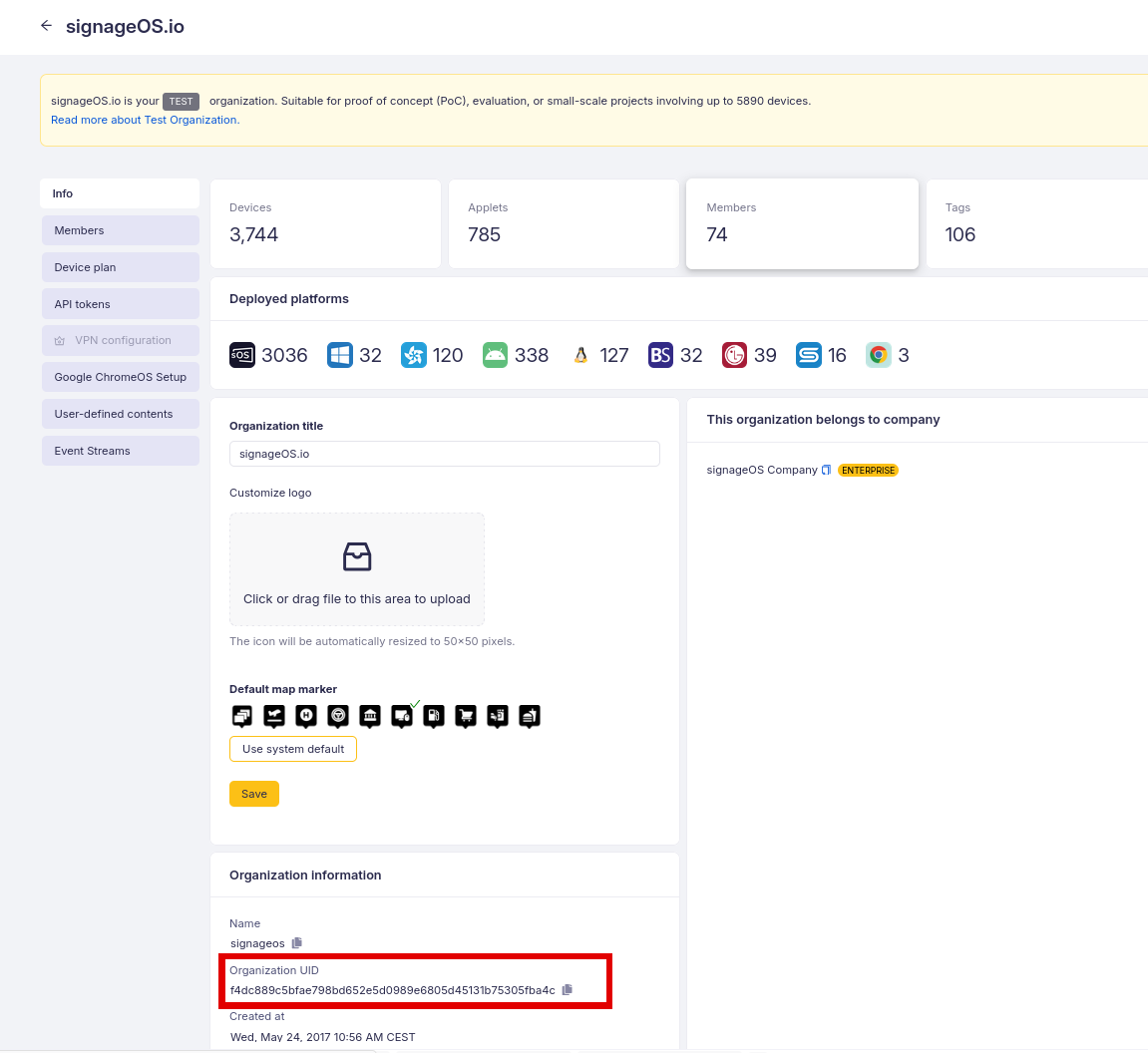
Where to find organisation UID
Open the organisation under which you would like to register the device. On the picture, the organisation ID is in the red rectangle:
Extended capabilities of the installation script
The installation script offers a few other capabilities that you may find helpful. For simplicity it is better to download it like this:
curl -L https://o.signageos.io/linux -o install.sh
than change permissions of the downloaded file:
chmod +x ./install.sh
the list of capabilities can be shown using following command:
sudo ./install.sh --help
Installation script options and attributes
Global options:
Print help for the installation script usage and exit
-h, --help help
Print version and exit
-v, --version
Actions:
Install signageOS application on the device
install [...]
Install signageOS application on the device and provision it under an organisation identified by the given organisation ID.
The device name is optional here but could be very useful to find the provisioned device in the Box
provision --oid <organisation_id> [--device-name <name>][...]
Provisioning and installation options:
Organisation ID
-o, --oid <organisation_id>
Name for the provisioned device how it will appear in the Box.
-n, --device-name <name>
Setup Kiosk mode. If you choose this option, the graphical environment will stay locked in the Chromium with all shortcuts to close or switch windows blocked.
Please be careful using this option. If you would like to further interact with the device
-k, --setup-kiosk
Use only Cloud Control This option will disable the front part of the application, hence applet management would not work.
-d, --disable-frontend
Export installation log to the specified file
-l, --log <log_file>
Specify package version to be installed. E.g. 2.5.0
Conflicts with --package-file
--package-version <version>
PPath to the .rpm/.deb package to be installed instead of the one from the repository. Useful especially for devices with limited access to the internet.
Conflicts with --package-version
--package-file </path/to/the/file>
Skip update check.
--skip-update
Since Ubuntu has its own SNAP-based Chromium application that is not supported, this option will let you keep it.
For Ubuntu systems only
--keep-chromium
Do not reboot the system after the installation.
--skip-reboot
Non-interactive mode. Assume yes to all prompts.
-y, --assume-yes
Extended capabilities of the installation script
Installation script offers a few other capabilities that you may find helpfull. For simplicity it is better to download it like this:
curl https://linux-package-repository.signageos.io/linux/install.sh -o install.sh
than change permissions of the downloaded file:
chmod +x ./install.sh
the list of capabilities can be shown using following command:
sudo ./install.sh --help
Installation script options and attributes
Global options:
Print help for the installation script usage and exit
-h, --help help
Print version and exit
-v, --version
Actions:
Install signageOS application on the device
install [...]
Install signageOS application on the device and provision it under an organisation identified by the given organisation ID.
The device name is optional here but could be very useful to find the provisioned device in the Box
provision --oid <organisation_id> [--device-name <name>][...]
Provisioning and installation options:
Organisation ID
-o, --oid <organisation_id>
Name for the provisioned device how it will appear in the Box.
-n, --device-name <name>
Setup Kiosk mode. If you choose this option, the graphical environment will stay locked in the Chromium with all shortcuts to close or switch windows blocked.
Please be careful using this option. If you would like to further interact with the device
-k, --setup-kiosk
Use only Cloud Control This option will disable the front part of the application, hence applet management would not work.
-d, --disable-frontend
Export installation log to the specified file
-l, --log <log_file>
Specify package version to be installed. E.g. 2.5.0
Conflicts with --package-file
--package-version <version>
PPath to the .rpm/.deb package to be installed instead of the one from the repository. Useful especially for devices with limited access to the internet.
Conflicts with --package-version
--package-file </path/to/the/file>
Skip update check.
--skip-update
Since Ubuntu has its own SNAP-based Chromium application that is not supported, this option will let you keep it.
For Ubuntu systems only
--keep-chromium
Do not reboot the system after the installation.
--skip-reboot
Non-interactive mode. Assume yes to all prompts.
-y, --assume-yes
Troubleshooting:
If you are having trouble running the application or provisioning your device, you can use a tool that will collect all relevant information to deal with the cause of the problem. To use the tool, please run the following command:
sudo signageos debug test_run
TThe test run will take about 5 minutes and after that it will create an archive containing all the information related to running of the application or provisioning the device. You can find the archive directly in the folder where you ran the command. The archive name is:
signageos-report.tar.gz