Sony Provisioning
Prerequisites
- Empty the USB flash drive, formatted to FAT32
- Fresh out-of-box or factory-reset Bravia display - see supported models
Tip: factory reset is located under Settings - System - About - Reset - Factory reset
Provisioning
Here are the steps to install your bundled application on Sony.
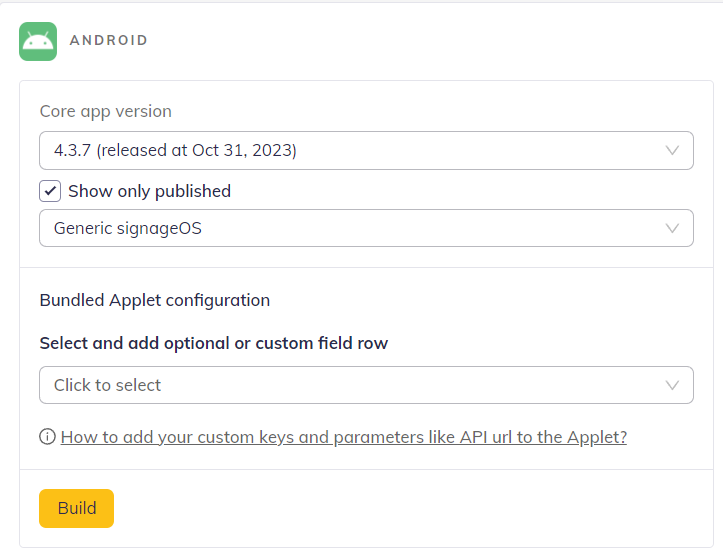
- Use Device Applet Builder and select version at least 4.3.7 to build then download the file
- Decompress the bundled applet to apk file and put it on a flash drive, together with the Core App bpk file (.pkg extension) downloaded from https://a.signageos.io/sony.bpk at least version 4.3.7
- Continue with the manual provisioning as instructed below but do not remove the flash drive until the provisioning process completed.
- If facing a prompt to reinstall/uninstall the app, please select cancel.
- If the device doesn't enter the bundled applet, please hit the back button on the remote and select restart app button.
Manual provisioning
Download the version of the signageOS app
| Version | Link |
signageOS CoreApp - includes device management and Applets support | https://a.signageos.io/sony.bpk |
signageOS CloudControl app - includes only device management | https://cc.signageos.io/android/sony.bpk |
Install via USB
- 1
Download the signageOS app
Download the signageOS app of your choice.
- 2
Copy the app to a USB flash drive
Put the downloaded *.pkg file to an empty USB flash drive.
- 3
Start the Sony Bravia display
Start the Sony Bravia display.
- 4
Plug in the USB flash drive
Once you see the Welcome/select language screen, plug in the USB flash drive.
Do NOT continue with language settings just yet.
- 5
Allow USB access
Confirm the "Allow access to USB".
- 6
Wait for the B2B installer
Bravia B2B installer starts up.
- 7
Confirm the installation
Confirm the installation.
- 8
Confirm the device owner
Confirm the Device owner for the signageOS application.
- 9
Confirm reboot
Confirm reboot.
- 10
Unplug the USB flash drive
UNPLUG THE USB flash drive before the Bravia boots up.
- 11
Continue with the display setup
Continue with the display setup:
- Confirm language
- Confirm Google T&C
- Confirm Sony Bravia Eula
- 12
Start the signageOS app
Now you can start the signageOS app from the menu.
- 13
Verify the device
Verify the device via verification hash.
Sony Platform zero-touch provisioning
Sony Platforms with signageOS offers an option to provision device directly through our platform. You can follow this step-by-step guide to get your device online.
Prerequisites
- signageOS Box Account
- phone with camera
Provisioning steps
- 1
Log in to BOX
Access BOX in your browser and log in.
- 2
Create a Recipe via Bulk provisioning
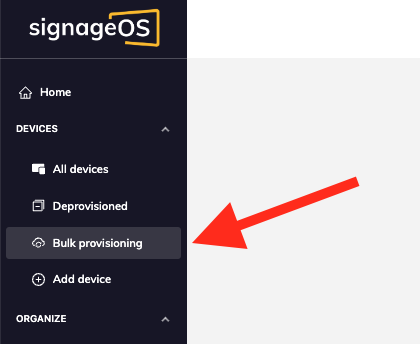
Navigate to Bulk provisioning and click Register devices to create a Recipe.
- 3
Fill in the device details
Select organisation for which the device should be registered under and fill in the rest of fields, please note that some fields are not optional (ie. MAC address).
- 4
Wait for the Recipe to become Pending
Once your Recipe is created you can see it in the list with Pending state - this means that Box is waiting for provisioning request from the device.
- 5
Open Add device and select Sony Ownership Validation
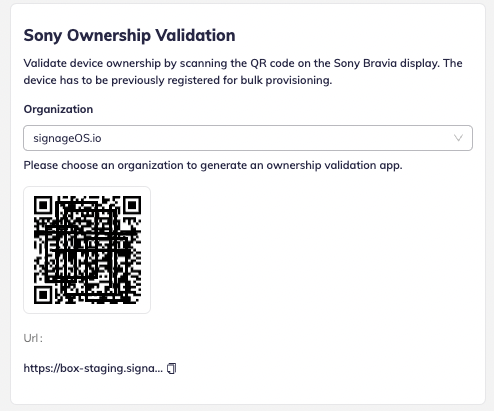
Next step navigate to Add device and select organisation under Sony Ownership Validation.
- 6
Generate the QR code
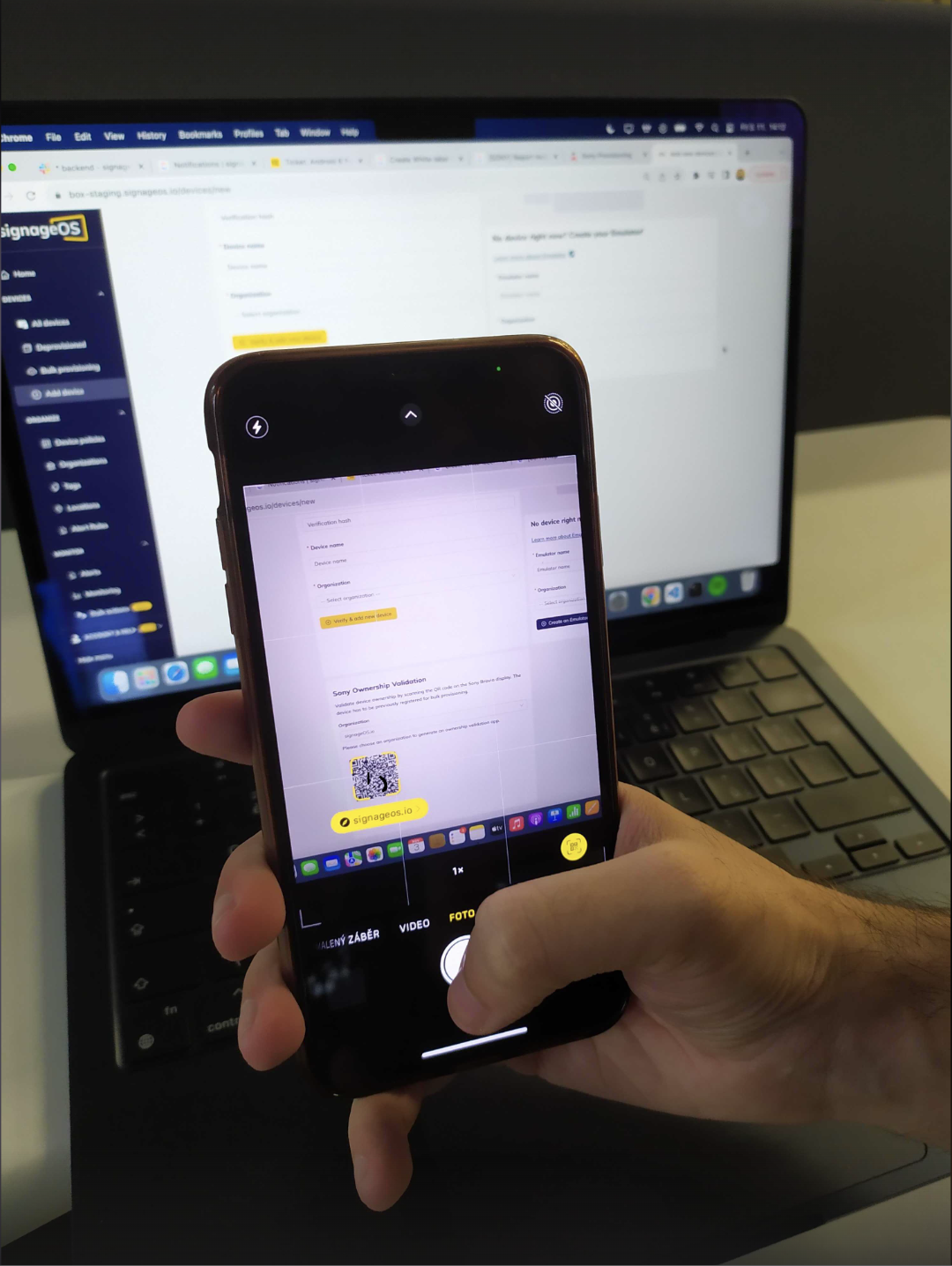
This step will generate a QR code, you can either scan the QR code with your own handheld camera device or navigate to the URL present - this will open a scanner App.
- 7
Turn on the Sony device
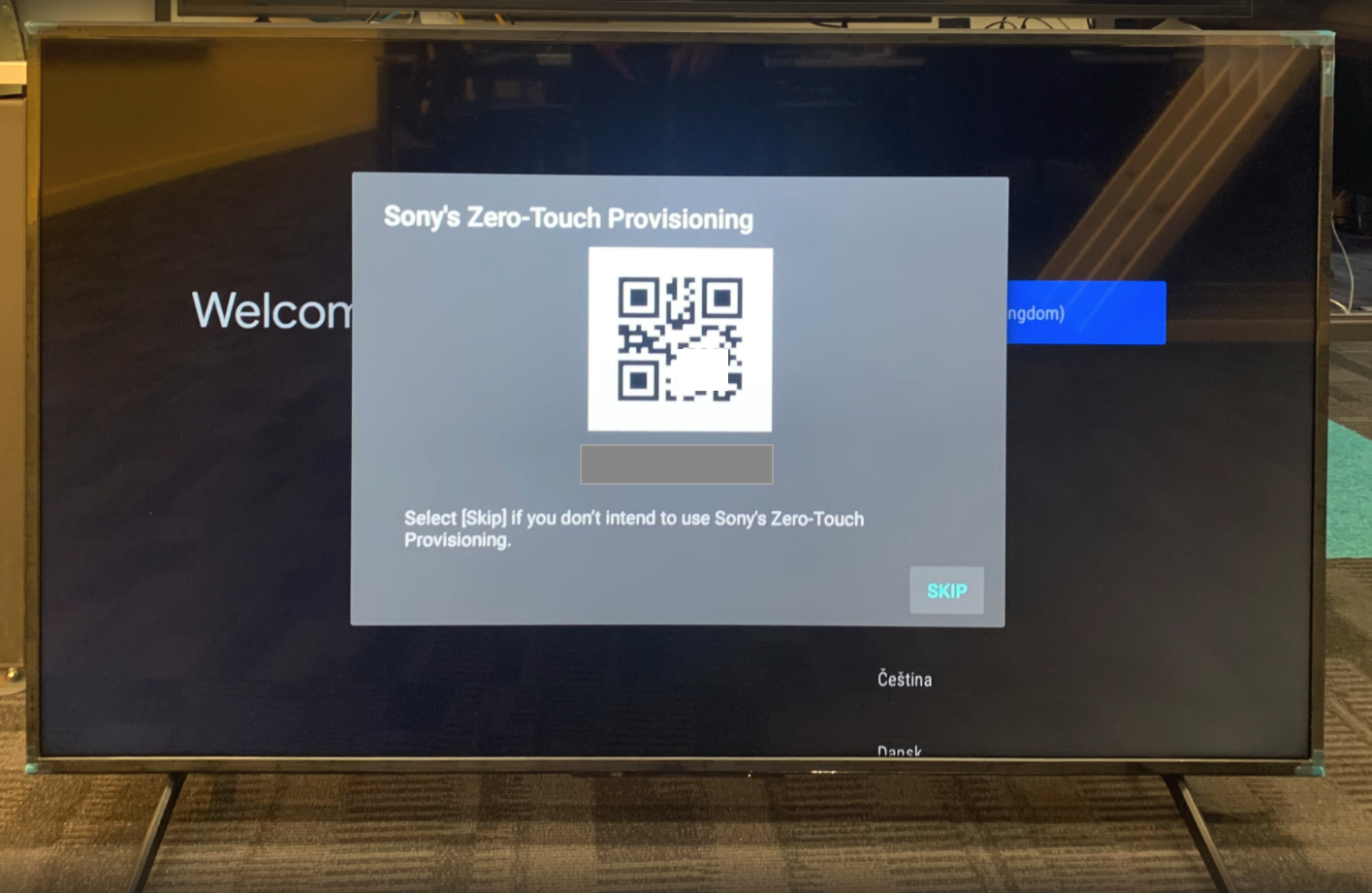
Turn on your Sony Device and you will be prompted with QR code on the device.
- 8
Scan the QR code
Scan the QR code on your Sony device with your camera device scanner App opened from step 6.
- 9
Confirm provisioning starts
Provisioning process should start automatically and the recipe created in step 4. should be marked as active instead of pending.