Windows provisioning
In this step-by-step guide we will take you through provision process of your Windows machines.
A machine running Windows 10 architecture x86 (64 bit Windows) with connection to internet is required! Specifically Windows May 2020 Update (Version 2004, Build 19041) or higher.
On Windows 11 24H2 and after, Microsoft has deprecated WMI command line utility, which is used in the provisioning process. You will need to manually add this optional feature to windows to complete the provision successfully
Pre-requisities
- Clean installation of Windows OS
- PowerShell version 5.1 (or higher)
- Constant internet connection (Ethernet cable or Automatic connection to Wi-Fi)
- You can read about SignageOS Compatibility with Windows versions here
Provisioning process:
Provisioning with exe installer (Wizard)
- 1
Download and run the installer
Download the latest Windows signageOS Core app installer. And run the .exe file to initialize installation.
- 2
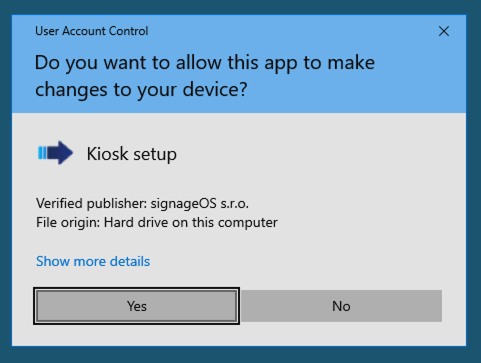
Accept the UAC prompt
Click
YESin the UAC dialog window. - 3
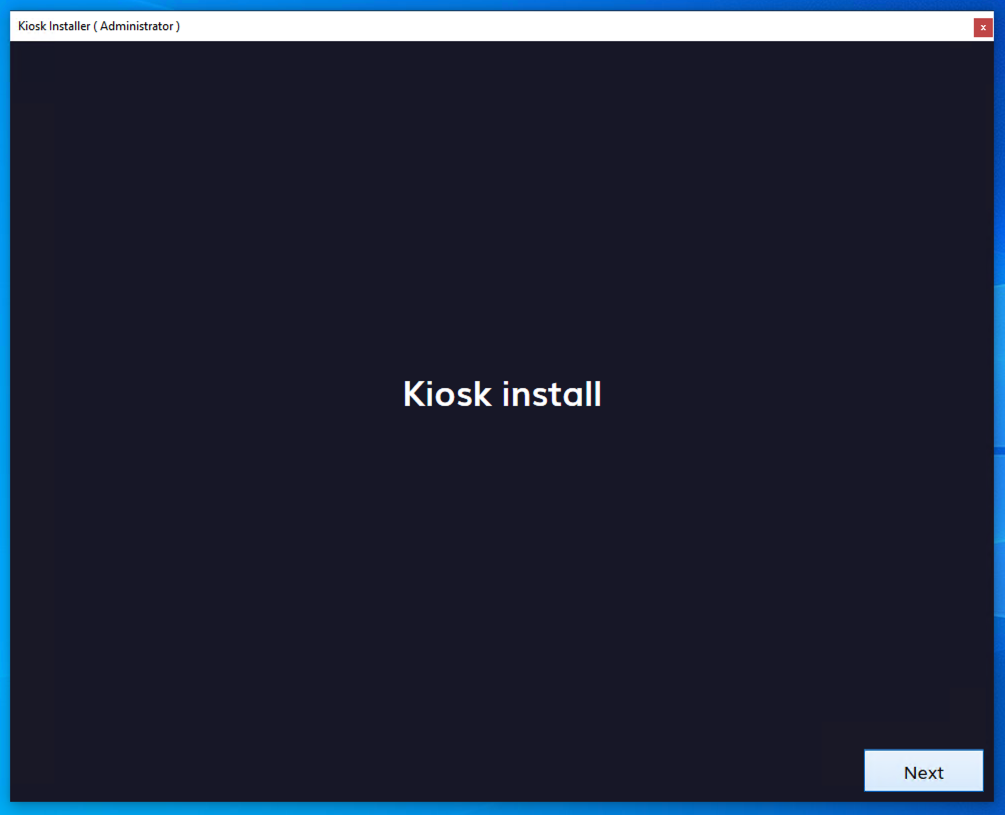
Start the installation wizard
Click
Next. - 4
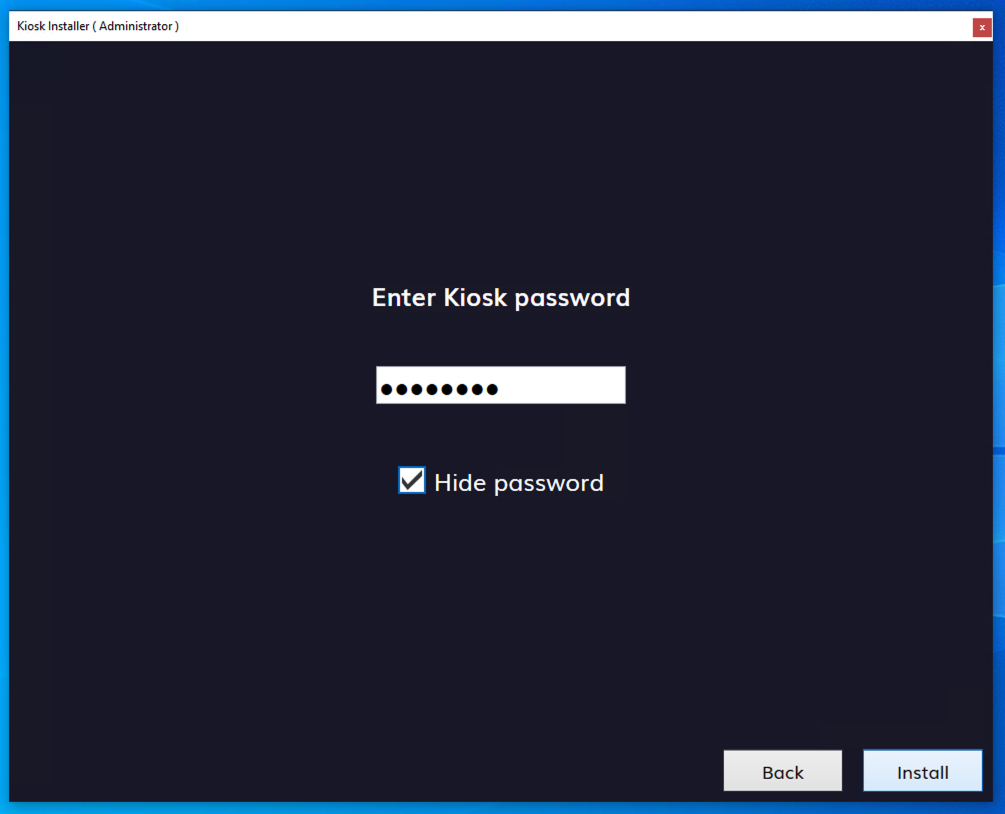
Set the Kiosk user password
Fill in password for Kiosk user and click
Install. - 5
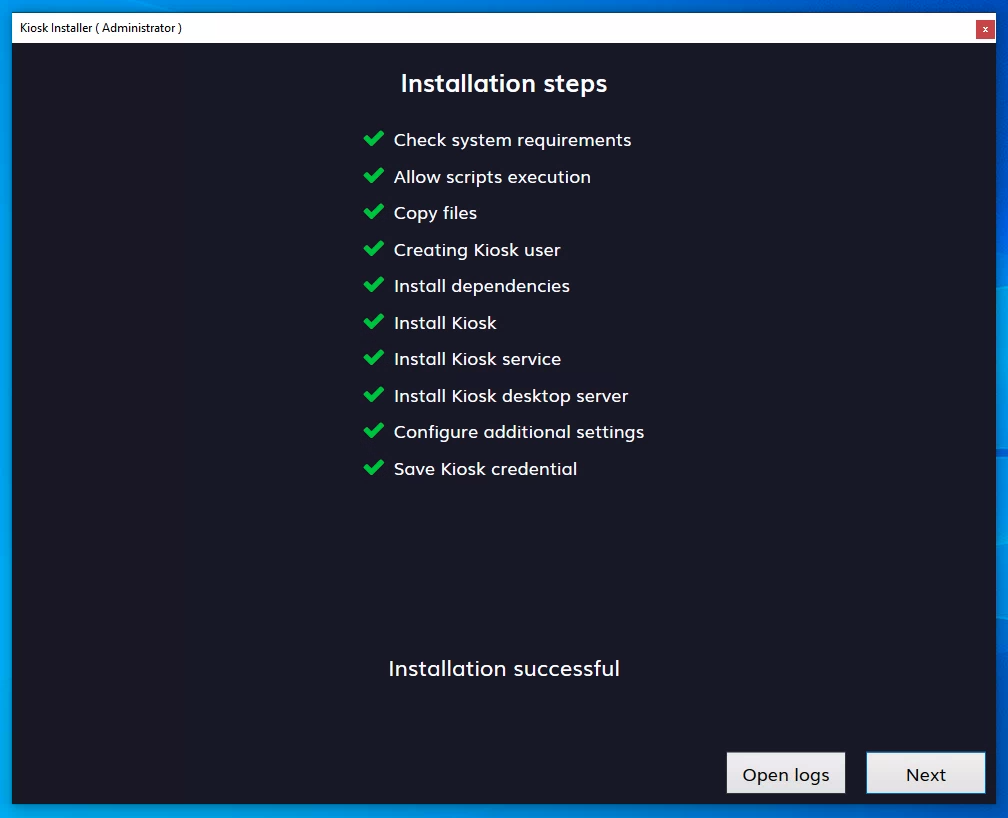
Confirm and install
Click
Next. - 6
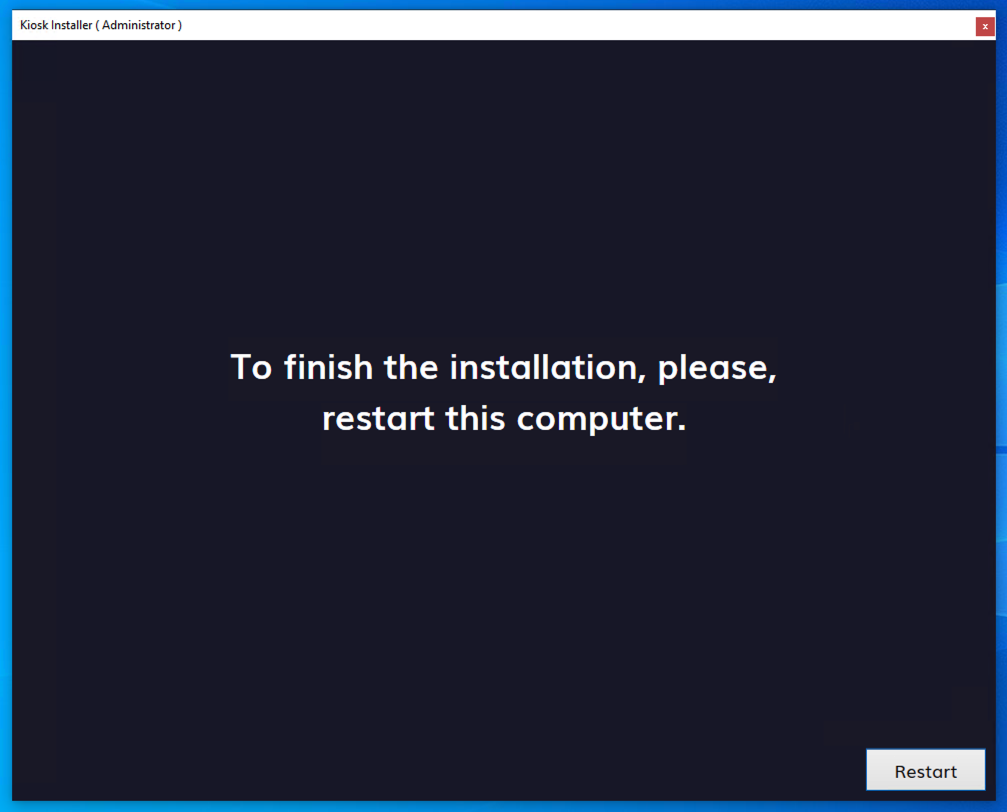
Restart the computer
Restart computer.
Provisioning with PowerShell
- 1
Download the Core app package
Download the latest Windows signageOS Core app (.zip)
- 2
Create an installation folder
Create a folder where you wish to install the app
dangerPLEASE NOTE: Do not use the spaces in folder name
- 3
Unpack the zip file
Unpack content of the zip file into your folder
- 4
Open PowerShell as administrator
Open Windows PowerShell, make sure you run as administrator
- 5
Set the execution policy
Run following command:
Set-ExecutionPolicy -Scope LocalMachine -ExecutionPolicy Bypass -Force -Confirm:$false - 6
Review the installation scripts
All Shell installation and uninstallation scripts are described in the README file located in the unzipped installation package folder
- 7
Navigate to your folder
Navigate to your folder
cd ../.. - 8
Run the install script
Once you are in your directory, execute command
.\Install-SignageOS.ps1 - 9
Set the Kiosk account password
Input your password for Kiosk account once prompted
- 10
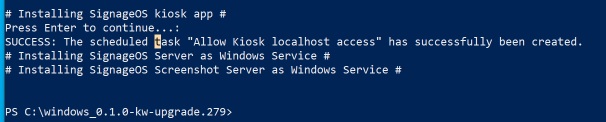
Wait for installation to finish
Once the installation is finished you should be notified
- 11
Restart the computer
You can close PowerShell command prompt and restart the computer
- 12
Verify the registration hash
After restart device should display hash for registration

Next steps
Deprovisioning
To deprovision device you can extract scripts from our exe installer or you can download these script alone.
Deprovisioning with exe installer
- 1
Extract the installer
Extract installer executable using 7-Zip.
- 2
Navigate to the extracted folder
Navigate to the extracted folder to
Content. - 3
Run the uninstall script
Run
Uninstall-SignageOS.ps1as administrator.
Deprovisioning with scripts archive
- 1
Run PowerShell as administrator
Run powershell as administrator
- 2
Navigate to the scripts folder
Navigate to folder with downloaded scripts
- 3
Execute the uninstall script
Execute Uninstall scripts
.\Uninstall-SignageOS.ps1
FAQ
How to get out from the Kiosk app signageOS Core App for Windows runs natively in Windows Kiosk mode. To exit the Kiosk mode and access login screen press CTRL+ALT+DEL.
How you handle Windows Updates Windows updates are disabled by default.
Why is my device not showing any screenshots? This behaviour occurs when a windows native remote desktop software is connected. The screenshots will not be available until the remote user is disconnected.
How to retrieve the password as a system administrator? User needs to be signed in as Admin, Run Powershell as Admin and then run Powershell command:
Get-ItemProperty -Path "HKLM:\SOFTWARE\Microsoft\Windows NT\CurrentVersion\Winlogon" | Select-Object -ExpandProperty DefaultPassword
Password should be available afterwards
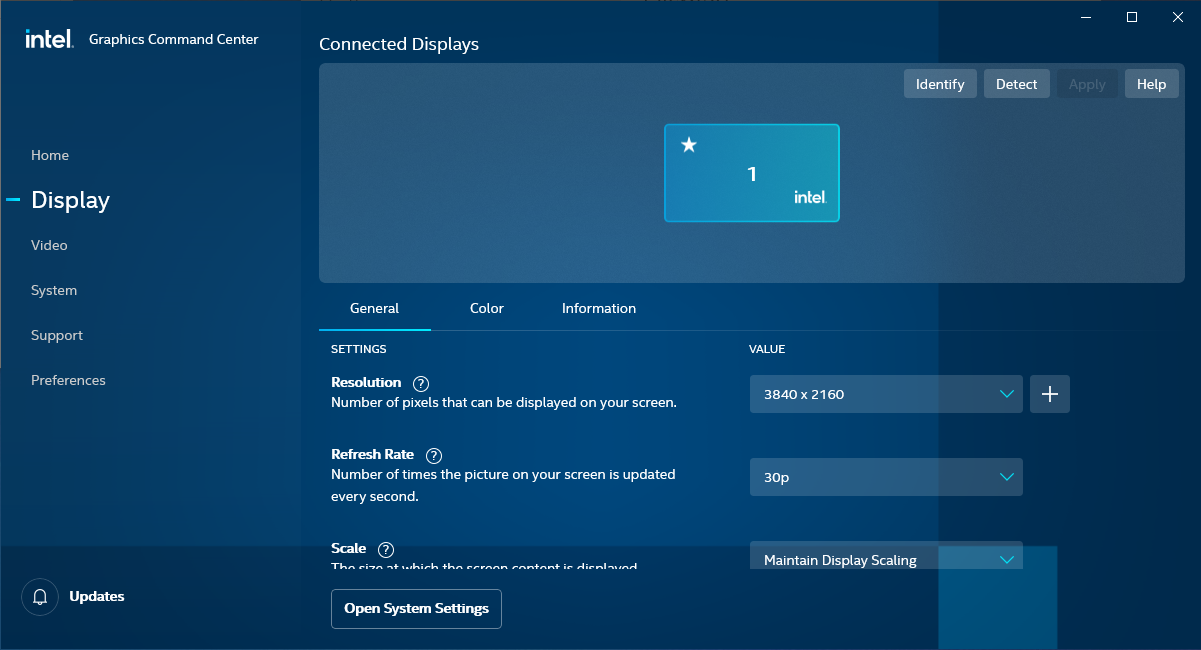
How to get multiple displays detected as one? For Windows machines it is possible to have a setup with multiple displays detected as one, this is available through native graphics drivers (Nvidia or Intel Graphics). Select your displays and pick option to merge the video outputs into one. Below is example from the Intel variant