devSpace · Availability: DevSpaceConnect your AI assistant to signageOS
Use your AI assistant to find signageOS documentation, explore your devices, and work with applets through Model Context Protocol (MCP). Sign in with your signageOS account; your existing permissions apply.
You need an AI client with remote MCP support. Custom connections may depend on your provider's plan or workspace administrator settings.
Connection settings
| Setting | Value |
|---|---|
| Server URL | https://mcp.root.signageos.io/mcp |
| Transport | HTTP (Streamable HTTP) |
| Authentication | OAuth |
| Client ID | yfP6fPaAsrF4KWpus2QWo7hmXG3Xvdqp |
| Client secret | Leave empty |
| OpenID configuration URL, if requested | https://auth0.signageos.io/.well-known/openid-configuration |
| Scopes, if requested | openid profile email offline_access |
Separate scopes with spaces. offline_access lets your client request a refresh token so you do not need to sign in for every session. Do not paste API tokens or passwords into a chat or configuration file.
ChatGPT, Claude, and Devin
Official signageOS connectors are not currently published in these providers' directories. Use a custom plugin or connector as the interim setup, following your provider's steps below.
ChatGPT
- Open Plugins, then Add → Add custom MCP server.
- Name it signageOS, enter the server URL, and choose OAuth. Under Advanced OAuth settings, select User-Defined OAuth Client, enter the client ID, leave the secret empty, and set token endpoint authentication to none.
- If requested, enable OIDC, enter the OpenID configuration URL, and select
openid,profile,email, andoffline_access. Keep discovered endpoints unchanged. - Review the trust notice, select Create as a plugin, and enable it in your chat. Sign in to signageOS when prompted on the first tool call.
ChatGPT setup screenshots
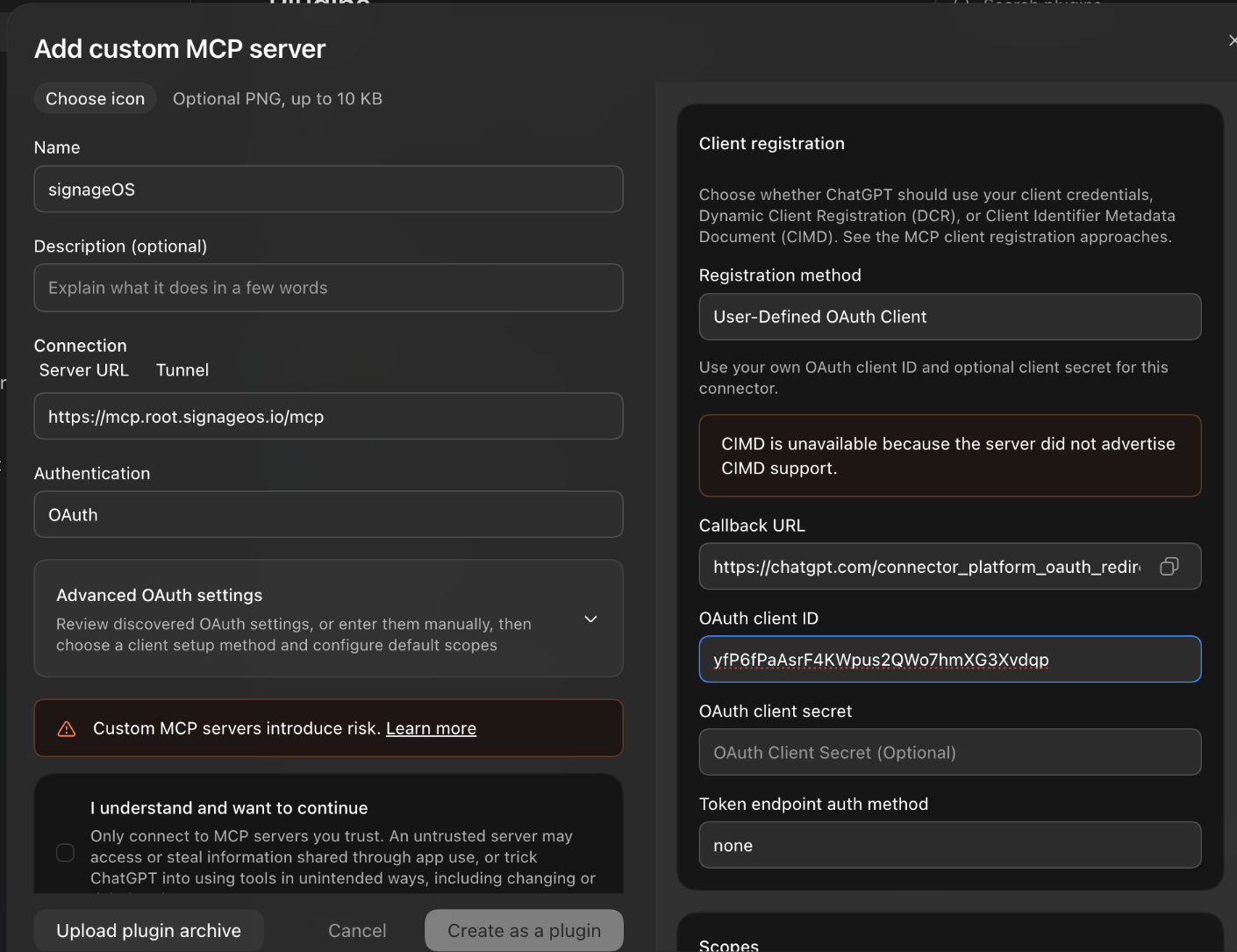
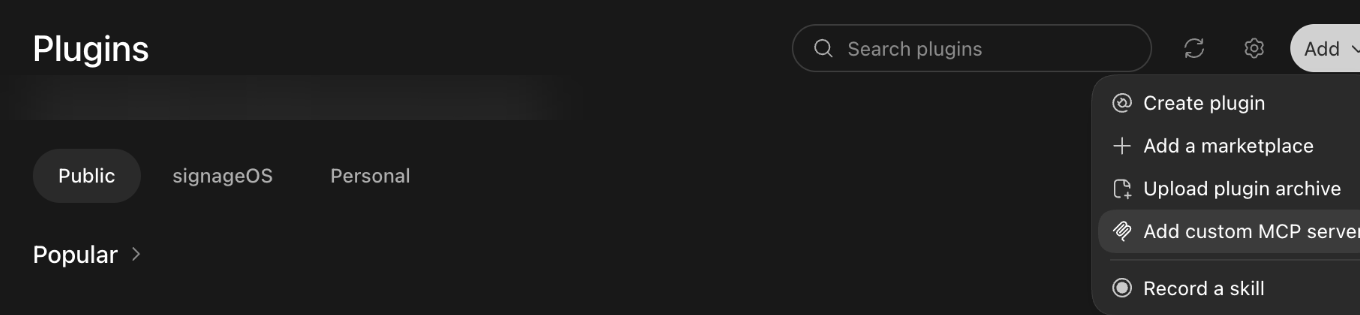
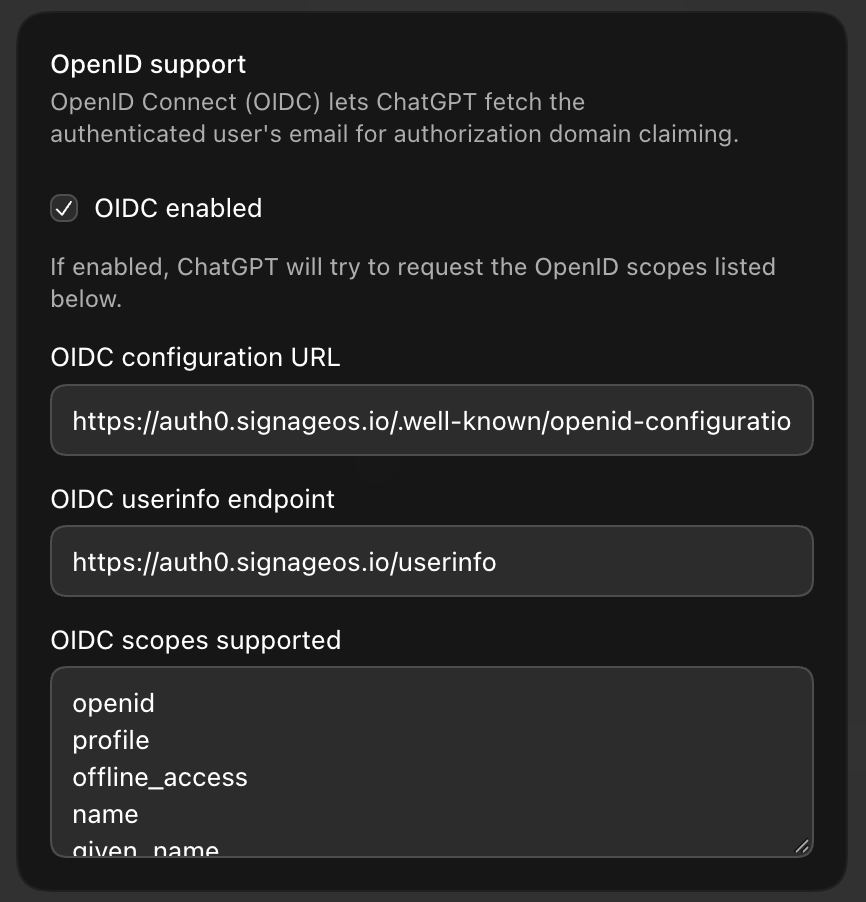
This creates your own connection; you do not need to publish a public plugin. If your workspace restricts custom plugins, ask its administrator to enable or add the connection.
Claude.ai and Claude Desktop
- Open Customize → Connectors → Add → Add custom connector. On Team plans, a workspace Owner adds it under Organization settings → Connectors.
- Name it signageOS, enter the server URL, and select Continue. If OAuth client fields appear, enter the client ID and leave the secret empty.
- Follow the prompts to sign in to signageOS and enable the connector in your conversation.
Claude setup screenshot
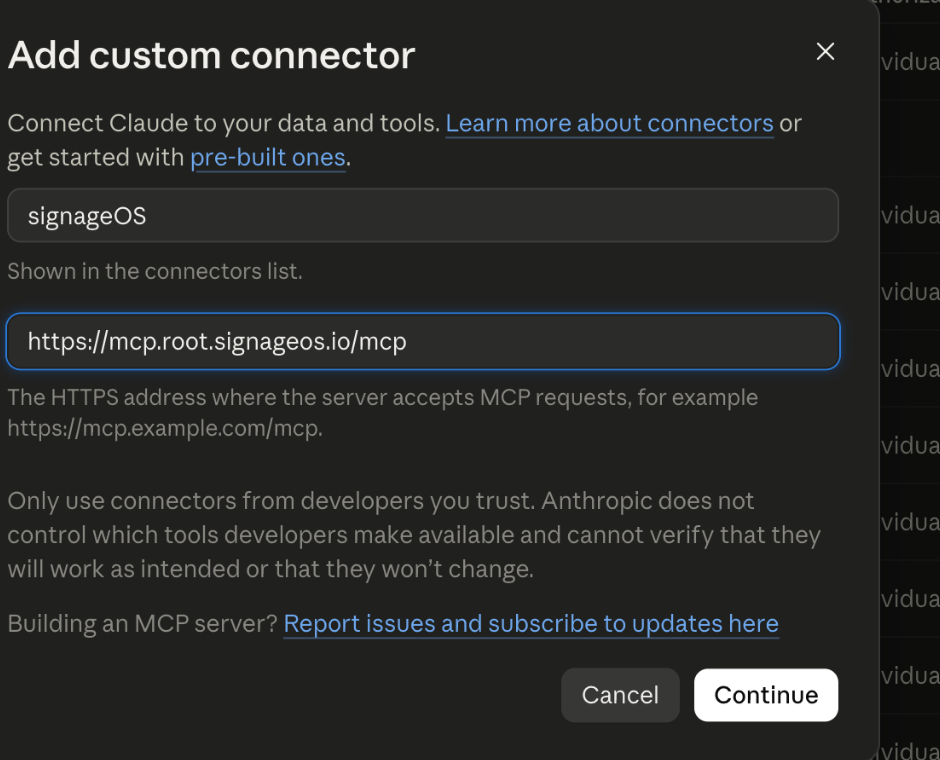
To change the client ID, remove the connector and add it again.
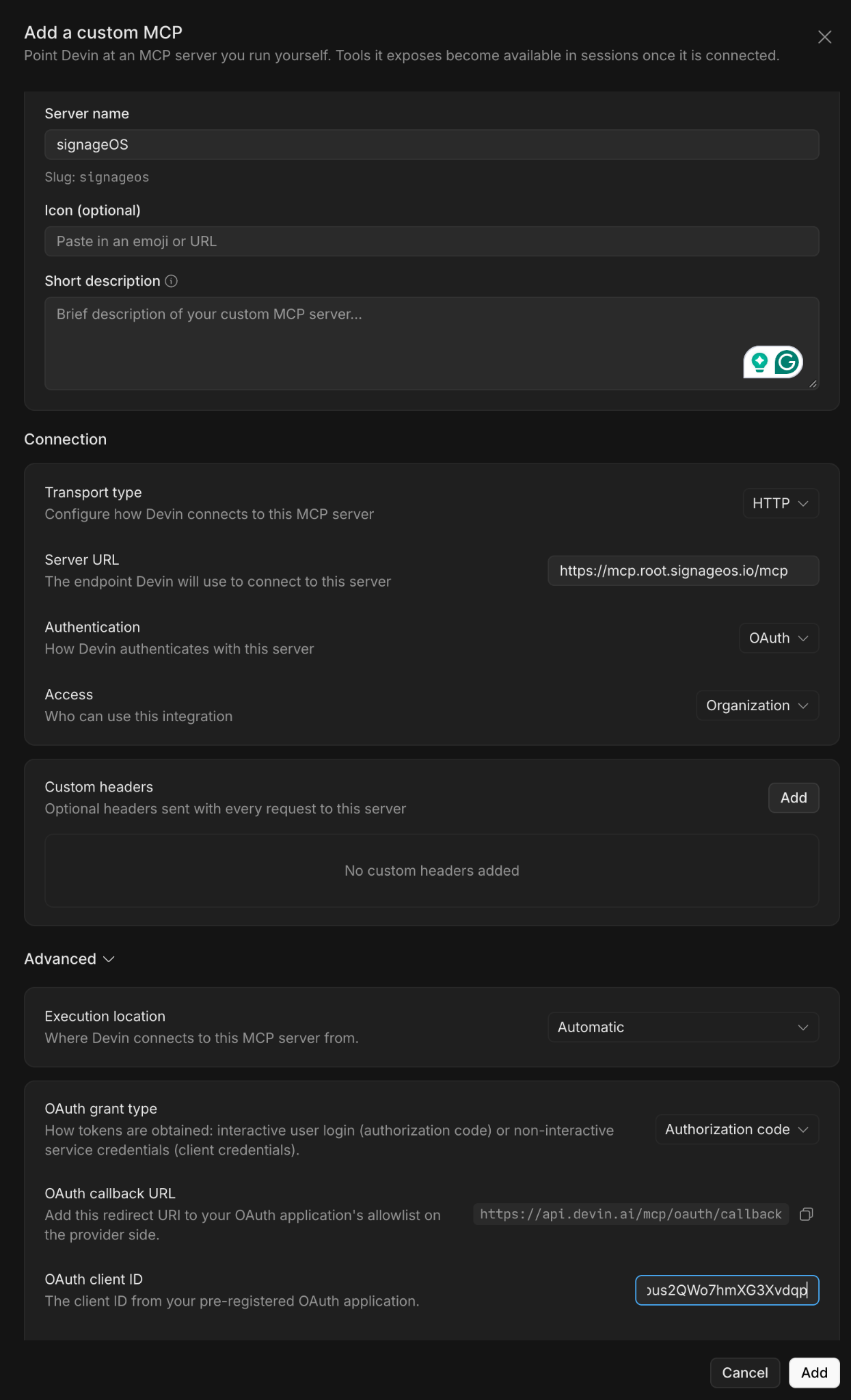
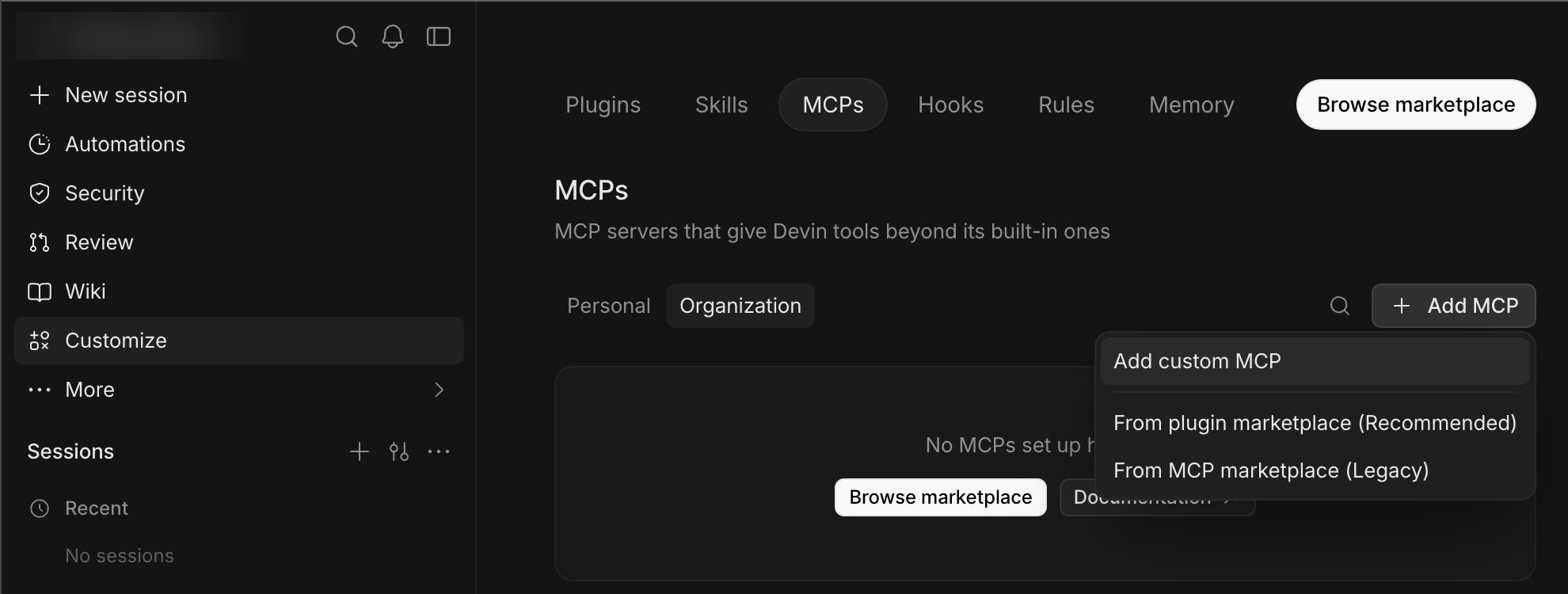
Devin
- Open Customize → MCPs, select Personal or Organization, then Add MCP → Add custom MCP.
- Name it signageOS, choose HTTP transport and OAuth, and enter the server URL. Choose who can access the connection; no custom headers are needed.
- Under Advanced, use Authorization code and enter the OAuth client ID above. Leave the client secret empty if shown.
- Select Add, sign in to signageOS, and approve access.
Devin setup screenshots
Coding assistants
Choose your client, add its configuration, and complete the browser login.
VS Code with GitHub Copilot
Add this to .vscode/mcp.json or your user mcp.json:
{
  "servers": {
    "signageos": {
      "type": "http",
      "url": "https://mcp.root.signageos.io/mcp",
      "oauthClientId": "yfP6fPaAsrF4KWpus2QWo7hmXG3Xvdqp",
      "auth": {
        "redirectPort": 33418
      }
    }
  }
}
Select Start above the server entry.
Claude Code
claude mcp add --transport http --scope user --client-id yfP6fPaAsrF4KWpus2QWo7hmXG3Xvdqp --callback-port 8765 signageos https://mcp.root.signageos.io/mcp
Run /mcp and select signageos to sign in.
Codex
Add this to ~/.codex/config.toml:
[mcp_servers.signageos]
url = "https://mcp.root.signageos.io/mcp"

[mcp_servers.signageos.oauth]
client_id = "yfP6fPaAsrF4KWpus2QWo7hmXG3Xvdqp"
callback_url = "http://127.0.0.1:8765/callback"
callback_port = 8765
Run codex mcp login signageos.
Gemini CLI
Add this to ~/.gemini/settings.json:
{
  "mcpServers": {
    "signageos": {
      "httpUrl": "https://mcp.root.signageos.io/mcp",
      "oauth": {
        "enabled": true,
        "clientId": "yfP6fPaAsrF4KWpus2QWo7hmXG3Xvdqp",
        "redirectUri": "http://localhost:8765/oauth/callback"
      }
    }
  }
}
Run /mcp auth signageos.
Cursor
Add this to ~/.cursor/mcp.json:
{
  "mcpServers": {
    "signageos": {
      "url": "https://mcp.root.signageos.io/mcp",
      "auth": {
        "CLIENT_ID": "yfP6fPaAsrF4KWpus2QWo7hmXG3Xvdqp"
      }
    }
  }
}
Sign in from the server entry in Cursor's MCP settings.
Try your connection
Start with a read-only request:
Use signageOS to search the documentation for applet playback.
Then try:
Show which signageOS companies I can access, then list devices for the company I select. Do not change anything.
Documentation search confirms the connection works; reading your company data also confirms API access.
Review the company, target devices or applets, and requested changes before approving actions. Writes, uploads, and publication affect live data. LLM generation consumes quota and may incur charges. If an action times out, check its result before retrying.
Connection problems
- Client registration fails: enter the client ID above; automatic client registration is not supported.
- Callback mismatch: use the configured callback port for coding clients. For a hosted client, contact signageOS support with its callback URL.
- Access denied: confirm you signed in with the correct signageOS account and have permission for the selected company and operation.
When contacting support, include your client name, error, and request ID if available. Never send tokens or passwords.