Create a coffee menu board with Claude Code
Use Claude Code to create a menu board, then ask it to put the reviewed applet on your display. You can start with a vendor or platform, such as “Samsung Tizen 7”; the agent needs to identify the exact screen before changing playback.
devSpace · Availability: DevSpaceWhat you need
- Claude Code, with its own account configured.
- Node.js 20 or later, npm 10 or later, and signageOS CLI 4.5.0 or later.
- A signageOS account with access to the organization, applet, and display you want to use.
- An online display with the signageOS Core App installed and registered in that organization. This walkthrough uses a landscape menu intended for Samsung Tizen 7.
Use a test display first. Assigning an applet changes what the screen plays; it is not just a preview. The AI skill does not grant additional permissions or register a display from its model name.
1. Connect Claude Code to signageOS
Install the CLI and its Claude Code skill:
npm install -g @signageos/cli@4.5.0
sos skill install --agent claude
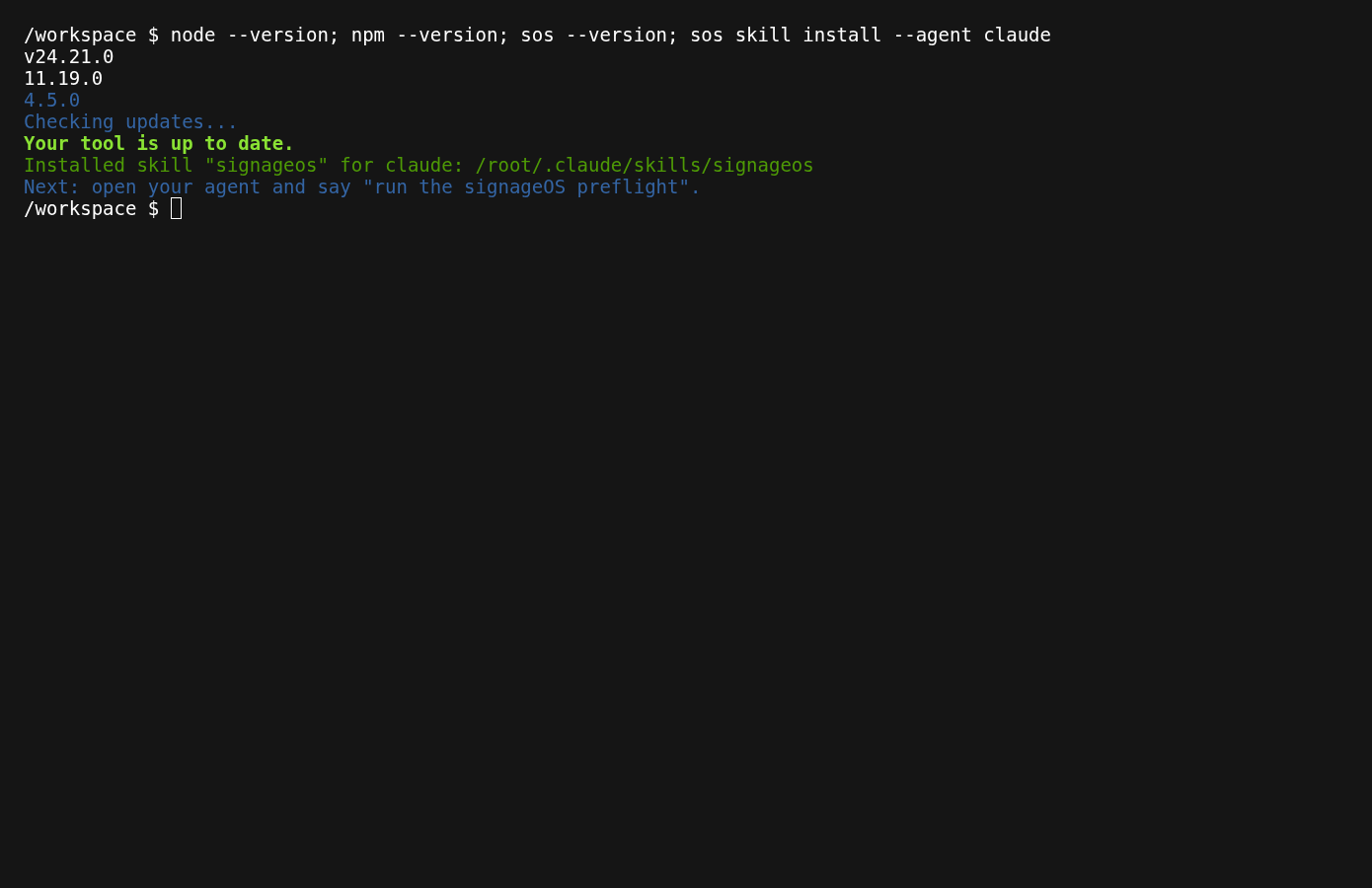
The skill is installed locally. This step does not log in to signageOS or change a screen.
Open Claude Code in an empty project directory and ask:
Run the signageOS preflight.
The agent checks Node.js, npm, the CLI, and your default organization. If you need to log in, it runs sos login and gives you a URL and short code to confirm in your browser. If you have several organizations, tell it which one to use. Check the organization it reports before continuing.
Never give the agent your password or API tokens. For the canonical setup and safety guidance, see AI Agent Setup. After a CLI upgrade, reinstall the skill with sos skill install --agent claude.
2. Describe the menu and your display
Start with the outcome you want. For example:
Create a coffee menu board for Juniper Coffee in a warm cream and espresso palette, landscape 1920 × 1080. Include Espresso $3.00, Americano $3.50, Cappuccino $4.25, Latte $4.50, and Iced Latte $4.75. Add Oat milk +$0.60 and a seasonal Maple Latte $5.25 feature. Use large readable text and no remote images, fonts, or libraries. I want to deploy it to a Samsung Tizen 7 display. Show me a local preview first; do not upload, publish, or change playback until I approve.
Claude Code creates the content using its coding tools; the signageOS skill provides the platform lookup and screen-operation guidance. Review its proposed files and commands rather than assuming that a prompt alone produces a deployable applet.
If you only want to design the menu first, ask for a self-contained HTML preview and defer the signageOS preflight until you are ready to connect to signageOS.
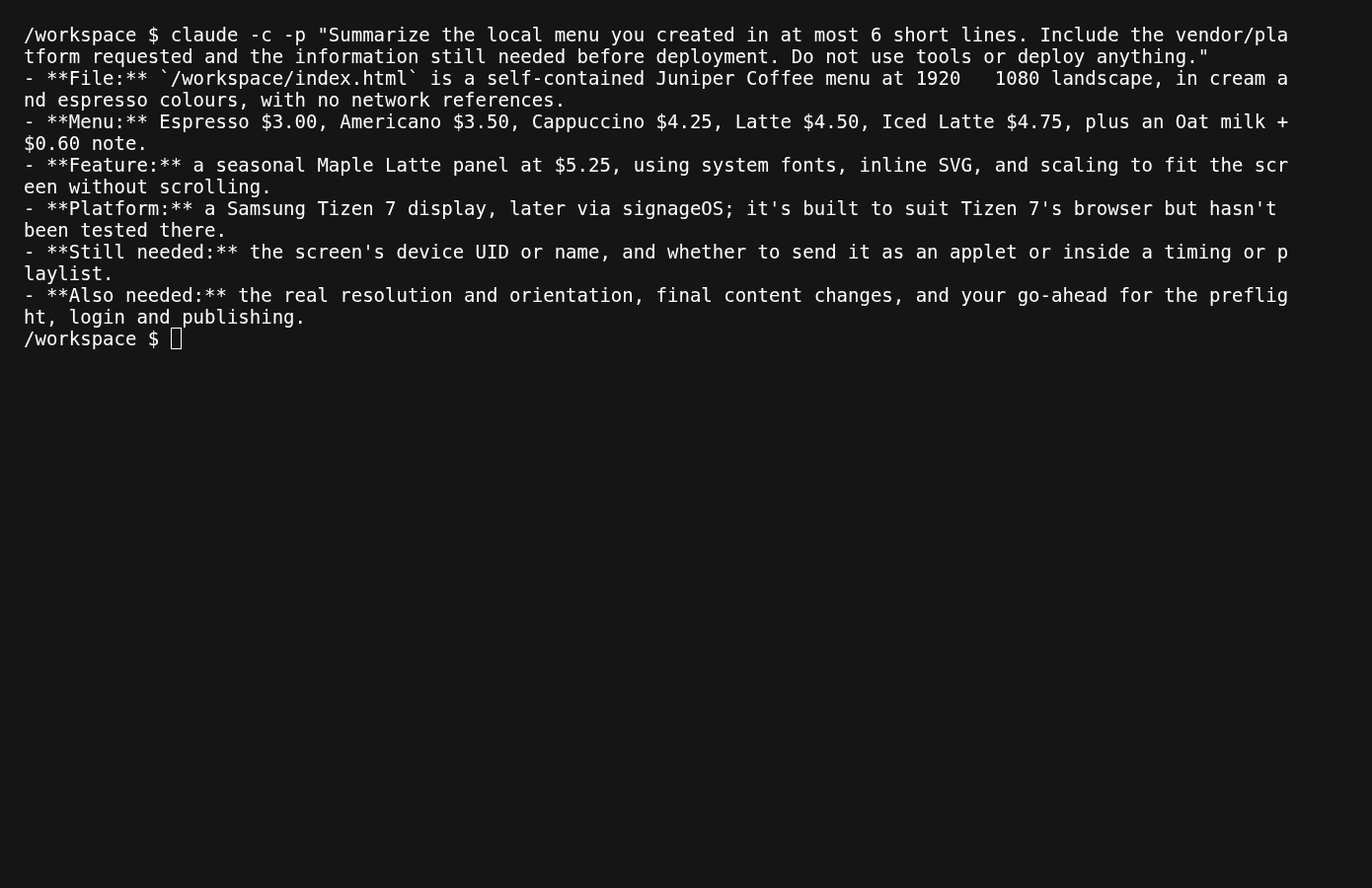
This local-only Claude Code run creates the menu and identifies missing deployment information. It does not log in, publish an applet, or operate a display.
Help the agent identify the screen
A vendor or platform is a starting point, not a unique target. Give the agent a device name, location, or UID when it asks. Device-name search does not search model or vendor fields.
Ask it to show the matching device names and UIDs, model and platform details, and last contact. If several devices match, select one explicitly. Confirm its OS version rather than assuming every Samsung display runs Tizen 7. If the screen is offline, check its power and network before continuing.
3. Review the local menu
Ask Claude Code to open or serve the preview. Check prices, branding, orientation, text size, and whether every item fits without scrolling. Generated results vary; revise the menu until it is ready to test on your screen.
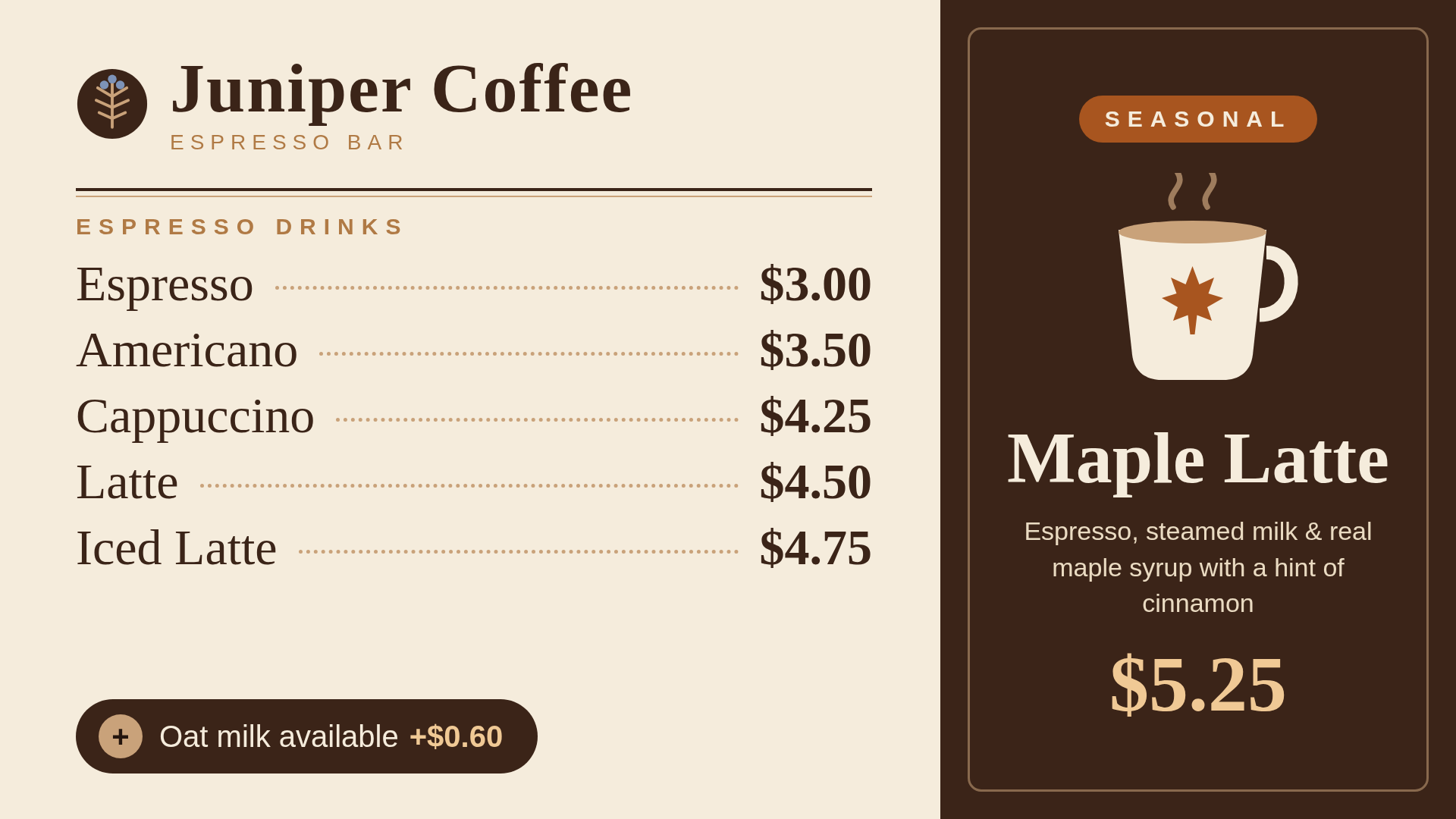
Local browser preview at 1920 × 1080, not a screenshot from a physical display. Browser appearance does not establish compatibility with the display's browser, fonts, or runtime.
4. Build and publish the reviewed applet
A standalone HTML preview is not yet an uploaded signageOS applet. Ask Claude Code to integrate the reviewed content into an applet project, preserving its signageOS initialization, then run the project's build and review the result. The existing Applet getting started guide covers the applet project workflow.
For example, continue with:
Turn the reviewed menu into a signageOS applet. Show the project, build result, target organization, applet name, and version before uploading. Ask for my approval before uploading or publishing. Do not assign it to a screen yet.
Approve the intended upload only after reviewing those details. Before publishing, test the applet and verify its build succeeds. A published version cannot be overwritten; a later content change needs a new version. See Applet Version Lifecycle for the commands and checks.
5. Approve the exact playback change
Ask the agent to read the selected device's current assignment and explain what will be replaced. For a temporary test, retain the original applet version, configuration, and schedule so you can restore them afterward.
Show the exact organization, device name and UID, menu applet and published version, configuration, and current playback. Explain the proposed replacement and wait for my approval.
Approve only the intended screen and version. The installed skill guides the agent through creating a timing with that exact published version. The CLI's --confirm-write flag is an additional write guard, not a substitute for your approval or server-side permissions. Do not approve unrelated reloads, restarts, or changes to other displays.
See Deploy an applet on a device for assignment and native application options.
6. Verify the display
After assignment, ask:
Wait for the menu to load, request a fresh screenshot from that device, and show it to me with its capture time. Check that the menu and prices are visible.
The screen must be online. The agent waits for a capture and checks that its timestamp is newer than the request. A successful API response or an older screenshot is not proof that the new content is playing. Inspect the physical screen too, especially for text size and font differences.
If this is a temporary test, restore the saved playback after review and verify it again. The skill does not delete timings; manage deletions in Box.
Troubleshooting
- Claude Code does not find the skill: rerun
sos skill install --agent claude, then open a new session. Check the installation path reported by the command. - Wrong organization or missing devices: ask the agent to confirm its organization scope. Supply a more specific device name or UID; model names are not device-name search filters.
- Upload or publication fails: read the error and check the applet build and version state. Do not retry a write blindly.
- Menu looks different on the display: compare a fresh device screenshot with the local preview, then adjust the applet for that display's resolution, fonts, and browser capabilities.
- Blank or wrong content: ask the agent to check connectivity, the assigned applet version, and a fresh screenshot before proposing a reload. Approve any recovery action separately. See Applet troubleshooting.