Windows Native Device Debug
Windows Core App runs under single-purpose Kiosk user and does not allow direct debugging while the Kiosk user is signed in. To debug your Applet on Windows machine, follow either of these guides.
Feature entitlement:
devSpace · Availability: DevSpaceCurrent version
Currently you can debug since version 3.0.0 through following steps:
- Allow Native Debug in Box
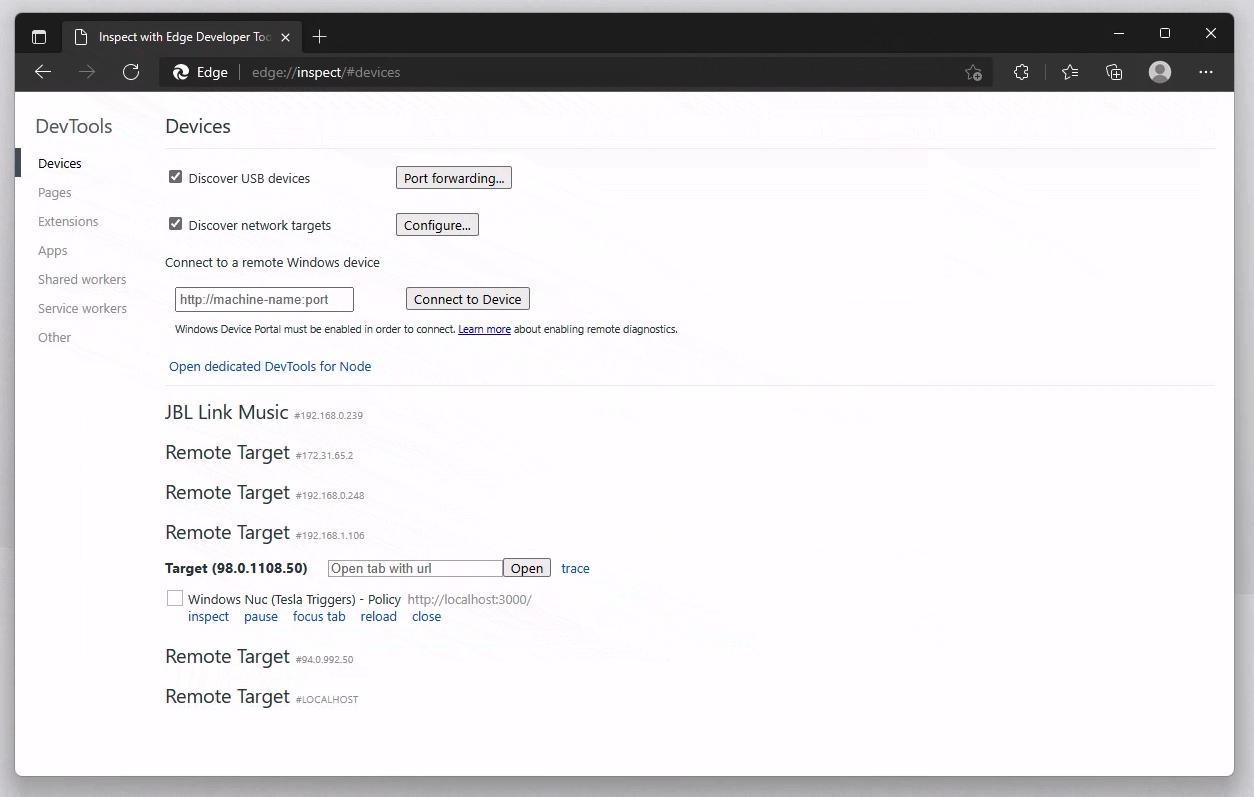
- Open a chromium based browser at about://inspect
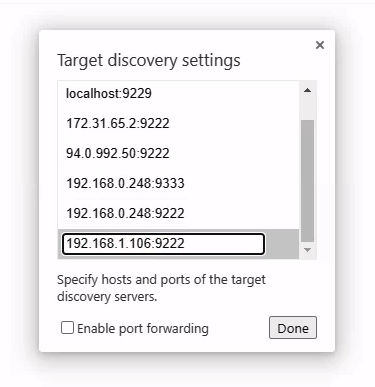
- Add your device IP to configuration, debug is running at port 9222.
- The clickable device should appear under the Remote Target
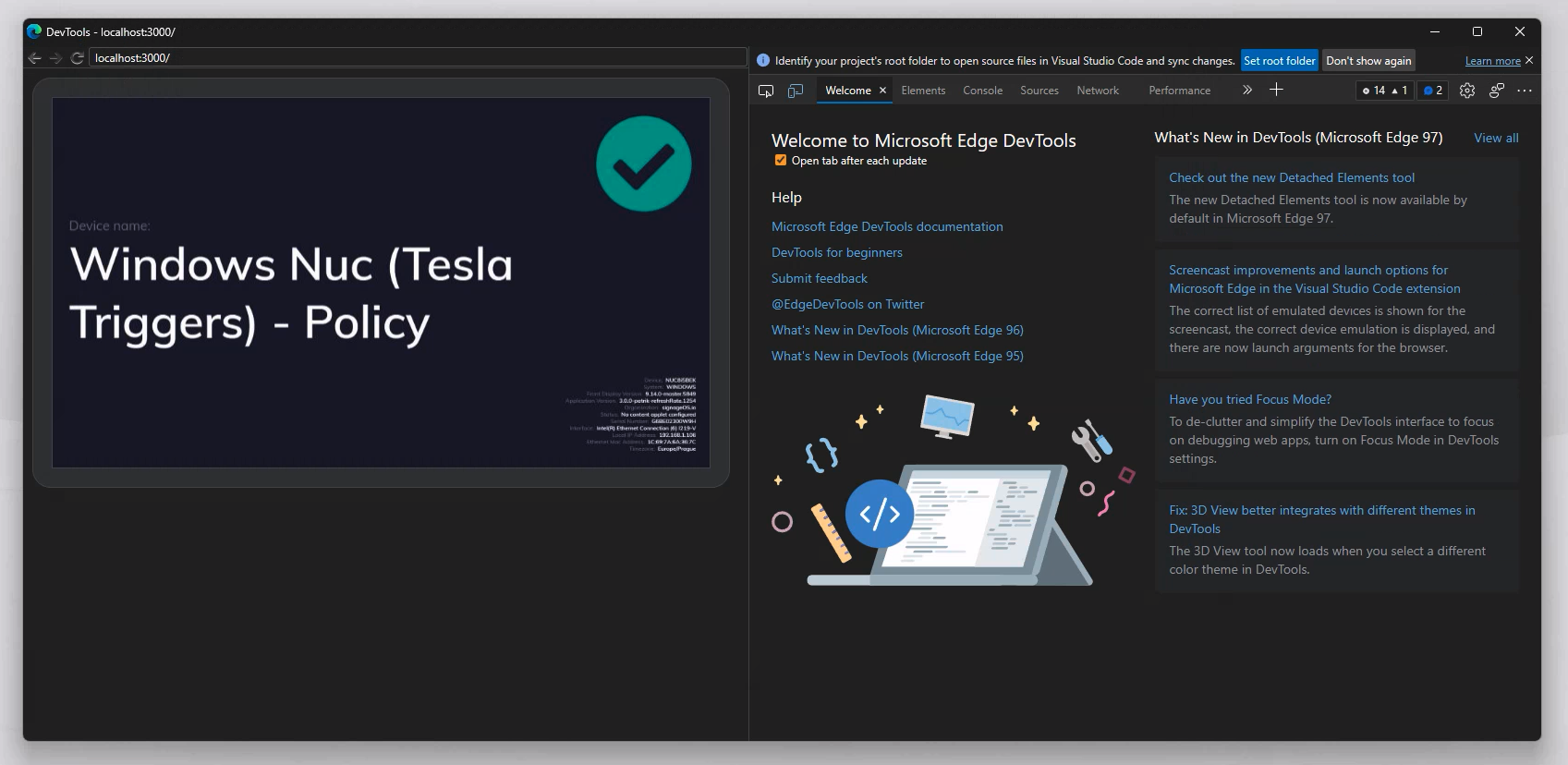
- Start Debugging
Legacy versions
Version 1.x.x and 2.x.x debug:
- Exit the Kiosk by pressing
CTRL + ALT + DEL, you will see a login screen - Select admin account under which you installed Windows Core App and login
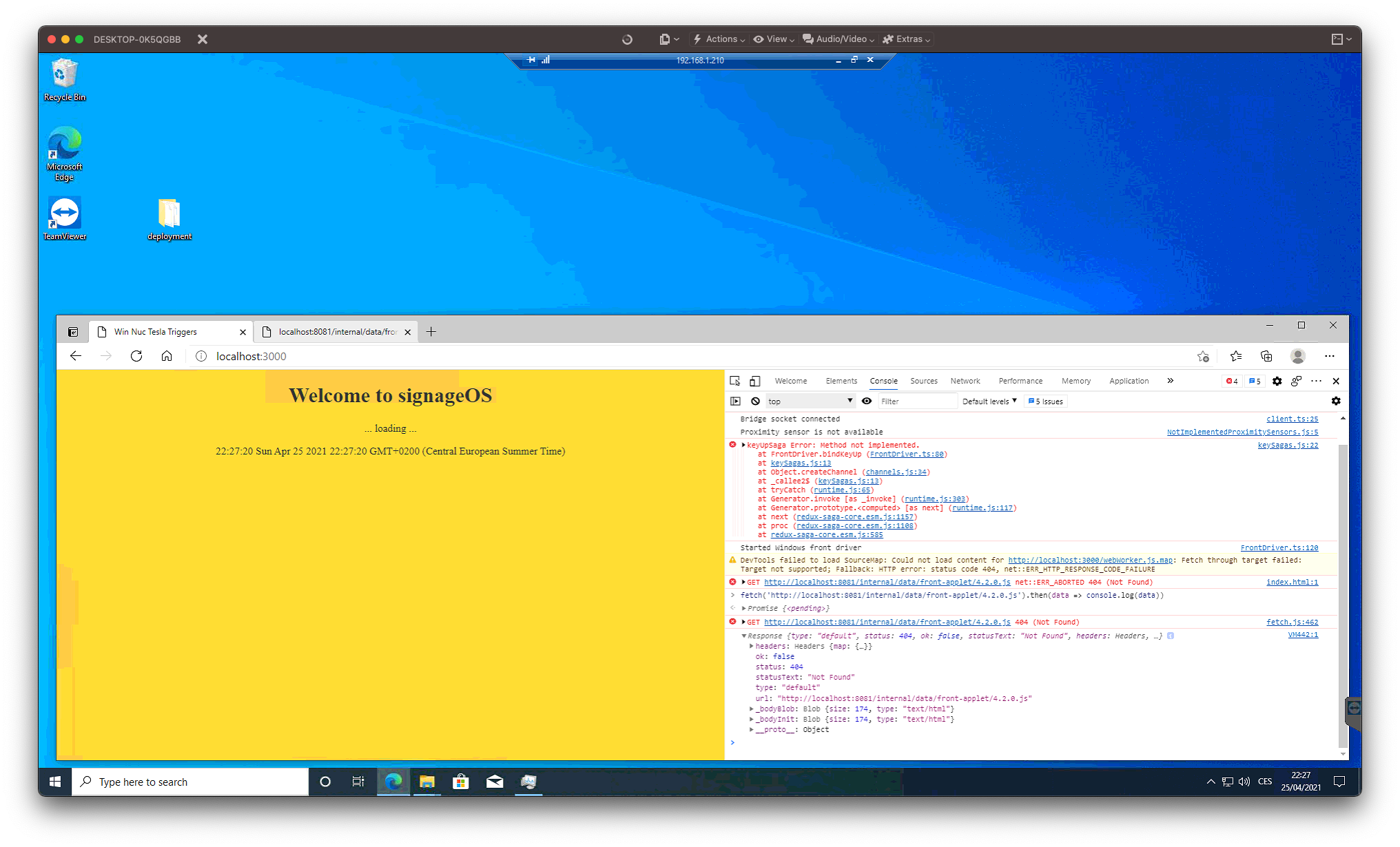
- Once logged in as an admin user, open Edge (browser)
- Open
localhost:3000url - Start debugging
FAQ
Forgotten password
If you ever need to retrieve the password from a set up device, you can use the following command via PowerShell:
Get-ItemProperty -Path "HKLM:\SOFTWARE\Microsoft\Windows NT\CurrentVersion\Winlogon" | Select-Object -ExpandProperty DefaultPassword
Device not showing on a list
If the device is not showing up try to reload the page. In rare cases it might take minutes to load.