Build and Deploy the SMIL Player Applet
Following guide provides steps to build your version of SMIL Player from Github repository and uploading it to signageOS DevSpace.
Prerequisites:
- signageOS Account
- created Organization in Box (create one here)
- Node.js >= 16
- NPM
- a shell/terminal environment (like bash, zsh, powershell...)
- a source-code editor (like VSCode, Sublime, WebStorm...)
Create an Applet
- First, navigate to signageOS Box -> Applets -> New Applet
- Create a new Applet
- Once created, get the Applet UID, we will need it later in the process in Step 5
Clone signageOS SMIL Player repository
In your favorite terminal, use the following commands:
git clone https://github.com/signageos/smil-player.git
cd ./smil-player
The repository is located on signageOS Github account: https://github.com/signageos/smil-player
Install signageOS CLI and additional libraries
npm install @signageos/cli@latest -g
npm i -SE @signageos/front-display
npm i -SE @signageos/front-applet
Initiate signageOS CLI and login
Login with your signageOS Account and follow the guide in the terminal
sos login
Select your Organization under which you generated your Applet in the step 1
sos organization set-default
Build the project and test it locally
To run the SMIL Player, make sure you build it first.
npm install && npm run build

sos applet start --applet-dir dist --entry-file-path dist/index.html
Now you should be able to open up your web browser on http://Your-IP-Address:8090 and see the project running. Do your changes, if necessary, and continue with the next step.
Login to signageOS CLI and upload your version to signageOS
### Adjust package.json file
- Open up package.json file in the root folder of the project
- Check the 5th line main and make sure there is dist/index.html
- Change the appletUid to YOUR Applet UID from the Step 1
{
  "name": "@signageos/smil-player",
  "version": "5.2.0",
  "description": "SMIL player",
  "main": "dist/index.html",
  "files": [
    "dist",
    "README.md",
    "CHANGELOG.md",
    "package.json"
  ],
  ...
    omited items..
  ...
  "sos": {
    "appletUid": "41240bf563bac504af...e06dfeb6824"
  }
}
Upload to signageOS
Make sure you build your project before running the sos applet upload.
// build the project
npm run build-prod

// upload to signageOS
sos applet upload --entry-file-path dist/index.html
Now you have successfully uploaded your SMIL Player into signageOS and you can start deploying it to a supported device.
Deploy to a device
Once your SMIL Playlist is uploaded to a server (local server, AWS S3, Azure Storage, or similar — see the Hello World tutorial), you can deploy your SMIL Player Applet to any device via Timing, or build your own native app — Core Apps.
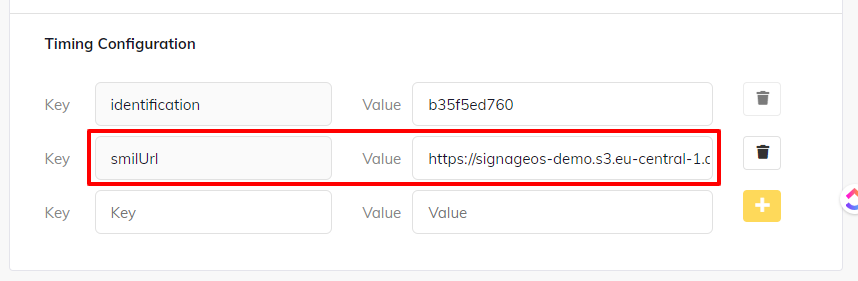
If you are using Timing to deploy your SMIL Player, add a Timing Configuration smilUrl and pass the link to your
SMIL playlist as its value.
By doing so, the SMIL playlist will be persistent throughout reboots. And, of course, you can change it from Box anytime in the future.