Command Center and working set
Overview
Box gives you two ways to move quickly between the things you are working on:
- The Command Center — a search palette you open from anywhere with
Cmd + K(macOS) orCtrl + K(Windows and Linux). It searches pages, devices, locations, and commands in one place. - The working set — a tray along the bottom of the screen that collects the detail pages you visit, so you can jump between several devices, locations, or alerts without opening a browser tab for each one.
Both are available to all users. You can also open the Command Center by clicking the Search field at the top of the left navigation.
Command Center
Press Cmd + K or Ctrl + K and start typing. Results are grouped by what they are:
- Open items — the pages already in your working set.
- Commands — actions such as Switch company, Search devices, Pin current page, Clear recent items, Send to Slack, or Open documentation.
- Pages — any page you can reach from the left navigation. Only pages you have access to are offered.
- Devices and Locations — searched on the server as you type, from two characters up. Devices are matched on more than their name: UID, serial number, model, and network addresses count too. Locations are matched on name. You only ever see devices and locations your organizations give you access to.
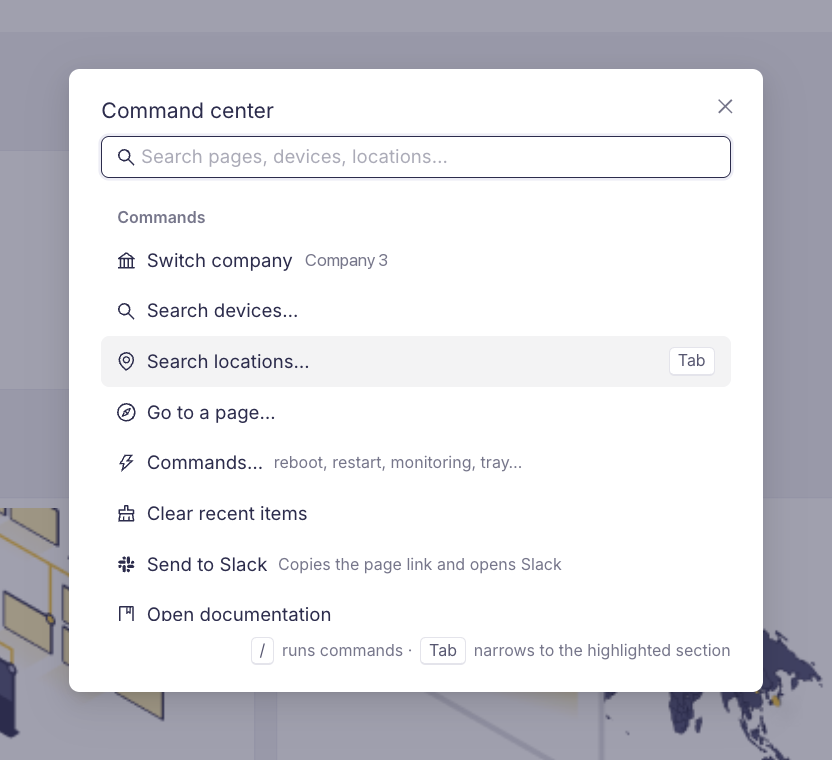
Use ↑ and ↓ to move through the list and Enter to open the highlighted result. The row of hints along the bottom always tells you what the keys do on the step you are on.
Each group shows the eight best matches for what you typed. Results whose name matches your text come first, then UID matches; a device found only through a field you cannot see in the row — its serial number, MAC, or IP address — is still listed, just below them. On a very short query that matches hundreds of devices, add a few more characters to bring the one you want into view.
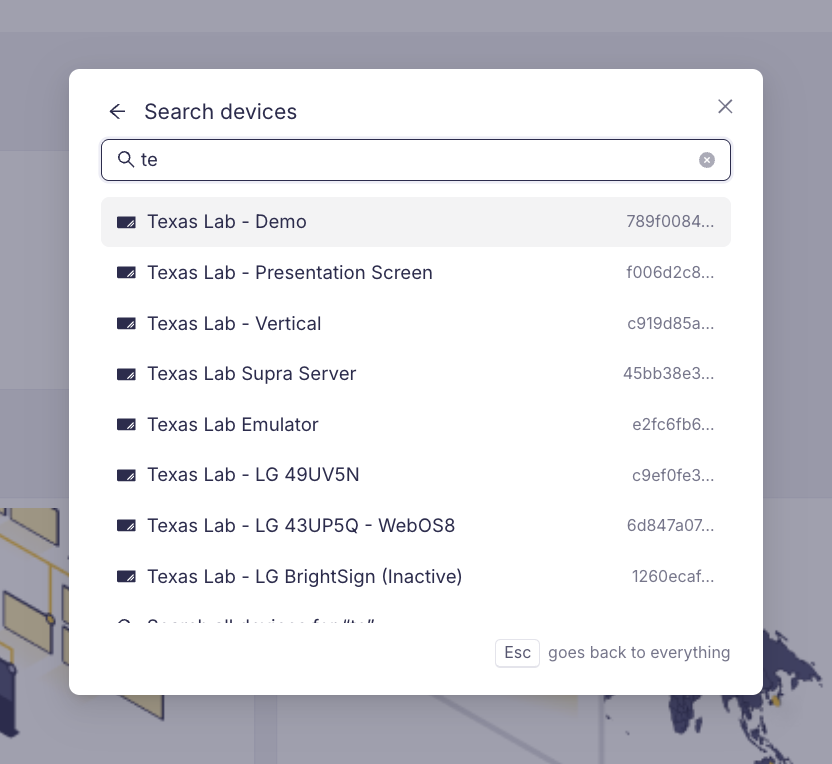
Press Tab to narrow the palette to the highlighted section — for example, highlight a device result and press Tab to search only devices. To step back out, press Esc or click the back arrow next to the palette title. Either way the text you typed stays in the field, so it carries over into the wider search.
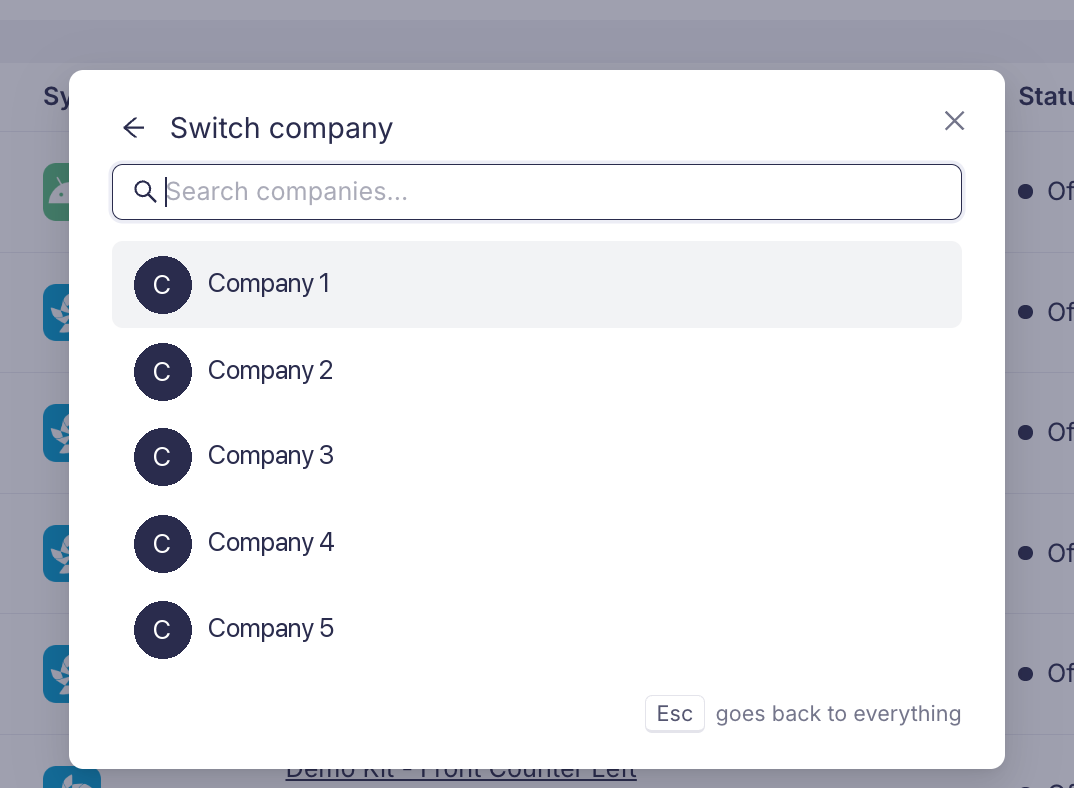
The back arrow appears on every step below the full search — a narrowed section, a slash command that has already resolved, the confirmation of a power command, and the company list. Choosing Switch company from the company menu in the top bar opens the Command Center straight at the company list, and the back arrow leads from there into the full search.
If a search returns nothing, the palette tells you why — for example that device search starts at two characters, or that no device matches the text you typed.
Working set
Every entity detail page you open — device, location, alert, monitoring, device policy, alert rule, applet, timing, script, plugin, runner, organization, or company — is added to the tray as a chip.
| Action | How |
|---|---|
| Reopen a page | Click its chip. You return to the exact view you left, including the selected tab and filters. |
| Pin a chip | Double-click it, or right-click and choose Pin. Pinned chips are never removed automatically. |
| Remove a chip | Click the ×, middle-click the chip, or right-click and choose Remove. To clear the rest of the tray instead, right-click and choose Remove others. |
| Jump by keyboard | Alt + 1 … Alt + 9 opens the first nine chips; Alt + ↑ and Alt + ↓ cycle through them. |
| See hidden chips | When the bar is full, a +N button lists the rest. |
The tray keeps your 50 most recent pages, dropping the oldest ones first. Pinned chips do not count against that limit.
Your working set is stored in your browser, per user and per company. It survives a page reload and is not shared with other people using the same computer.
On phones and narrow screens the tray is replaced by a floating button with a counter that opens the same list in a bottom sheet.
Adding many devices at once
When an alert, a report, or a ticket gives you a list of device UIDs, you do not have to search for them one by one.
- 1
Open the paste field
Click the
+button next to the chips in the tray — its tooltip reads Add devices by UIDs. Do not confuse it with the+Nbutton, which lists the chips that do not fit. - 2
Paste the UIDs
Any common format works — a JSON array, or UIDs separated by commas, spaces, or new lines.
- 3
Add the devices
Click Add devices. Box validates the list against your company and adds the devices you have access to as chips.
The result tells you exactly what happened: how many devices were added, how many were already in your tray, and how many UIDs were not found or are not accessible to you. Up to 1000 UIDs are processed per batch; anything beyond that is reported as skipped so you can submit the rest separately.
Commands starting with a slash
Type / in the Command Center to see the commands you can run. Type the rest of the command and then what it should act on.
| Command | What it does |
|---|---|
/reboot | Restarts the device. |
/restart | Restarts the signageOS application on the device. |
/reload | Stops, reinstalls, and starts the applet. |
/refresh | Refreshes the applet. |
/screen-on, /screen-off | Turns the display on or off. |
/monitoring | Opens the monitoring page of an organization. |
/tray, /pin | Adds or pins a pasted list of device UIDs. |
For example, type /reboot tex to find devices matching tex, then select the one you mean.
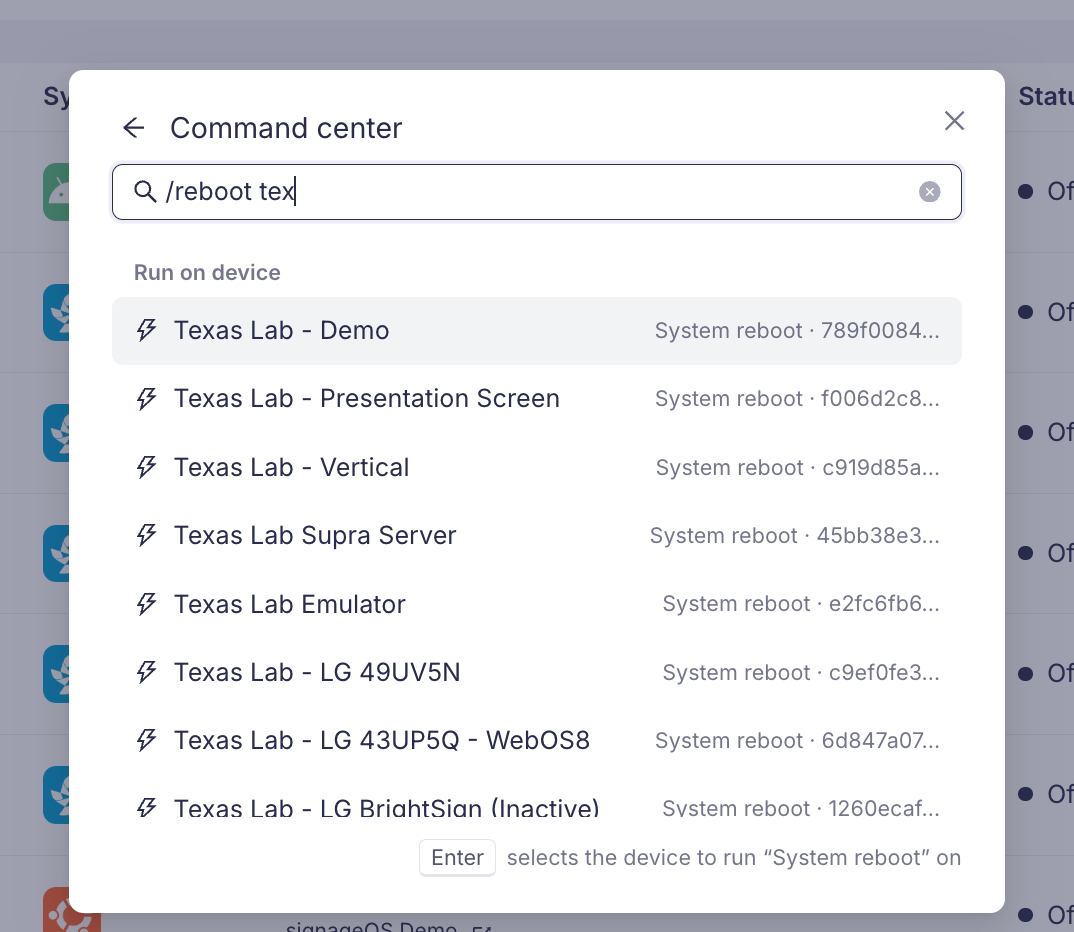
Power commands respect your permissions and the device's capabilities. If an action is not available for a device — because of your role, the device's platform, or its current state — the Command Center tells you before you can run it.
Before a power command runs, Box shows a confirmation row with the device it will act on. The result is reported once the device management API confirms it, so a success message always means the command was accepted. To pick a different device, click the back arrow or press Esc — the confirmation is cancelled and you return to the list of matching devices.
Related articles
- Favorites — pin the devices, locations, and views you return to every day.
- Box Overview — a tour of the Box interface.
- Bulk actions — run an action on many devices at once.