Multi Factor Authentication (MFA)
Multi Factor Authentication (MFA) protects your signageOS Account by requiring a second form of verification every time you sign in. In addition to your password, you must enter a one-time code generated by an authenticator app on your phone. This means that even if your password is compromised, unauthorized users cannot access your account without the code from your device.
mfa · Availability: 👑 Company feature (add-on)MFA is enabled for all Companies by default. Companies using Single Sign-On (SSO) are excluded, as MFA is managed by the SSO identity provider.
What You Need
Before setting up MFA, install a TOTP-compatible authenticator app on your mobile device. Any of the following will work:
- Google Authenticator — available on iOS and Android
- Microsoft Authenticator — available on iOS and Android
- 1Password — available on iOS and Android
- Authy — available on iOS and Android
Any other app that supports Time-based One-Time Passwords (TOTP) will work as well.
Setting Up MFA
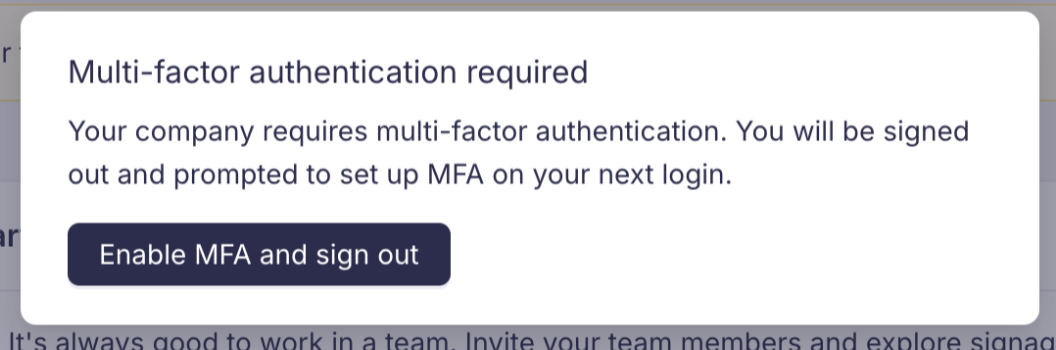
Step 1: MFA Required Notification
When your company has MFA enabled, you will see a notification after signing in informing you that multi-factor authentication is required. Click Enable MFA and sign out to begin the setup process.
Step 2: Scan the QR Code
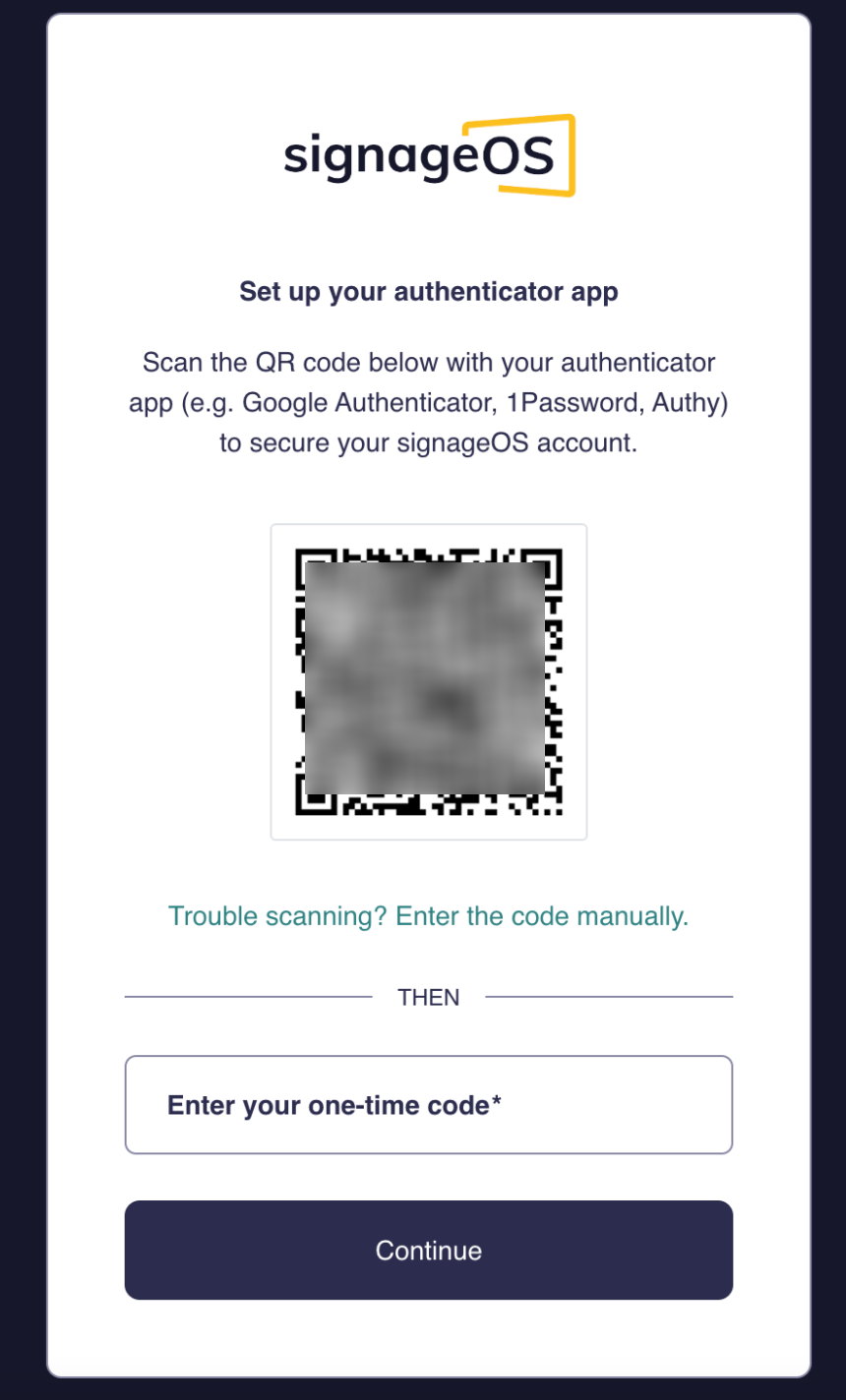
On your next login, the MFA setup screen will appear. Open your authenticator app and scan the QR code displayed on the screen. If you are unable to scan the QR code, click Trouble scanning? Enter the code manually to enter a text code instead.
Once the account appears in your authenticator app, enter the one-time code it generates into the input field and click Continue.
Step 3: Save Your Recovery Code
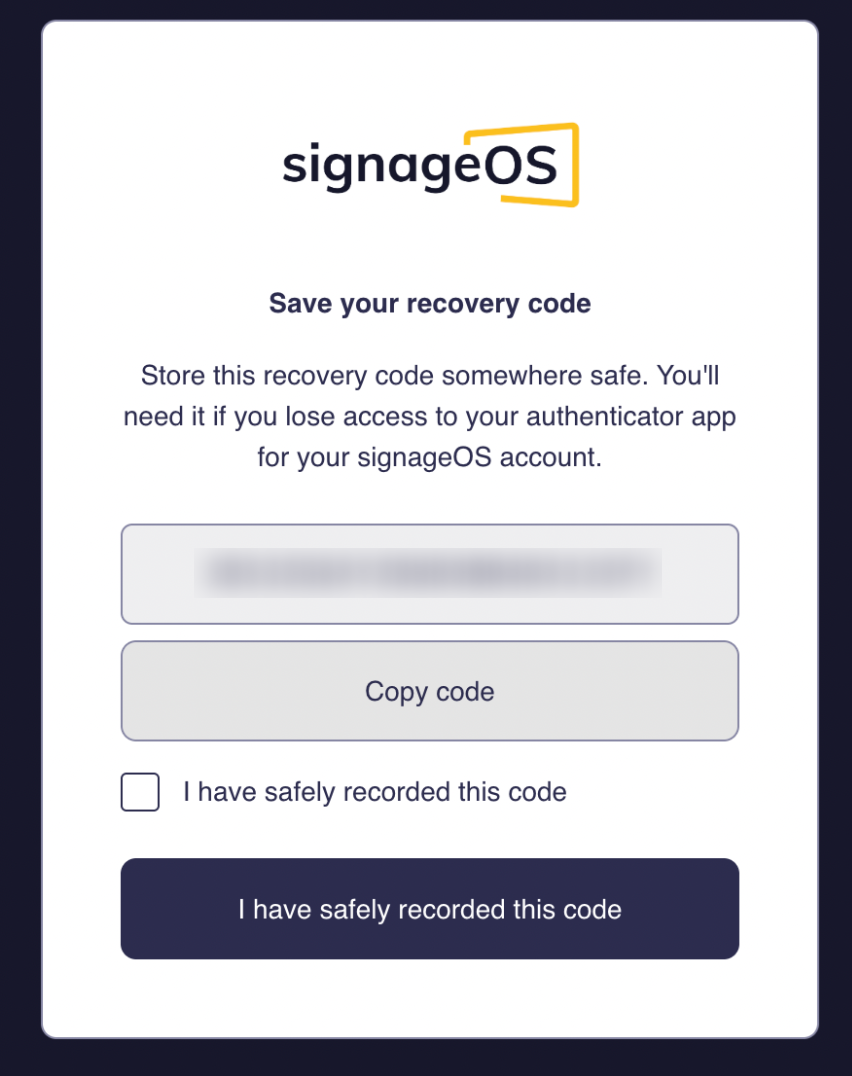
After successful verification, you will be presented with a backup recovery code. Click Copy code to copy it to your clipboard and store it in a safe place.
Check the "I have safely recorded this code" checkbox and click the confirmation button to complete the setup.
Saving Your Backup Recovery Code
Your backup recovery code is the only way to regain access to your account if you lose your authenticator device. Store it securely and do not skip this step.
We strongly recommend storing your recovery code in one of the following ways:
- Password manager — Save it as a secure note in 1Password, Bitwarden, or a similar tool
- Printed copy — Print the code and keep it in a secure physical location
- Encrypted file — Store it in an encrypted document on a separate device
Do not store the recovery code in plain text on the same device you use for authentication. The recovery code cannot be retrieved later from signageOS Box — if you lose it and your authenticator device, you will need to contact support to regain access.
Recovering Access
If you lose access to your authenticator app, you have two options:
- Use your backup recovery code — Enter the recovery code when prompted during login to regain access to your account.
- Contact the signageOS support team — If you have also lost your recovery code, reach out to the signageOS support team. They will verify your identity and help you reset MFA on your account.
Self-service MFA administration for Company Owners and Managers is planned for a future release. Until then, MFA resets must be handled by the signageOS support team.