eventStreams · Plan: 👑 Ultra Device PlanSet up Event Stream Distributor in Box
This guide walks through creating an exporter in Box, choosing which events it forwards, enabling it, monitoring delivery health, and deleting it. For the concepts behind ESD, see Introduction to Event Stream Distributor.
Prefer to automate this? The same setup is available over the REST API. See Set up Event Stream Distributor via REST API.
1. Open the organization
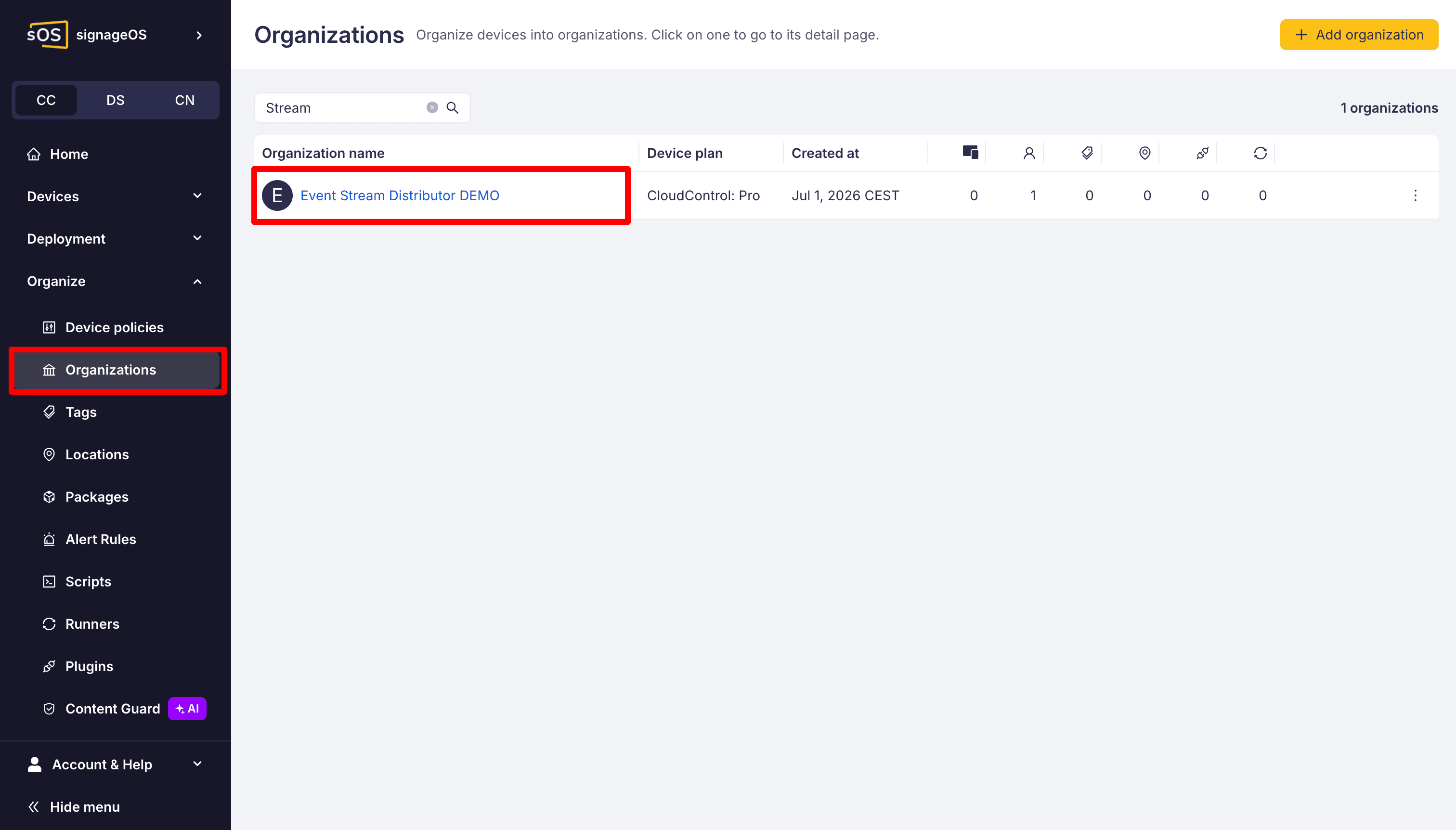
Select the organization you want to stream events from.
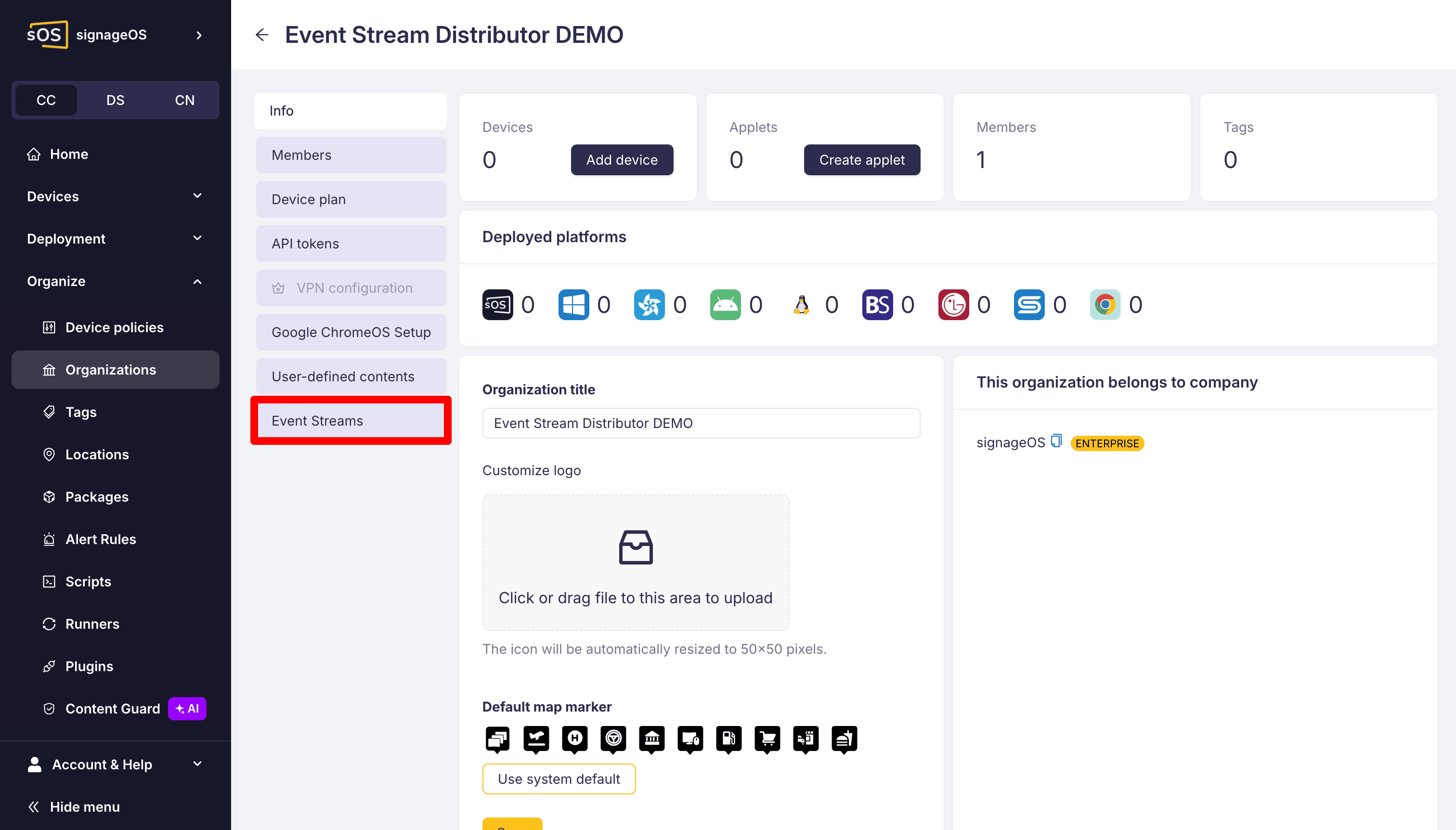
Open its detail and go to the Event Streams section.
2. Create an exporter
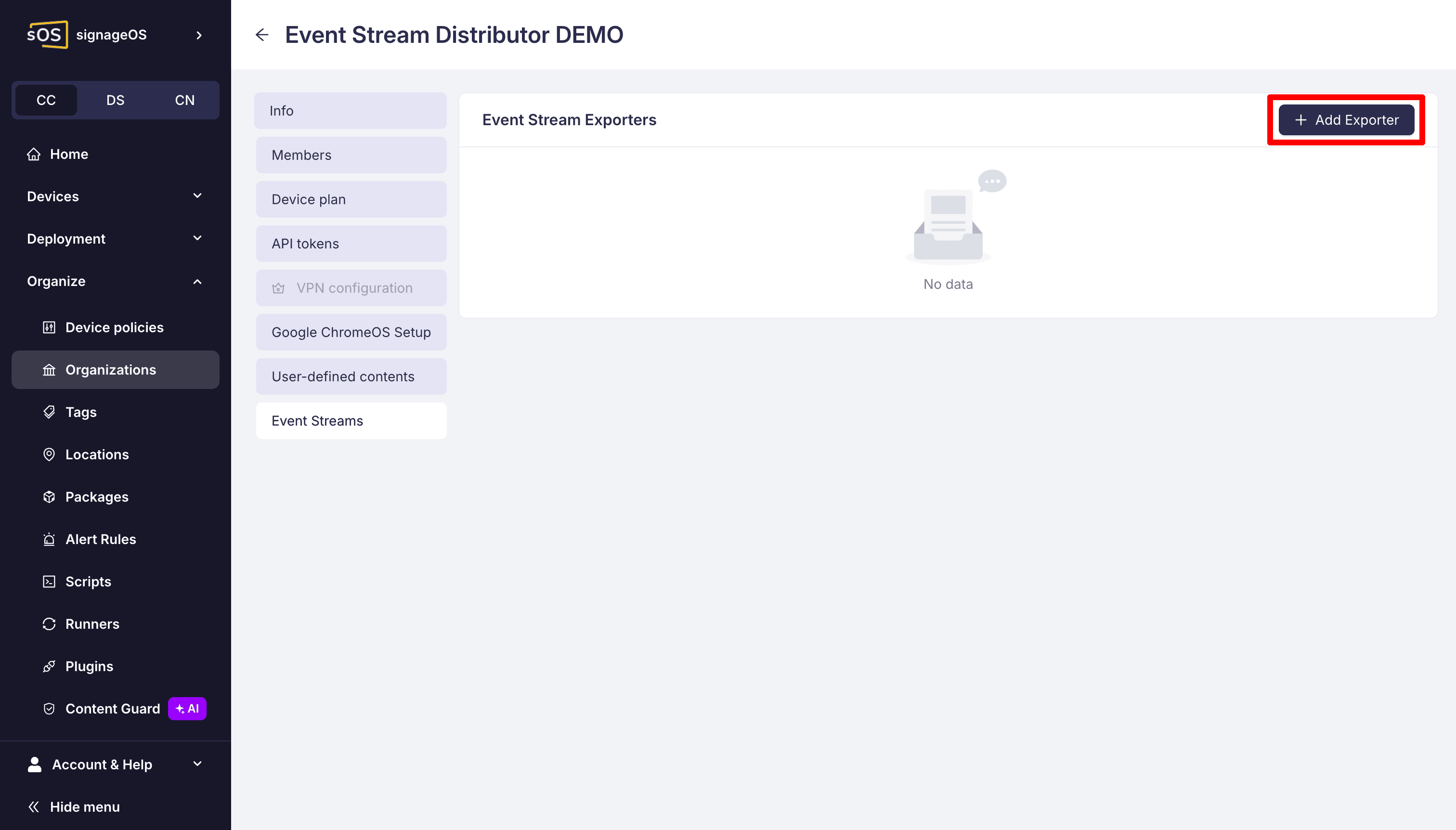
Click to add a new exporter.
Fill in the exporter details: a name, an optional description, the webhook URL that will receive the events (must be HTTPS), and a signing secret used to sign each delivery. The Format version selector picks the delivery envelope your endpoint receives — new exporters pre-select the newest version; see Format versions in the Event Stream overview for what each version contains.
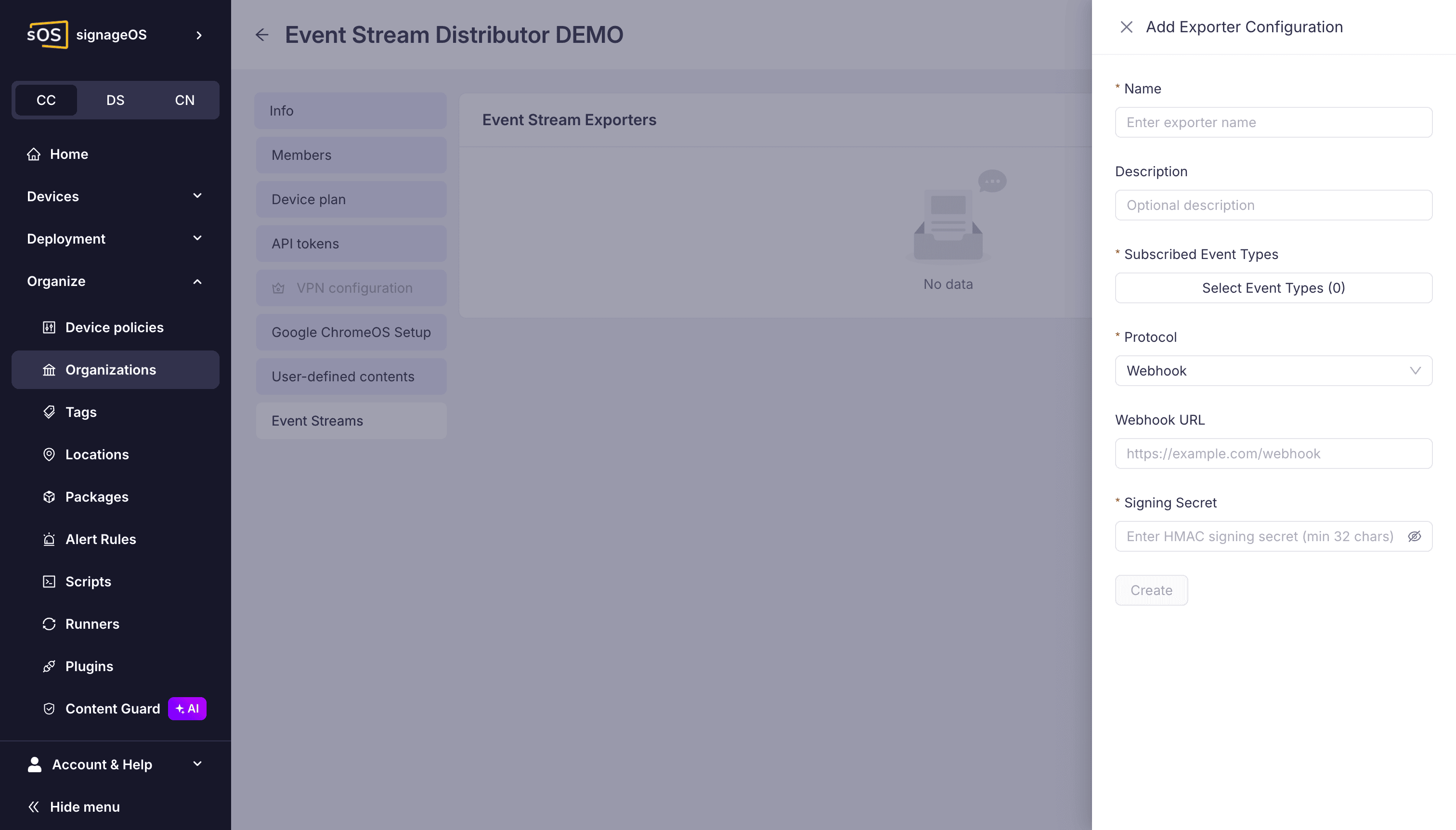
The signing secret must be at least 32 characters. Store it safely: you will need it to verify webhook signatures, and it is not shown again after the exporter is created.
3. Choose which events to send
Select the event types this exporter should forward. Only the selected types are delivered. See the Event catalogue for what each event contains.
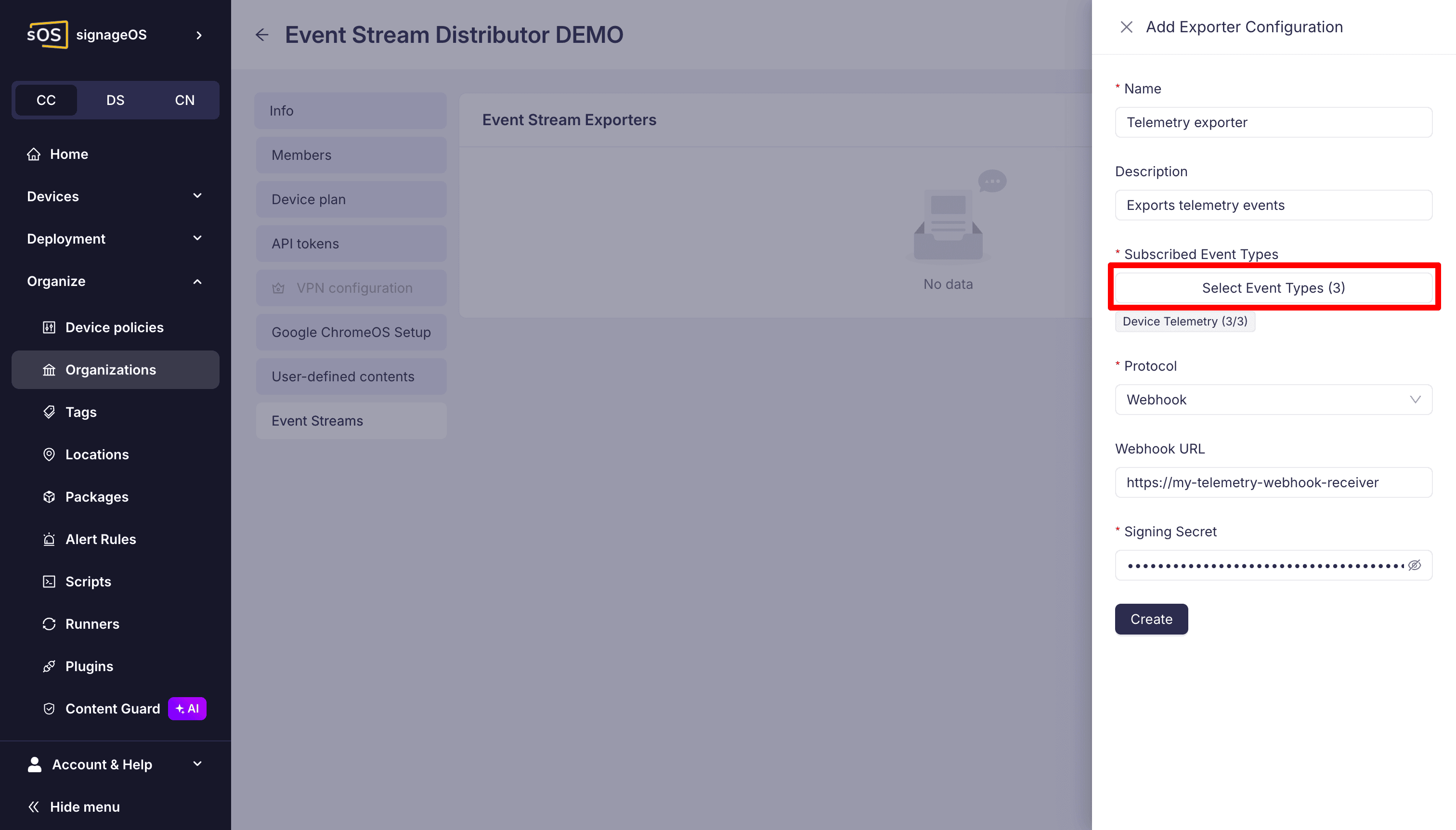
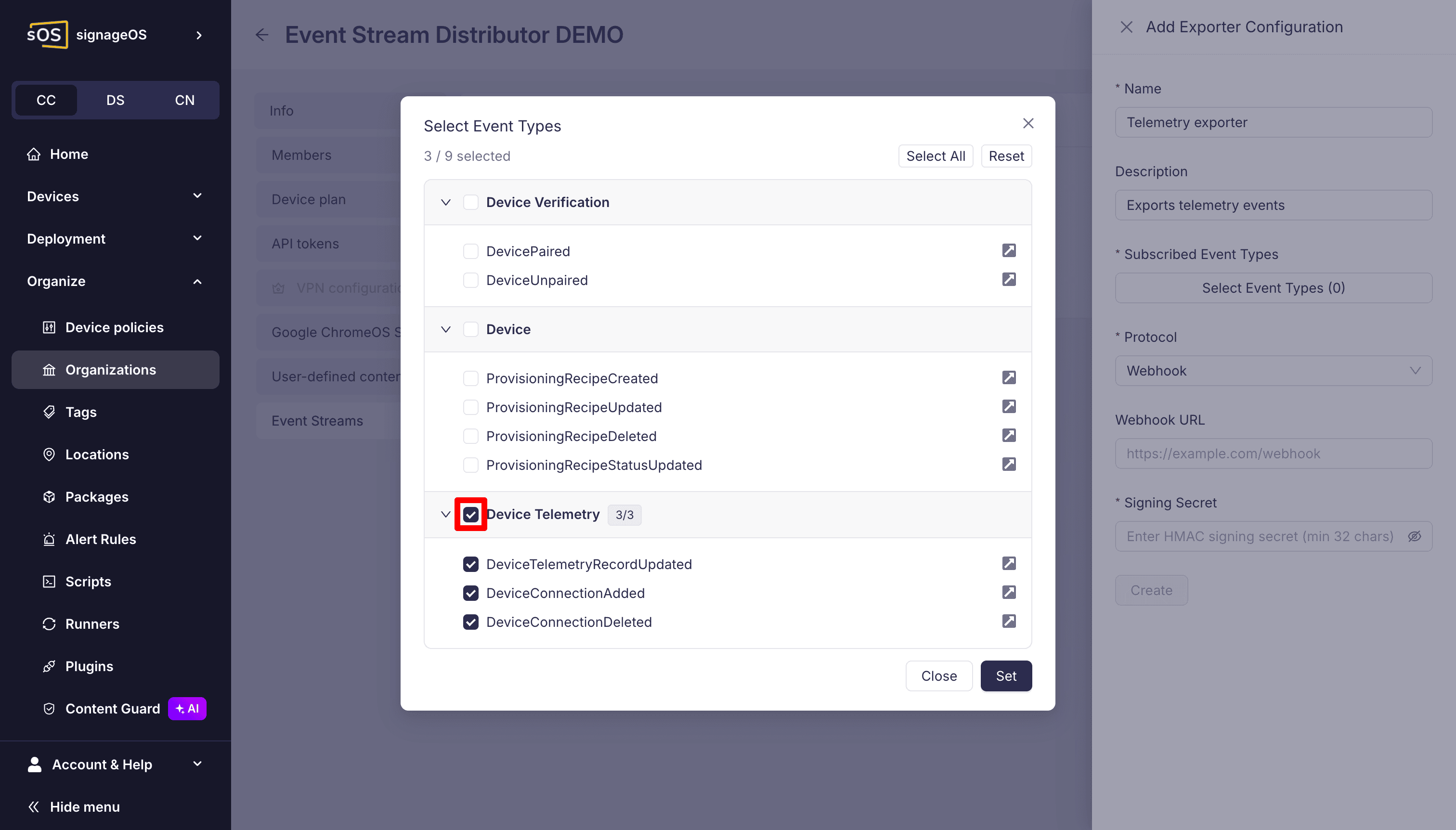
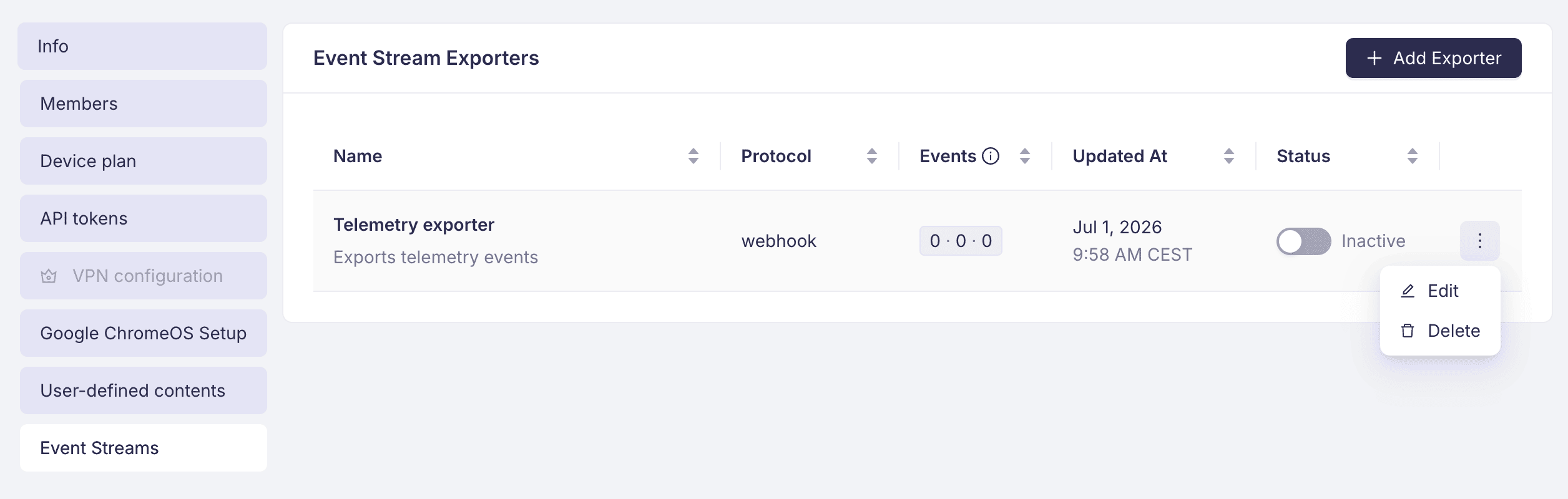
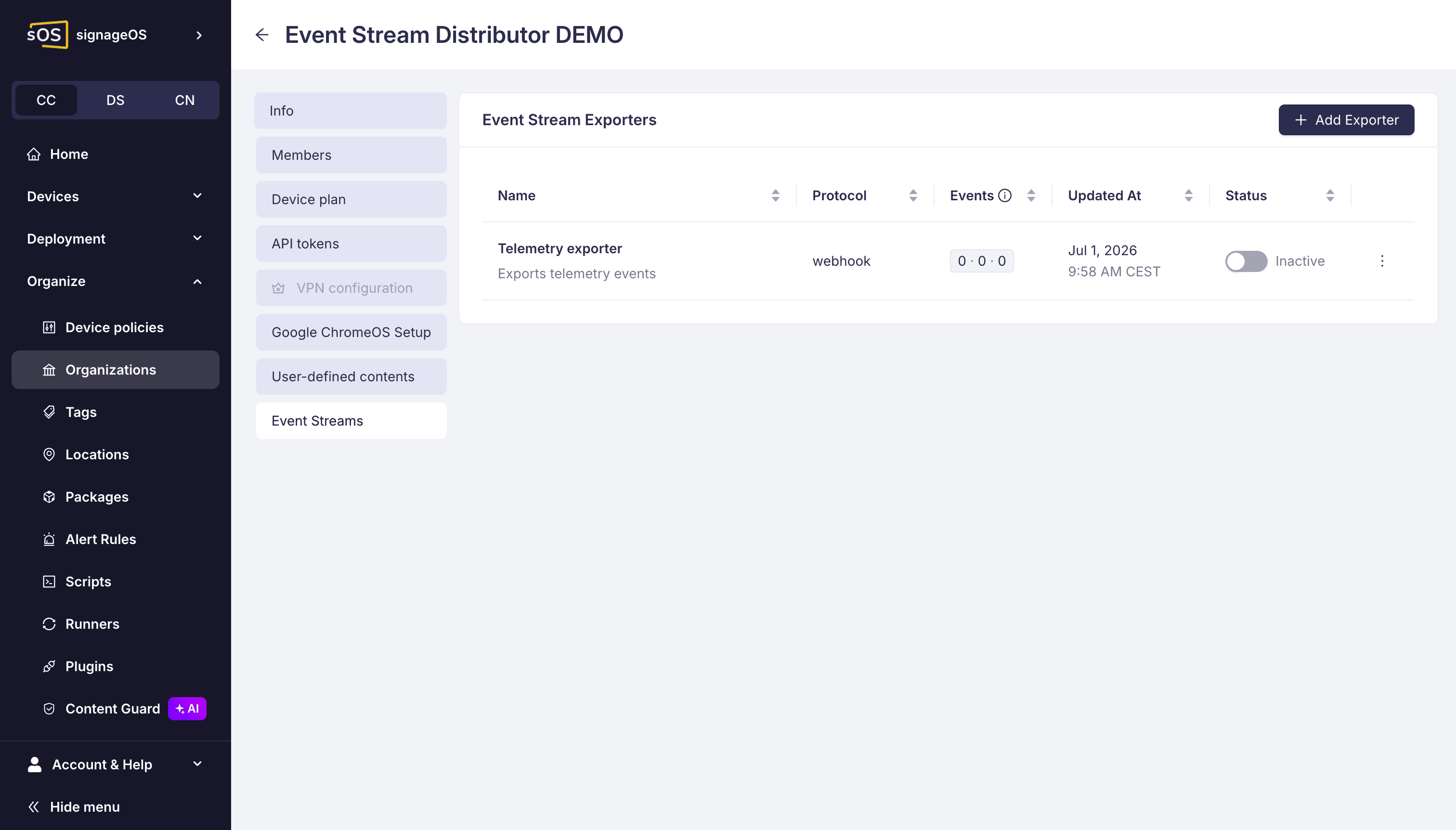
The exporter now appears in the list.
4. Enable the exporter
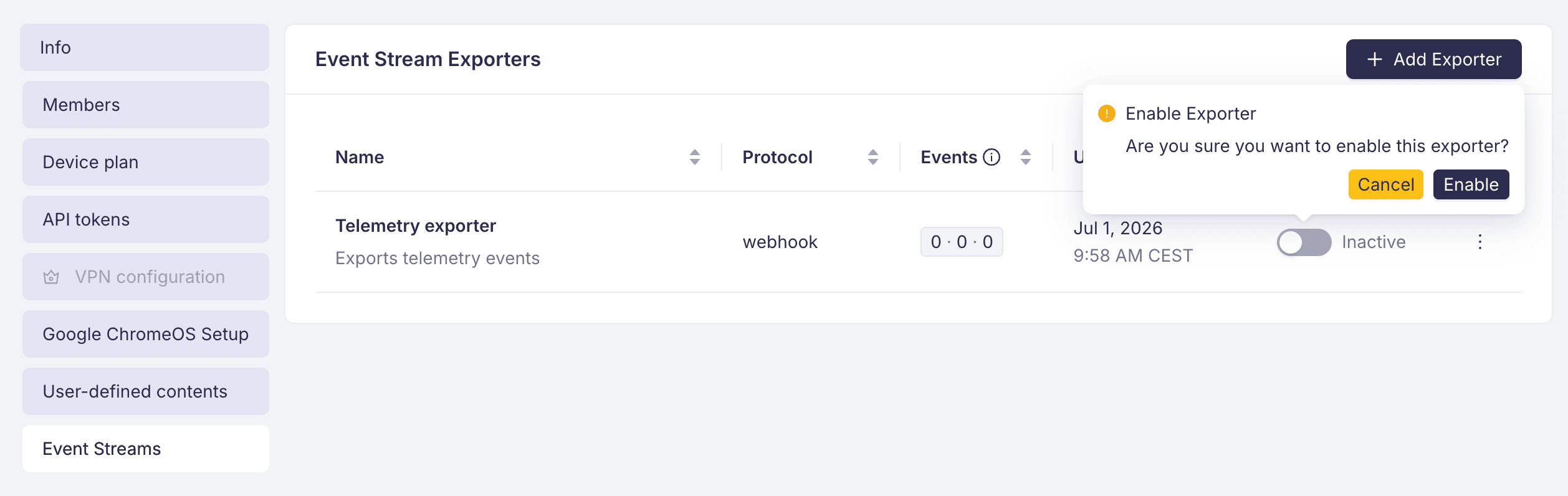
A new exporter starts disabled. Toggle it on to start delivering events.
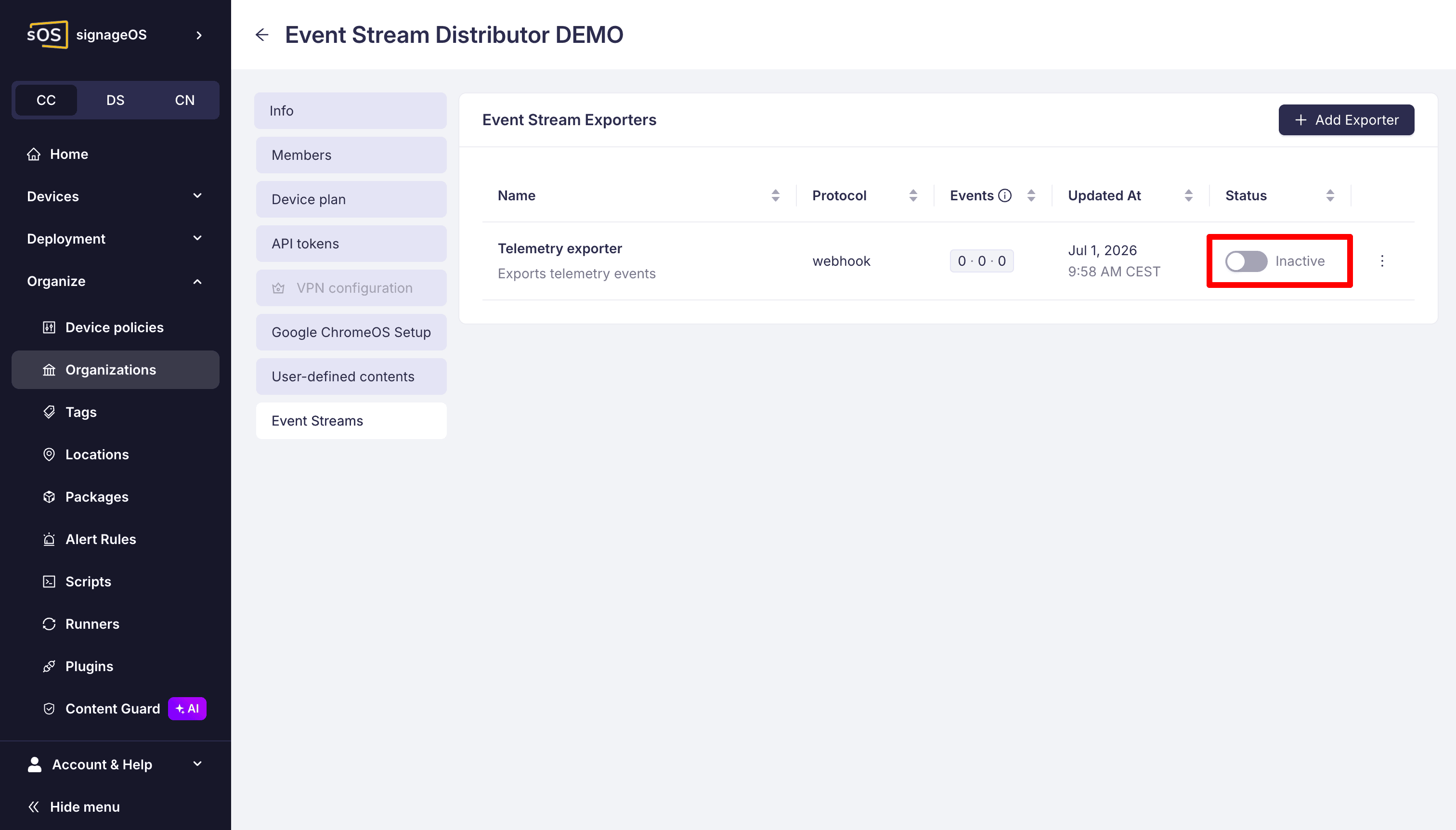
Confirm to activate.
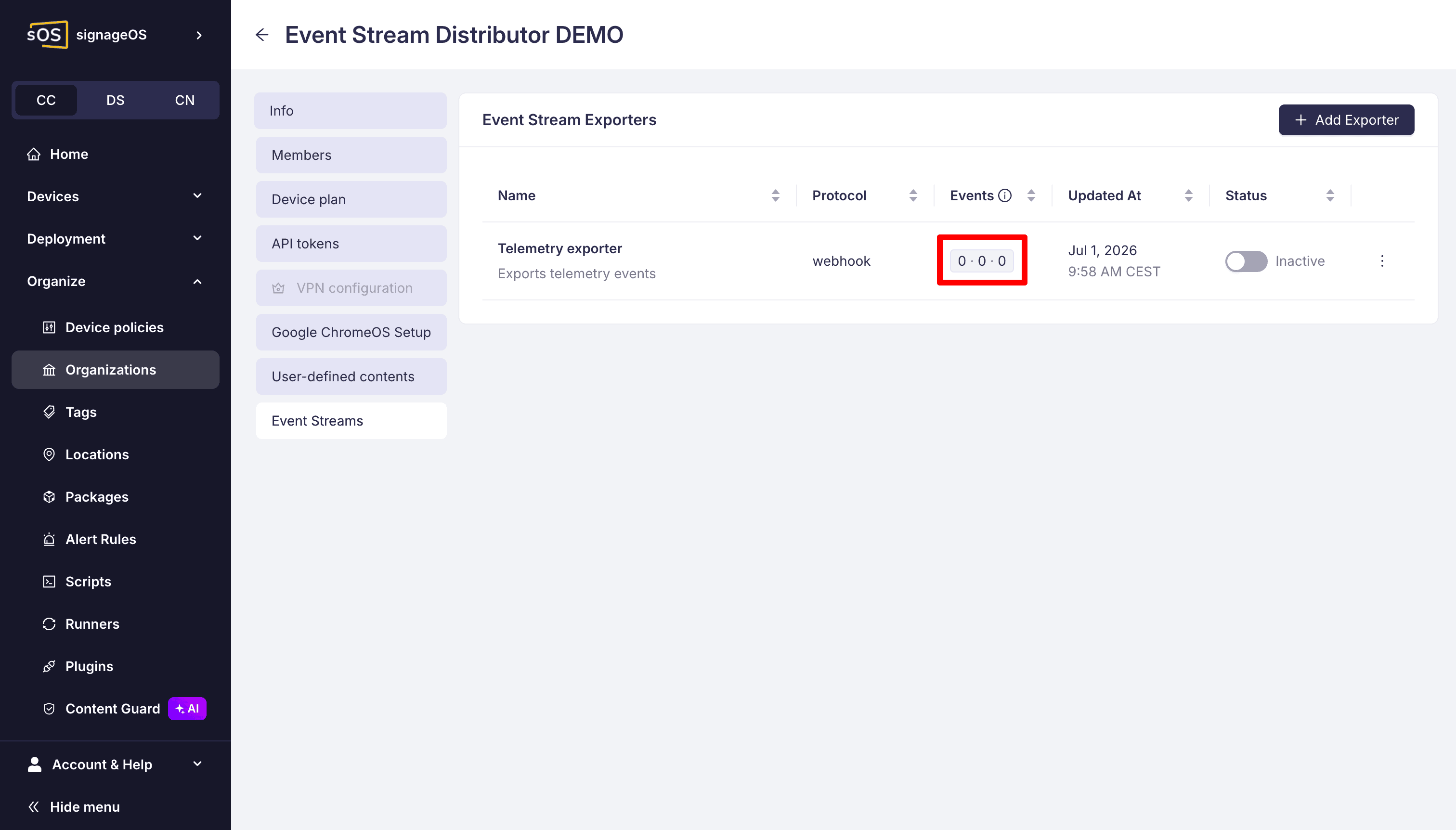
5. Monitor delivery
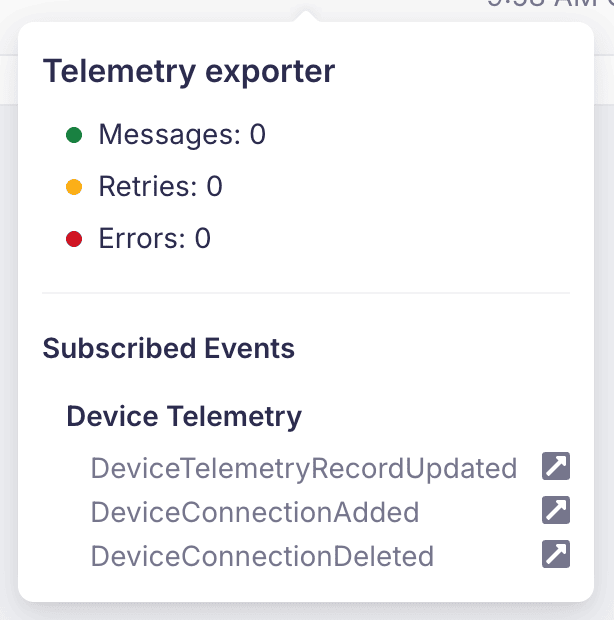
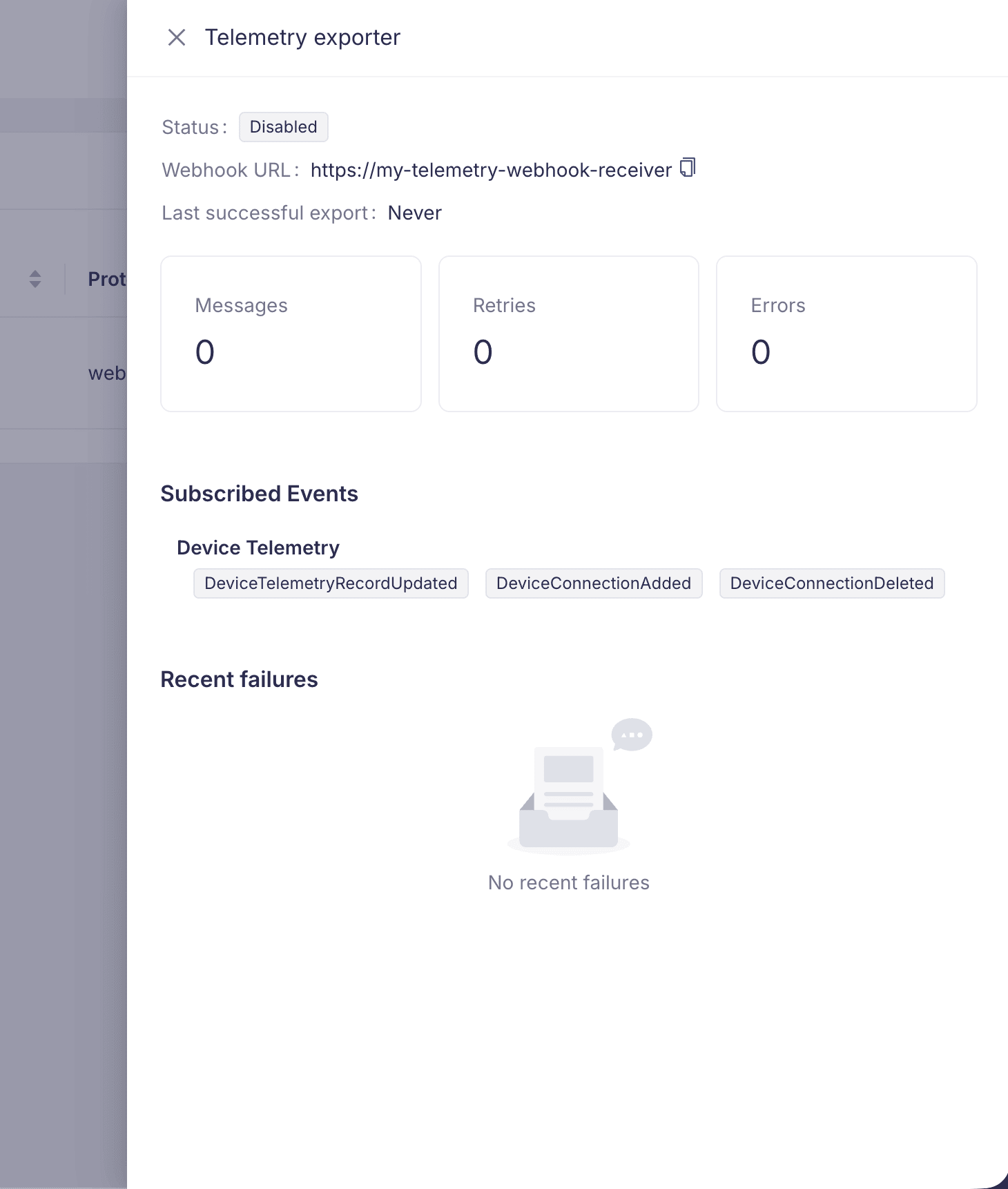
Each exporter shows delivery counters: messages delivered, retries, and errors.
Open an exporter to see its delivery detail, including the subscribed events and the last successful delivery time.
Recent failures are listed with the event, the number of attempts, and the last error, so you can see why a delivery did not succeed.
6. Delete the exporter
When you no longer need an exporter, delete it from its row actions.